
Company Information
Package: BASIC
1. General
In brainX, multiple companies/firms – so-called Organizations – can be created and managed.
After opening the settings item “Company information”, the configured companies (Organizations) are displayed in a tile view.
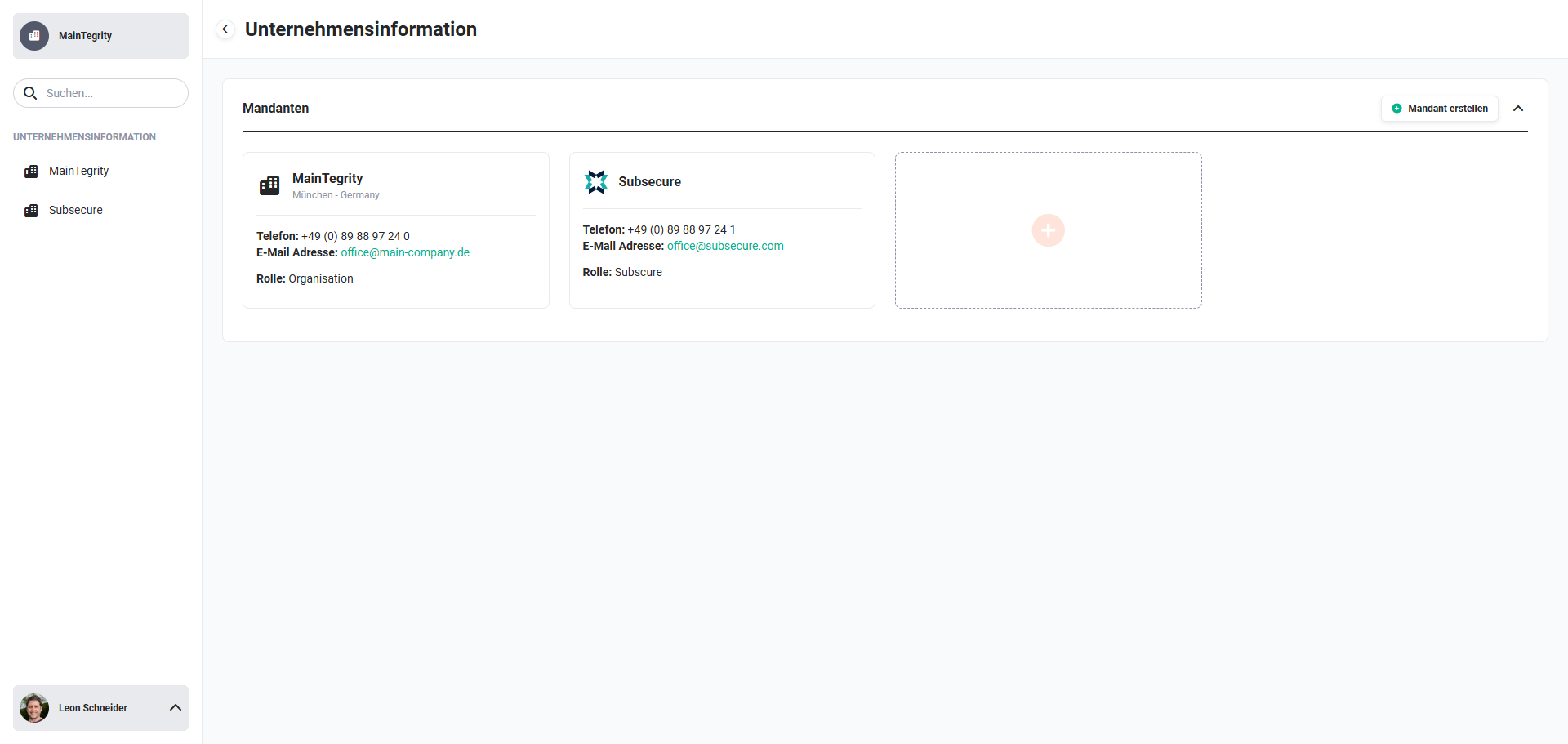 Global settings - Company information
When an Organization is opened/edited, the following settings items are available per Organization:
- Information → basic configuration with the settings items:
- Basic information
- Address
- Bank details
- Files (logos)
- Terms and conditions
- General settings → general settings with the settings items:
- Geodata determination → settings for geodata with Google Maps
- Billing settings → Billing settings with the settings items:
- Default values for tax selection) → configuration of default values for tax selection and the tax rates on Products/Services
- General ledger accounts) → configuration of general ledger accounts
- Email settings → Email settings with the settings items:
- Digital assistant → ChatGPT configuration
- Record numbers → configuration of the active number ranges
- SalesViewer → configuration of the SalesViewer integration
- snapADDY → configuration of the SnappADDY integration
- Digital signature → configuration of the Digital signature integration (DocuSign and DocuSeal)
- DATEV Rechnungsdatenservice 1.0 → configuration of the DATEV Rechnungsdatenservice 1.0 integration
- DATEV Buchungsdatenservice → configuration of the DATEV Buchungsdatenservice integration
- ZUGFeRD → configuration of the ZUGFeRD integration (XRechnung)
- Time tracking → configuration of the Time tracking integration (Clockodo)
- Payment processing → configuration of the Payment processing integration (Mollie)
- Jira Service Management → configuration of the Jira Service Management integration (IT and service management tool from Atlassian)
- Jira → configuration of the Jira integration (project management and tracking tool from Atlassian)
For integrations that require authentication, the currently authenticated account/user is displayed when opening the integration. This makes it possible to see at any time which account an integration is connected to on the Organization side.
2. Organizations
The basic data of the company (e.g. company name, address, telephone number, email address, bank details, terms and conditions as well as Billing and Email settings) are configured in a so-called "Organization".
The brainX system is fully multi-tenant capable!
In the settings item “Company information”, multiple Organizations can be created and managed.
Multi-tenant capability offers several advantages, particularly for companies that manage several business areas, subsidiaries or customers with different requirements. Here are some of the most important advantages:
- Data isolation: Multi-tenant capability makes it possible to isolate data for different customers or business areas. Each Organization has access to its own data, which increases data security and reduces the risk of data leaks.
- Cost efficiency: By using a single CRM platform for multiple Organizations, companies can save costs, as they do not have to purchase and maintain separate systems for each unit.
- Central management: Companies can manage all Organizations centrally, which simplifies the administration and maintenance of the system. Updates and changes can be carried out centrally without having to edit each instance separately.
- Adaptability: Multi-tenant CRM systems often offer the option of making specific adjustments for each Organization, e.g. different user interfaces, functions or workflows that meet individual needs.
- Scalability: Companies can easily add new Organizations without having to rebuild the entire infrastructure. This is particularly advantageous for growing companies or those acquiring new subsidiaries or customers.
- Reporting and analysis: Multi-tenant systems make it possible to create comprehensive reports and analyses at Organization level. Companies can monitor and evaluate the performance of each Organization separately.
- Flexibility: Multi-tenant capability offers flexibility in the use of the system, as different Organizations may have different requirements and processes. This enables a tailored use of the CRM system.
- User management: The management of users and permissions can be carried out at Organization level, which enables targeted control over who can access which data and functions.
Overall, multi-tenant capability helps to increase the efficiency, security and adaptability of a CRM system, particularly in complex company structures.
2.1. Creating an Organization
To create a new Organization, you can either click on the tile with the plus icon or on the “Create Organization” button.
The creation view is loaded, in which all basic information can be entered. The description of the fields is available in the Information section.
After entering all relevant information, the new Organization can now be created using the “Save” button.
The new Organization can be saved as soon as the mandatory fields “Organization” and “Role” have been filled in.
All further settings (General settings, Billing settings, Email settings and Record numbers) are made by editing the Organization again.
2.2. Editing an Organization
On mouseover of an Organization, the action icon “Edit” (icon “pen”) is displayed in the top right corner of the tile.
After clicking the action icon “Edit”, the Organization is opened and the corresponding settings can now be made for this Organization.
2.3. Deleting Organizations
Once a company has been created, it can no longer be deleted!
The reason for this is the different number ranges per company. If a company/Organization is no longer needed, the record remains in the company information as history.
2.4. Organization rights management
If two or more Organizations are created in brainX, configuring rights management (Roles and Profiles) is a very important point in order to define access to modules and records.
The following requirements must be met in order to fully use the multi-tenant capability:
- The Roles must be structured in such a way that an Organization can be defined via a role (and its subroles).
- To achieve a consistent data separation between individual companies, all modules should be set to “private” in Global settings - Global rights assignment.
Structuring the role tree for Organization separation
For data separation between Organizations to work reliably, the role tree must already be structured accordingly during setup:
- A separate top-level role is created for each Organization (e.g. "Organization A", "Organization B"). These roles must not have a common parent role – a parent role automatically sees all records of its child roles, so a common parent role would cancel out the Organization separation again.
- All Organization-internal roles (e.g. sales, support, accounting) are created as subroles below the respective Organization role.
- Since roles on the same level do not display records to each other, the Organization areas are thereby automatically isolated from one another, as long as no additional, custom visibility rules are created.
Organization A
├─ Sales A
├─ Support A
└─ Accounting A
Organization B
├─ Sales B
└─ Support B
How roles are created in detail and positioned in the role tree via drag & drop is described on the Roles page.
If a record is opened for which permissions only exist in a specific Organization, it is possible to switch directly to that Organization.
2.5. User - Switching Organization
If a user is assigned to multiple Organizations due to the rights settings (role assignment), the user can switch between Organizations without having to log out/in.
In the navigation bar, next to the company name, is the action icon “Switch Organization” (icon “two arrows”).
After clicking the action icon “Switch Organization”, a flyout menu opens in which an Organization can be selected.
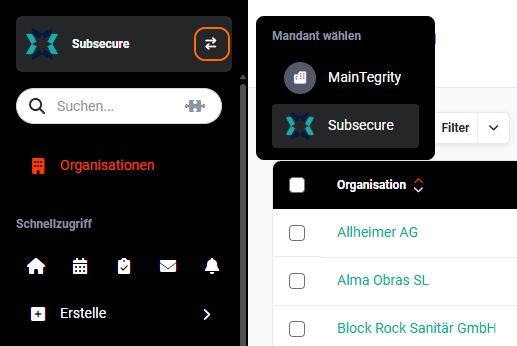 Navigation bar - Select Organization
After clicking an Organization, all settings and permissions of the selected Organization are loaded for the user.