
User Menu
Package: BASIC
1. Opening the user menu
To open the user menu, move the mouse pointer over your username at the bottom left. A flyout menu opens with the following items:
- My Settings → Open the user settings
- Global Settings → Open the Global Settings (only available with the corresponding administrative permission)
- Update Information → Display of the “Update Information” popup with all changes/new features (selectable for all brainX release versions)
- Licence Terms → Display of the “Licence Terms” popup (all licence details can be opened via the “Licence Details” button)
- Help → Open the brainX handbook
- Digital Assistant
- brainX Support → AI support chatbot which uses the brainX handbook as its information source
- Digital Assistant → general ChatGPT integration (in brainX CRM only available if one of the add-on packages Sales, Marketing or Service has been booked)
- Log out → Log the user out of brainX
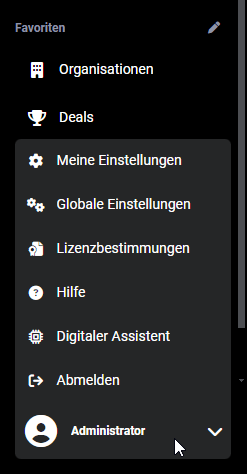 User menu
Detailed information on the individual items can be found in the respective linked sections of the handbook.
2. My Settings
In "My Settings" every user can make individual settings for their user account. In addition to the user's personal information, settings for general user settings and integrations can also be saved.
Detailed information on the user settings can be found in the section My Settings in the handbook.
3. Global Settings
The “Global Settings” item is only available if a user is “Admin”, “CustomerAdmin” or “Superuser” in the permission management.
For further information on the permission settings, see Global Settings - Users and Permissions - Permission management.
In the Global Settings, all administrative settings for the brainX system are made.
Detailed information on all setting items can be found in the section Global Settings.
4. Update Information
After clicking the “Update Information” item, a popup opens in which the update information can be viewed.
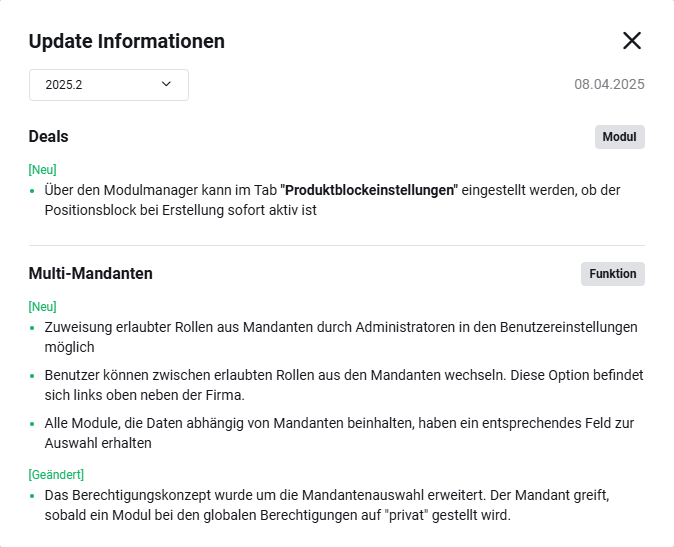 Update Information popup
The most recent update information is displayed by default; older update information can be selected via the picklist at the top left.
5. Licence Terms
After clicking the “Licence Terms” item, a popup of the same name opens with basic information on the licence terms of brainX.
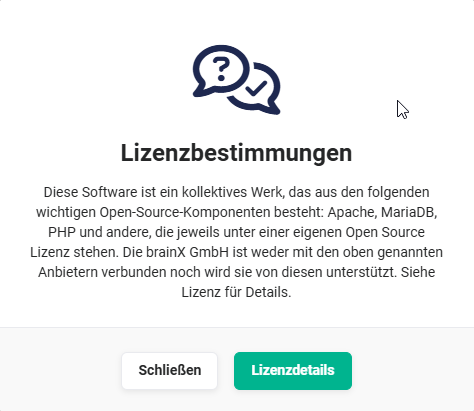 Licence Terms popup
After clicking the “Licence Details” button, a popup of the same name opens with all details on the licences, which are divided into the areas “Third-party”, “PHP” and “JavaScript”.
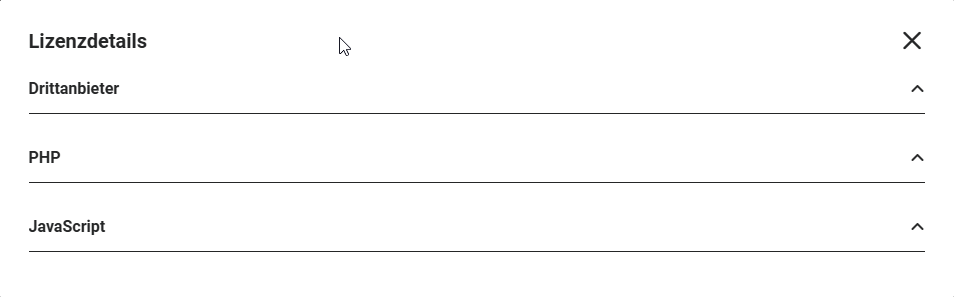 Licence Details popup
By clicking the “upward-pointing arrow” icon, the respective area is expanded to view the details.
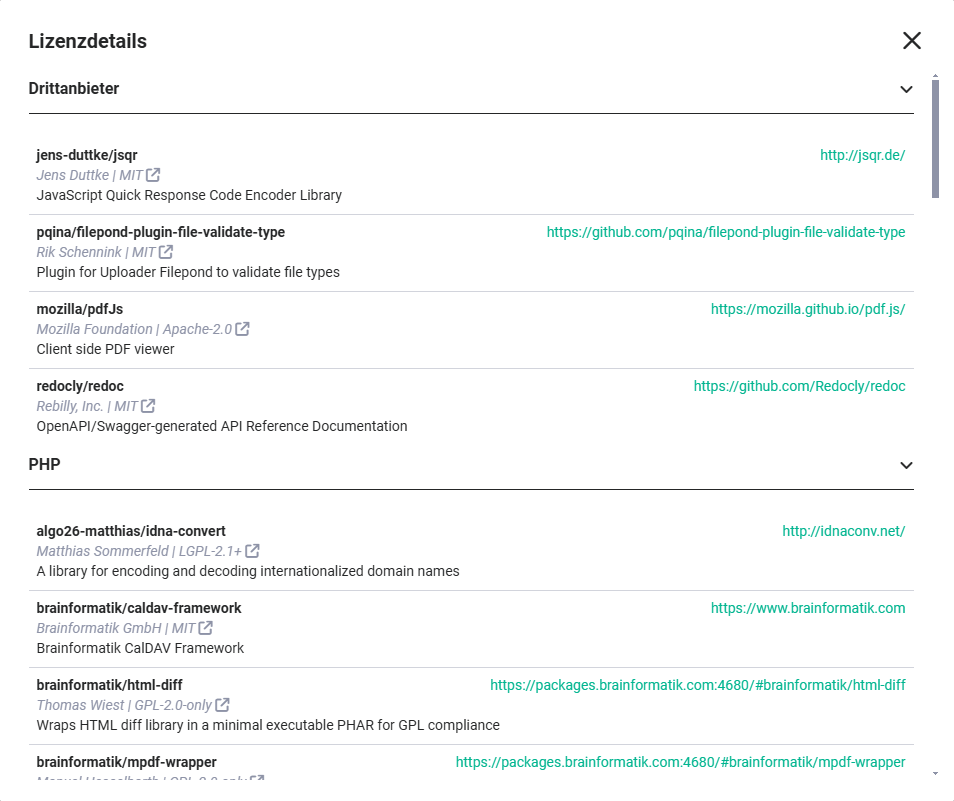 Licence Details popup - area expanded
6. Help
After clicking the “Help” item, the brainX handbook opens in a new browser tab.
7. Digital Assistant
The Digital Assistant is the integration of ChatGPT into brainX.
ChatGPT is a chatbot that uses artificial intelligence to communicate with users via text-based messages. It uses modern machine learning technology to generate responses that sound natural and are intended to be relevant to the conversation. The chatbot was developed by the US company OpenAI, based in California, which released it in November 2022.
When a user uses the Digital Assistant for the first time, the “Data Protection” popup is displayed.
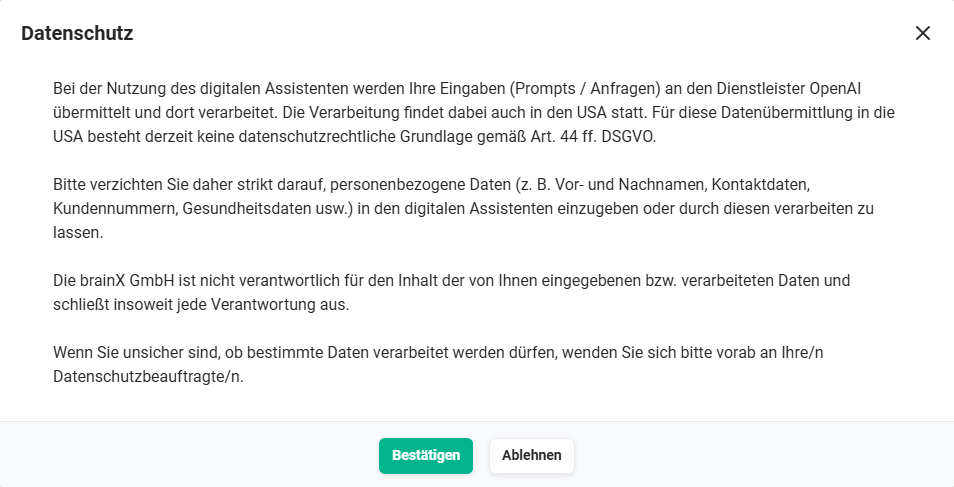 Digital Assistant - data protection notice
Only after clicking the “Confirm” button can the Digital Assistant be used. The data protection notice can be viewed again at any time in the “Digital Assistant” popup by clicking the “Data Protection” action icon (“shield” icon), and consent can also be revoked (“Decline” button). The confirmation or declining of the data protection notice is saved individually for each user in the system.
After clicking the “Digital Assistant” item, a popup of the same name opens. In the popup, the “brainX Support” feature and - if configured - the “Digital Assistant” feature are available.
- brainX Support → AI support chatbot which uses the brainX handbook as its information source
- Digital Assistant → general ChatGPT integration
7.1. brainX Support
The “Digital Assistant - brainX Support” is an integral part of the brainX system.
The permission to use it can be configured in the profiles.
The "brainX Support" uses the brainX handbook as its information source and provides corresponding answers to specific questions, usually even including a link to the relevant sections in the handbook.
After clicking the “Digital Assistant” action in the user menu, the popup of the same name opens:
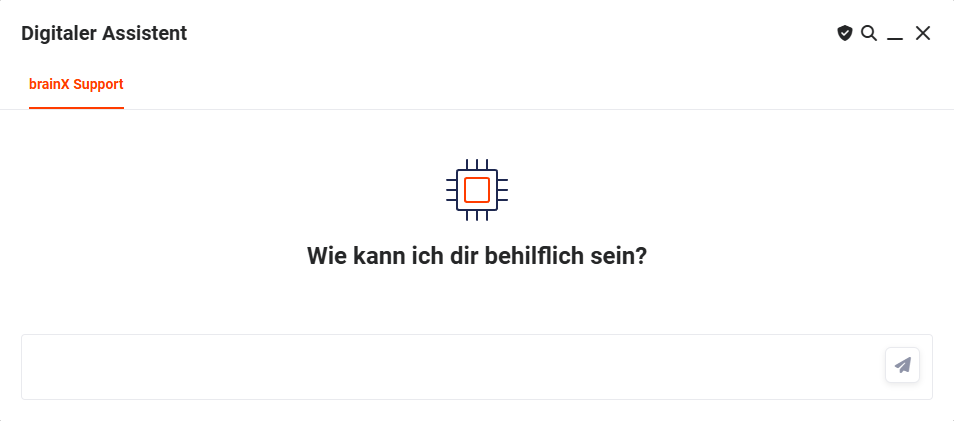 Digital Assistant popup - brainX Support
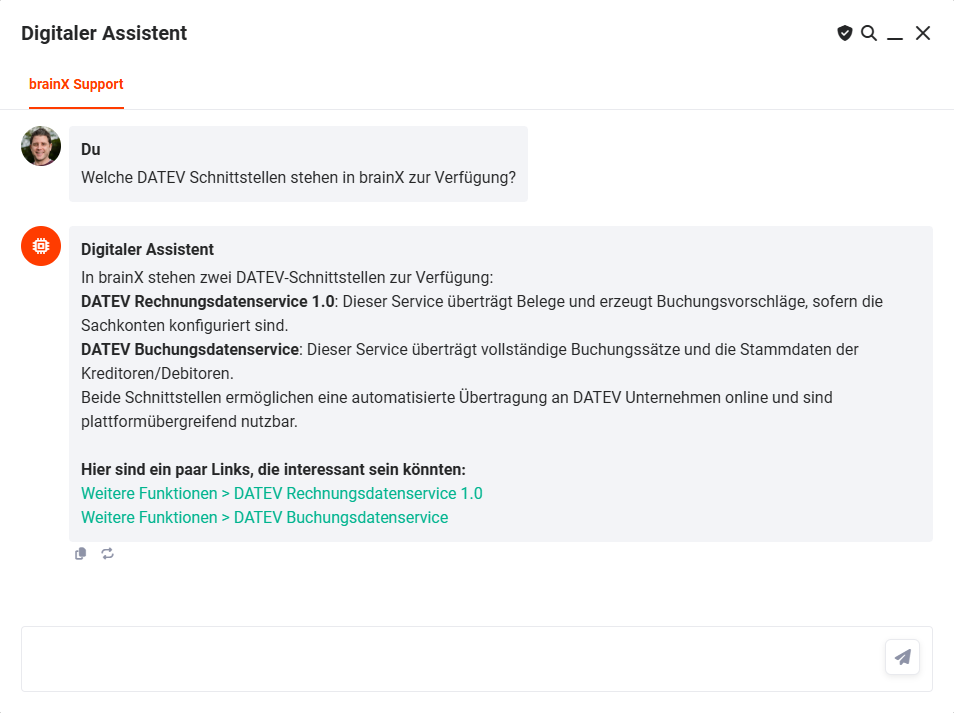
All questions asked to the “brainX Support” are saved in a “Chat History”, which is displayed sorted chronologically in the “Chat History” area.
Frequently used questions can be asked again by clicking the entry in the chat history.
On mouseover of an entry, the “Delete” action icon (“bin” icon) is shown, which can be used to delete an entry from the chat history.
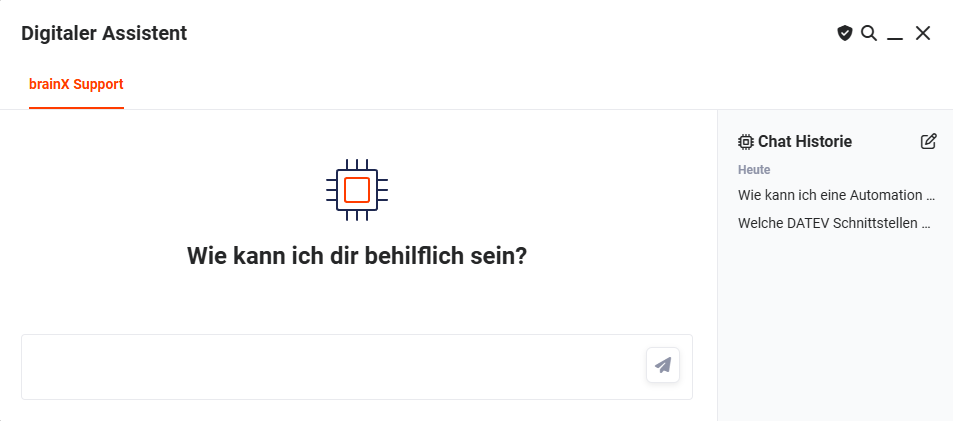 Digital Assistant - brainX Support - Chat History
The following action icons are available in the “Digital Assistant” popup:
- Search (“magnifier” icon) → After clicking the “Search” action icon, an input field opens in which words/text can be entered to search for these within the questions previously asked and the answers received from the Digital Assistant. The hits are highlighted accordingly.
- Minimise (“underscore” icon) → After clicking the “Minimise” action icon, the “Digital Assistant” popup window is minimised and displayed as an icon at the bottom right in brainX.
- Close (“X” icon) → After clicking the “Close” action icon, the “Digital Assistant” popup window is closed. The previous history of questions and answers is deleted.
- Send (“paper plane” icon) → After clicking the “Send” action icon, the entered question is sent to the Digital Assistant, respectively ChatGPT. After a short processing time, the answer is then displayed.
7.2. Digital Assistant
The general ChatGPT integration “Digital Assistant” must be activated/configured in Company Information - Digital Assistant before use!
If the general ChatGPT integration “Digital Assistant” has been activated, the “Digital Assistant” popup appears as follows:
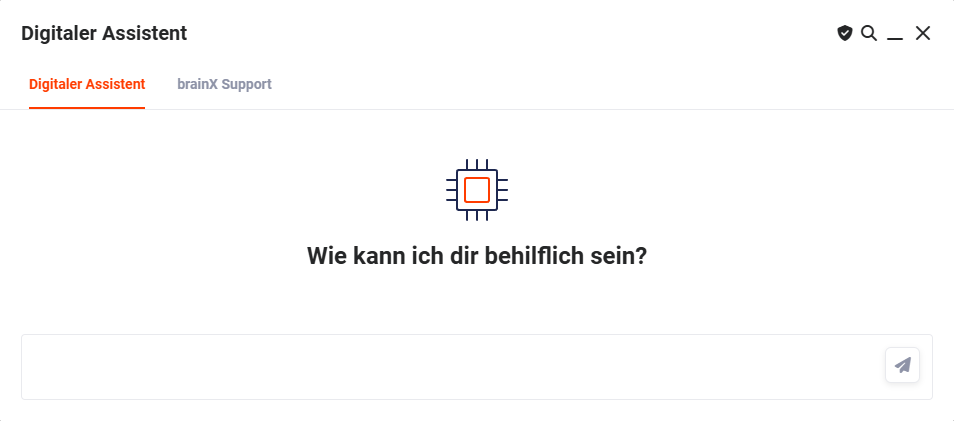 Digital Assistant popup
Two tabs are available in the popup:
- Digital Assistant → general ChatGPT integration
- brainX Support → ChatGPT integration which uses the brainX handbook as its information source
Detailed information on the activation, configuration and use of the Digital Assistant can be found in the section Digital Assistant.
8. Log out
The user is logged out of the brainX system. The brainX login page is displayed.
Users should always log out of a browser application - which brainX also is - to prevent unauthorised access to personal data and accounts, especially on public or shared computers.
Logging out ends a session and deletes cookies, which prevents potential attackers from hijacking the session and misusing your own data.