
Standard Actions
Package: BASIC
1. General
In all modules, various actions are available - depending on the module.
At the top right of a detail view is the “Actions” button (“three dots” icon), which can be used to perform actions.
Clicking on the actions icon “Actions” (“three dots” icon) opens a pop-up menu displaying all actions available for that module:
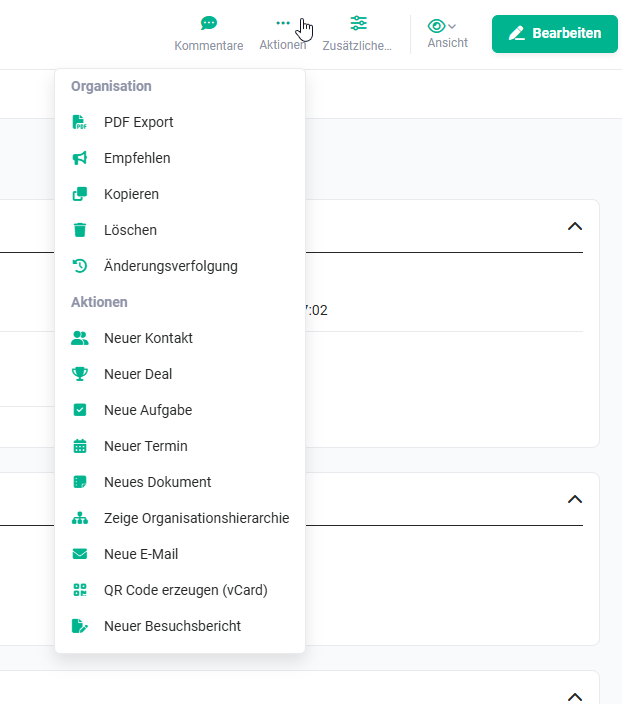 Actions - pop-up menu
Which actions are available to a user can be configured via the settings in the Profiles.
Actions for which a user has no permission are not displayed to that user.
If an action is executed from a record that creates a new, linked record (e.g. “Create appointment”), an overlay for quickly creating the record opens. The exception is Billing modules (e.g. Invoices, Sales Orders): due to the product block, the full creation view is opened here instead.
2. Actions general
In brainX, the detail view of modules contains actions that are present in most modules.
Overview of all general actions available in brainX:
| Action | Functionality |
|---|---|
| PDF Export | A PDF file is generated for the record, based on a template selectable from the Templates module. The function is described in detail in the section PDF Export. |
| Recommend | A recommendation is sent by email for the record to other users. The function is described in detail in the section Recommend |
| Copy | The record is copied with all field values. The function is described in detail in the section Copy. |
| Delete | The record is deleted and moved to the Recycle Bin module. The function is described in detail in the section Delete. |
| Change tracking | Opens change tracking, which displays all changes to the record. The function is described in detail in the section Change tracking. |
2.1. Functionalities of the general actions
Which general actions are available in which modules is described in the respective sections of the [Modules]().
2.1.1. PDF Export
For a PDF export to be executed, the background task “PDF Export“ must have the status “active“.
A PDF file can be generated for the record - based on a selectable template from the Templates module.
After clicking the action “PDF Export”, the pop-up window “PDF Export” opens.
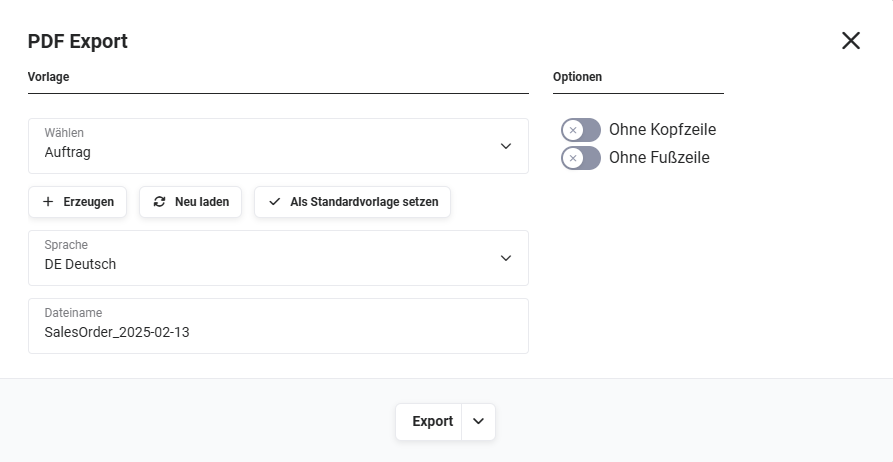 Pop-up “PDF Export"
The pop-up window is divided into the areas “Template” and “Options”.
Template
The following fields/functionalities are available:
-
Select → picklist of the PDF templates available for the module
If no PDF templates yet exist for a module, a corresponding note is displayed.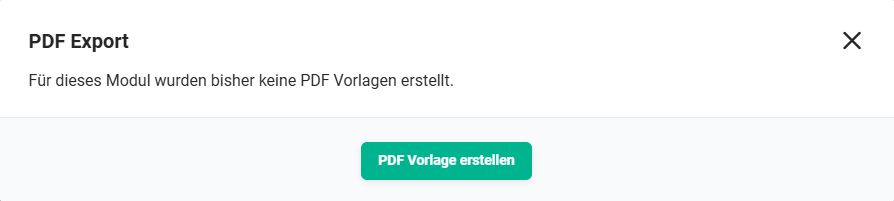
-
Button “Create” → the creation view of a new PDF template is opened in the Templates module
-
Button “Reload” → the selected template is reloaded
-
Button “Set as default template” → the selected template is set as the default template
-
Language → picklist of the language used
-
File name → file name(s) of the generated PDF file, can also be changed manually
Options
The following fields/functionalities are available:
- Without header → toggle to set whether the PDF file should be exported with/without a header
- Without footer → toggle to set whether the PDF file should be exported with/without a footer
In the next step, the export type is defined. After clicking the “Export” button, a flyout menu opens with the actions for the export type:
- Standard → normal export, the PDF file is generated and located in the browser's download folder without a reference to the record
- Export with reference → the PDF file is generated and located in the browser's download folder incl. reference of the PDF file to the record
- Export as reference → the PDF file is generated, is not located in the browser's download folder, incl. reference of the PDF file to the record
If the generated PDF file is sent directly as an email, suitable recipients are automatically suggested. These can be selected and applied; they are entered directly into the recipient field of the email.
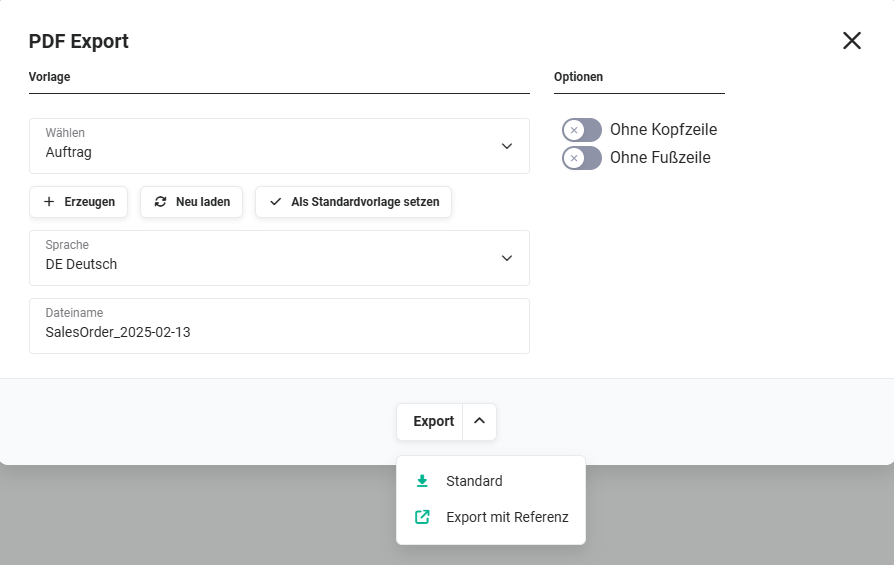 Pop-up “PDF Export" - export options
2.1.2. Recommend
Using the action “Recommend”, a recommendation can be made via email.
After clicking the action, the pop-up “Recommend” opens:
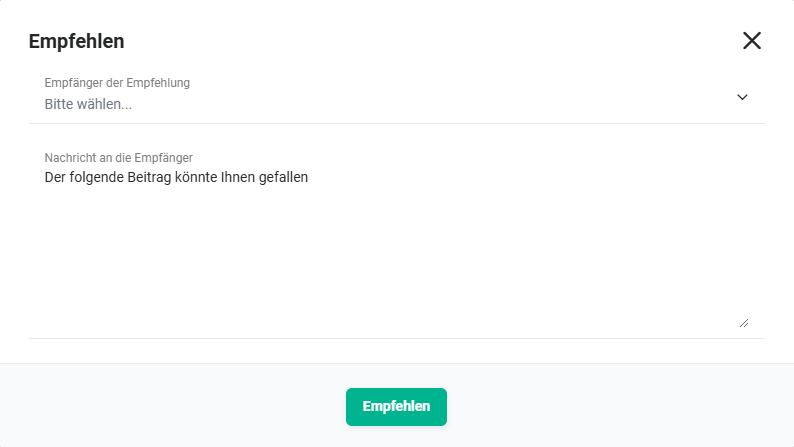 Pop-up “Recommend"
In the pop-up, the recipient group (one or more users and/or groups) that will then receive the recommendation by email is entered in the field “Please select who the recommendation should be sent to“.
If a group is selected as the recipient, the email is sent to the email address stored for the group. If no email address is entered for the group, the email address stored for the respective user is used.
The recommendation email is sent as a “collective email“ (one email to all recipients).
In the field “Message to recipients”, a corresponding message can be composed. By default, the field is pre-filled with the text “You might like the following item.“, which can be replaced/supplemented.
Since the recommendations (emails) are sent using the user's default email account, which is configured in the Email accounts module, it is necessary that the user has set up at least one email account in the “Email accounts“ module.
If the user has not set up an email account, the message “Please first add an email account in the corresponding module.“ is displayed.
2.1.3. Copy
Using the action “Copy”, a record can be copied.
After clicking the action, the Edit view of the record opens, with all field values taken over from the record to be copied.
2.1.4. Delete
Using the action “Delete”, a record can be deleted.
After clicking the action, a confirmation dialog opens with the question “Do you really want to delete this entry?”.
If the “Confirm” button is clicked, the record is deleted from the respective module and moved to the Recycle Bin module.
By clicking the “Cancel” button in the confirmation dialog, the deletion is cancelled and the detail view of the record is displayed again.
2.1.5. Change tracking
The change tracking integrated in brainX offers the possibility to permanently store changes (field changes, references, etc.) to records and to view them again at any time.
Using the action “Change tracking”, the changes sidebar is displayed.
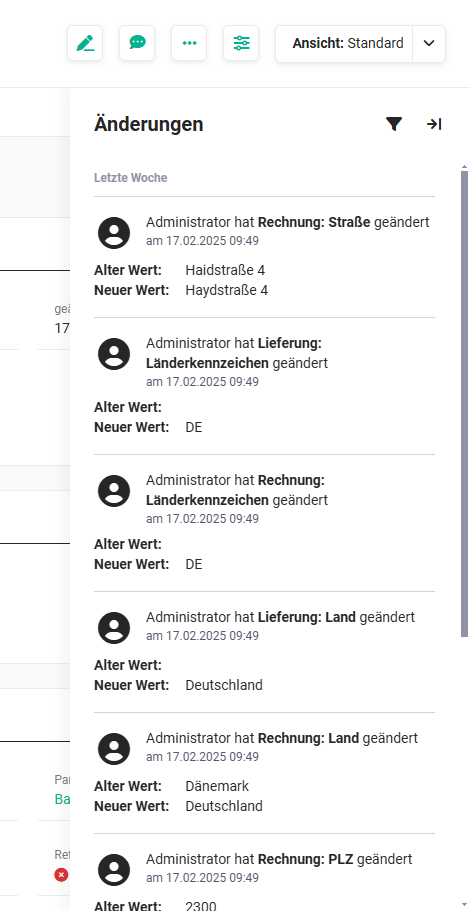 Sidebar “Changes"
In the “Changes” sidebar it is now visible who made which changes and when.
If very many changes have been made to a record, it is possible to search specifically for certain changes.
To display the changes filter, simply click the “Filter changes” icon (“funnel” icon). The filter area now opens with the picklist fields “Filter by” and “Value”.
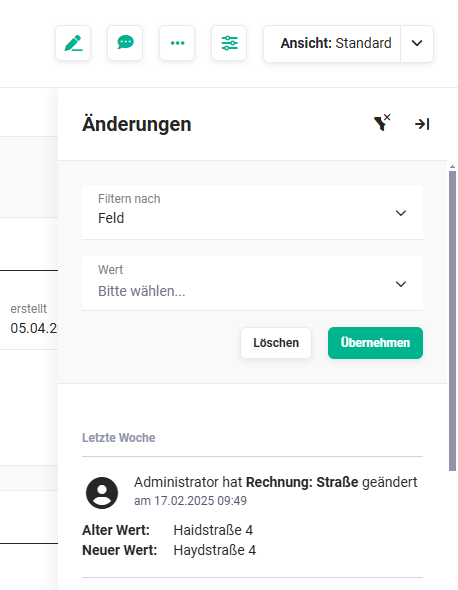 Sidebar “Changes" - filter
The picklist “Filter by” contains the following values:
- Field
- User
- Date
- Special changes
The picklist “Values” contains - depending on the selection in the “Filter by” field - further filtering options.
- Field → picklist of all previously changed fields
- User → picklist of all users who have made a change
- Date → entry of a date
- Special changes → selection of all special changes
Change tracking also displays changes to line items and line item groups in [product blocks]().
When a reference field is changed in a module, this change is also displayed in the change tracking of the referenced record.
3. Module-specific actions
Which module-specific actions are available in which modules is described in the respective sections of the [Modules]().