
Filter
Package: BASIC
1. General
To filter records of a module by specific field values, the "Filter" functionality can be used in the list view. Using one or more filter criteria, a targeted search for records is possible.
2. Configuring a filter
To configure a filter, the "Filter" button must be clicked. After clicking, a flyout window opens which contains the "Add filter" button.
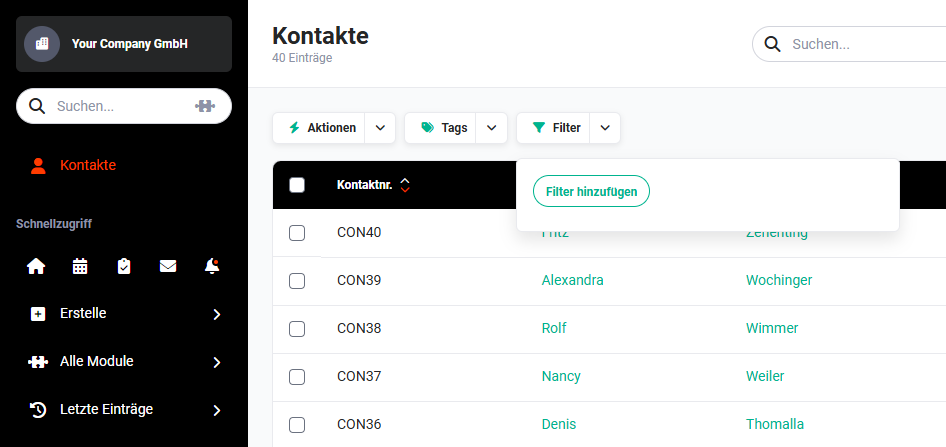 List view filter
After clicking the "Add filter" button, a flyout menu with the field selection opens.
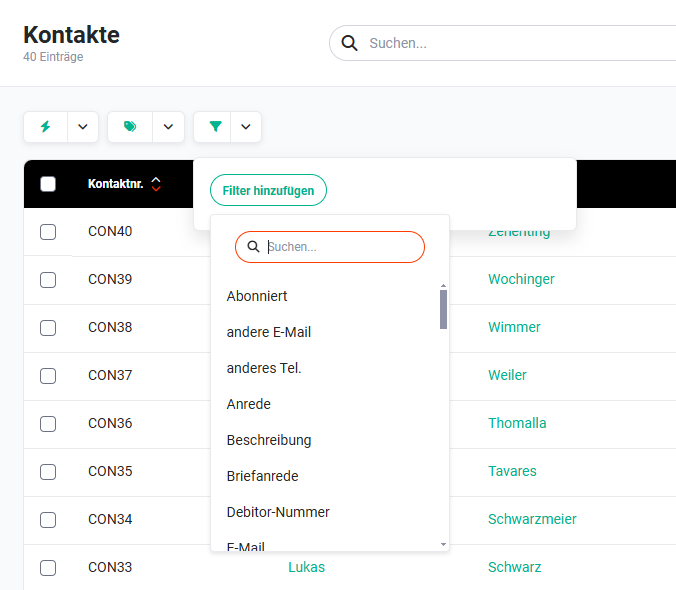 List view filter field selection
After selecting the field by clicking, the comparison operator must now be chosen.
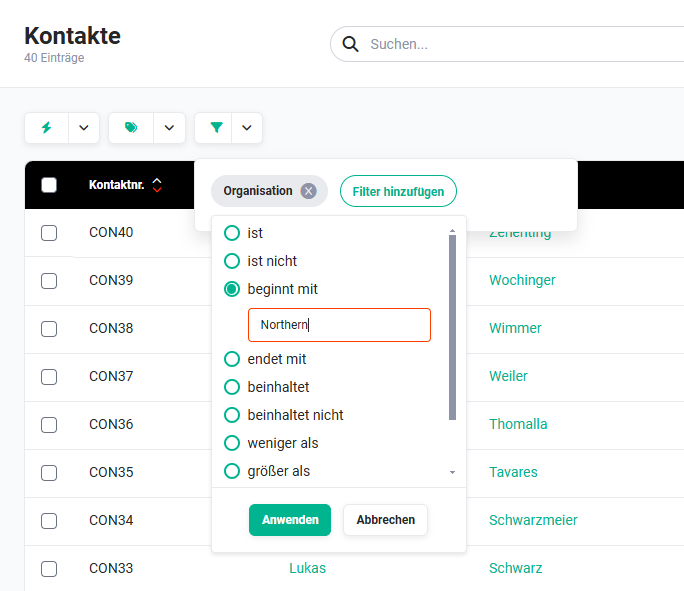 Example: Filter organisation name begins with "Northern"
The following comparison operators are available:
- is
- is not
- begins with
- ends with
- contains
- does not contain
- less than
- greater than
- less than or equal
- greater than or equal
After selecting the comparison operator, the filter criterion can now be entered.
After clicking the "Apply" button, the filter dialog closes. The configured filters are applied and the list view is reloaded. Now only records that match the filter criterion are displayed.
By clicking the "Add filter" button again, further filter criteria can be added and applied with "Apply".
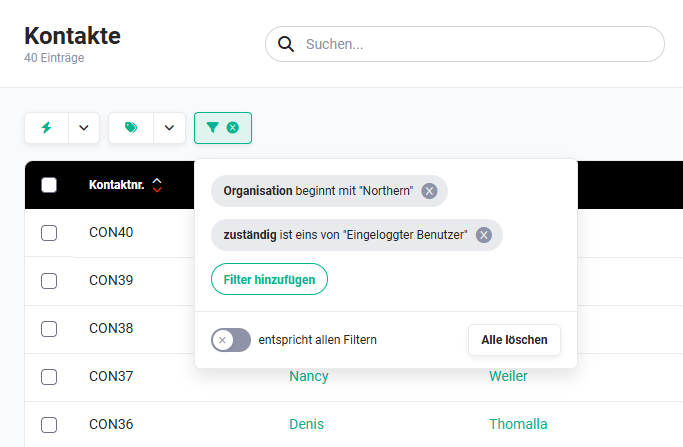 List view filter - multiple filter criteria
Using the "matches all filters" switch, you can configure whether all filter criteria must be met simultaneously, or whether just one filter criterion is sufficient to produce a match.
"matches all filters" switch:
- Switch off → one filter criterion must be met (corresponds to OR link)
- Switch on → all filter criteria must be met (corresponds to AND link)
As soon as more than one filter is active, the "matches all filters" switch is automatically enabled (AND link). The switch can then be disabled manually to switch to the OR link.
2.1. Date fields
For filters on date fields, in addition to the general comparison operators, the following extra options are available:
- Predefined quick options -> e.g. Today, This week, This month – for frequently used time periods.
- Custom -> an individual date value or range can be entered manually. In addition, year-independent options are available:
- Month, year-independent -> filters by a specific calendar month across all years (e.g. all records from March, regardless of the year)
- Quarter, year-independent -> filters by a specific calendar quarter across all years
- In month -> filters directly by a specific calendar month, year-independent (e.g. all birthdays in January)
3. Deleting a filter
A filter remains active until it is actively deleted by the user, or the user logs out.
To actively delete a filter, the "Filter" button must be clicked. The set filter is displayed and, next to the filter criterion, the "x" icon is shown, through which the filter can be deleted.
If several filter criteria exist, all filter criteria can be deleted simultaneously using the "Delete all" button.