
CSV Export
Package: BASIC
1. General
The file format CSV stands for Comma-separated values and describes the structure of a text file for storing or exchanging simply structured data.
The file name extension is .csv.
CSV files can contain tables or lists of varying length. Within the text file, certain characters have a special function for structuring the data. Depending on the software used and the user settings, these are frequently the characters comma, semicolon or colon.
The first record can be a header record that defines the column names.
A CSV export offers the option to export records from modules in CSV format.
The CSV export is available in the following modules:
- Tasks
- Visit Reports
- Deals
- Services
- Documents
- Incoming Invoice
- Extended Contracts
- Contacts
- Leads
- Vendors
- Licenses
- Organizations
- Partner
- Products
- Tickets
- Timesheets
Whether a user is allowed to perform a CSV export, i.e. whether the action “CSV Export” is available in the list view for the user, can be configured individually for each module via the profile settings.
For the CSV export - unlike for the CSV Import or CSV Update - no dedicated background task needs to be activated, since a CSV export is executed “immediately” and not on a schedule.
2. Exporting a CSV file
The export steps are described below by way of example for the [Contacts]() module.
Whether a user is allowed to perform a CSV export, i.e. whether the action “CSV Export” is available in the list view for the user, can be configured individually for each module via the profile settings.
By clicking on the “Actions” button in the list view of the module, a popup menu opens in which all actions available for this module are displayed.
From the list view of the module, all records, the records of the displayed page, or selected records can be exported.
To select records, the checkbox in the first column of the list view is used. The checkbox in the header row selects all records. Alternatively, the option “All records” can also be chosen before the CSV export in the “Export Contacts” popup.
By clicking the checkbox of individual records, any number of records can be selected - even across pages.
After clicking the action “CSV Export”, the “Export Contacts” popup opens.
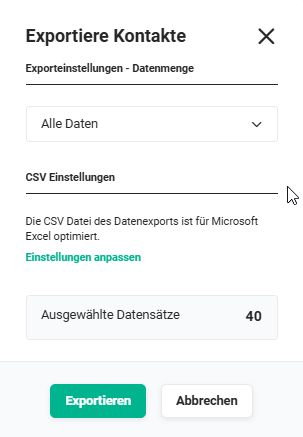 CSV export - Export Contacts popup
In the popup window, the section “Export settings - Data volume” allows you to define which data is to be exported. The following options are available:
- All data
- Only the data of the current page
- Only selected data (This option is only displayed if records have been marked using a checkbox in the list view.)
The CSV file of the data export is optimised for Microsoft Excel (separator semicolon, format ISO-8859-1).
In the section “CSV settings”, the separator and the format can be changed by clicking the action link “Adjust settings”:
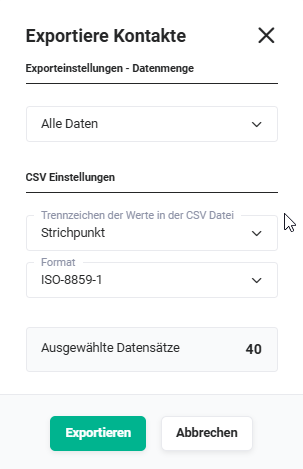 CSV export - Export Contacts popup - CSV settings
The options “Semicolon” and “Comma” are available as the separator. For the format, you can choose between ISO-8859-1 and UTF-8.
After clicking the “Export” button, the CSV export starts and, once generated, the CSV file is saved in the browser's default download folder.
The CSV export from list views and Reports is performed in the background. After successful creation, a notification is displayed via which the file can be downloaded.
The file name of the generated CSV file is the English module name in each case (for Contacts this is e.g. “Contacts.csv”).
Which fields from a record are exported cannot be configured. In a CSV export, all fields of a record are always exported.
If only certain fields of a record are to be exported, it is advisable to create a corresponding Report and export it in CSV format.
3. Practical examples
1 - Exporting customer data for further processing in Excel
Initial situation: The sales manager wants to prepare an overview of all Organizations with revenue data for a presentation and needs the data in Excel.
Procedure: In the list view of the Organizations module, the desired view with the relevant filters is called up. The action CSV Export opens the popup. As the data volume, All data is selected, and the separator Semicolon and format ISO-8859-1 are kept. After clicking Export, the file is downloaded and opened directly in Excel.
Result: All filtered records are available as a structured table in Excel and can be reused for analyses, pivot tables or presentations.
2 - Exporting selective records for a mail merge
Initial situation: Marketing wants to send a Christmas card to all Contacts from a specific region. The addresses are needed for a mail merge in Word.
Procedure: In the list view of the Contacts module, filtering is applied for the desired region. All relevant records are marked using the checkbox. Via the action CSV Export, the option Only selected data is chosen. The exported file is included as a data source in Word for the mail merge.
Result: Only the relevant Contacts are exported - without manual selection or post-processing.
3 - Data backup before a mass update
Initial situation: Before a CSV update with several thousand records, an administrator wants to back up the current state of the data in order to have a reference state in case of an error.
Procedure: In the list view of the affected module, a complete export is performed via the action CSV Export with the option All records. The exported file is saved locally and serves as a backup copy before the update.
Result: The data state before the update is backed up. In case of an error, it can be used as the basis for a restore via CSV update.
4. Frequently asked questions
Can I specify during the CSV export which fields are exported?
No, during the CSV export all fields of a record are always exported - a selection of individual fields is not possible. If only certain fields are to be exported, it is advisable to create a Report with the desired fields and then export the report in CSV format.
Why are umlauts displayed incorrectly in the exported file?
The exported CSV file is optimised in the ISO-8859-1 format by default. If the file is opened in a tool that expects UTF-8, umlauts may be displayed incorrectly. In the export popup, under CSV settings → Adjust settings, the format can be changed to UTF-8, provided the target tool expects this format.
Does a background task need to be active for the CSV export?
No, the CSV export is executed immediately and does not require a dedicated background task. The file is available for download directly after clicking Export.
Can records be selected for the export across pages?
Yes, by clicking the checkboxes in the list view, records can be marked across multiple pages and then exported via the option Only selected data.
In which modules is the CSV export available?
The CSV export is available in the modules Tasks, Visit Reports, Deals, Services, Documents, Incoming Invoices, Extended Contracts, Contacts, Leads, Vendors, Licenses, Organizations, Partner, Products, Tickets and Timesheets.