
Templates
Package: BASIC
1. General
The Templates module is used to create and manage [PDF]() and [email]() templates.
- PDF templates are used when generating PDF files.
- Email templates can be used when creating [Emails]().
The following templates can be created and managed in the Templates module:
- PDF templates → PDF template related to a specific module. Placeholders related to the main module and the linked modules can be used.
- Header templates → Header template in which only general placeholders can be used. These templates can be loaded while creating PDF templates.
- Footer templates → Footer template in which only general placeholders can be used. These templates can be loaded while creating PDF templates.
- Email templates → Email template with optional module binding. These templates can be loaded while composing new emails. Module binding allows the use of extensive placeholders.
There are no configuration options for the Templates module in the Module management.
A company creates a PDF template for the Invoices module with its own company logo, header and footer template, and a Swiss QR Bill for Swiss customers. The template is set as the default template and is automatically preselected during PDF export.
A sales employee regularly sends identical quote emails. He creates an email template with module binding to Deals, so that when the template is loaded, placeholders such as customer name and quote total are filled in automatically.
2. List View
The list view in the Templates module offers the usual functionalities of a list view. For more detailed information, see the section Layout/Structure - List View.
2.1. Actions
Depending on the module, general actions are available in the list view. An overview and description of all general actions can be found in the section Actions (List View).
In addition, the following module-specific actions are available:
| Action | Requirement | Functionality |
|---|---|---|
| Manage fonts | none | Opens the Font management popup, through which fonts for PDF templates and PDF export can be stored and managed – see Manage fonts. |
| Add header template | none | Opens the creation view for a new header template. Header templates can be loaded during PDF export and support only general placeholders – see Add header template. |
| Add footer template | none | Opens the creation view for a new footer template. Footer templates can be loaded during PDF export and support only general placeholders – see Add footer template. |
| Import template | none | Allows importing a template previously exported from another brainX system – see Import template. |
2.1.1. Manage fonts
In order to be able to use any fonts to create templates and to export records as PDF, a font management feature has been integrated into the Templates module.
This makes it very easy to add new fonts for PDF export. The fonts managed here only relate to PDF templates in the Templates module and do not affect the rest of the brainX system.
After clicking the "Manage fonts" action, the "Font management" popup opens.
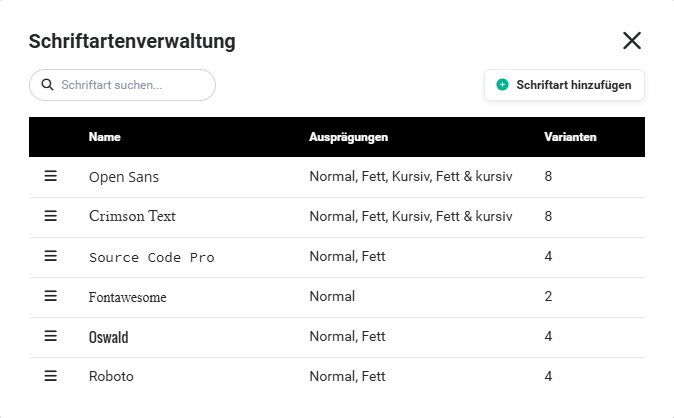 Font management popup
The popup offers the following functionalities:
- Input field "Search font"
- Button "Add font"
- List view of fonts
2.1.1.1. Search font
Input field to search for already installed fonts.
2.1.1.2. Add font
After clicking the "Add font" button, the "Add font" popup opens.
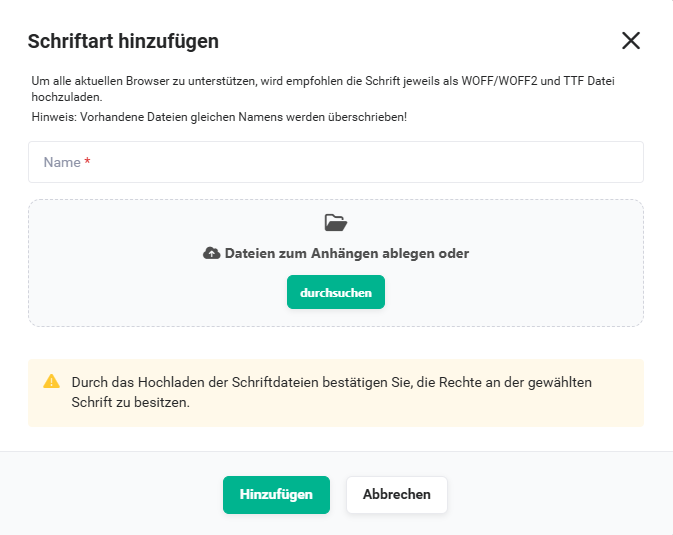 Add font popup
In the popup, the name of the font must be entered and the file(s) for the font must be placed. By clicking the "Add" button, the user confirms that they hold the rights to the font. To ensure support both in the browser and during export, the font must be uploaded as a .ttf and .woff file.
2.1.1.3. List view of fonts
The list view provides all relevant information about the existing fonts.
Font management popup
The fonts can be sorted via drag & drop using the left column of the list. This sorting determines the order of the font selection in the PDF template editor.
To get a preview of the font, the name of the font in the list is formatted in that same font.
Which variants of a font have been uploaded is shown in the column of the same name. When uploading a font, the system tries to independently detect the variants based on the file name. If this fails, the corresponding marking can also be made afterwards via editing.
It is recommended to store a font file for each variant that is to be used later in the export. If a font is not available in the desired variant, the export attempts to reproduce it. This usually does not match the desired result.
The "Variants" column shows the total number of files uploaded for this font.
2.1.2. Add header template
A header is an area at the top of a page that can contain information such as the document title, the date, the author, or a page number. The header appears on every page of the document, which makes the document clearer and more professional in appearance.
Header templates can be loaded during PDF export. Only general placeholders can be used in header templates.
The creation of a header template is described in detail in the section Header templates.
2.1.3. Add footer template
A footer is the lower area of each page, analogous to the header. All information inserted in this area likewise appears uniformly on all pages of the document.
Footer templates can be loaded during PDF export. Only general placeholders can be used in footer templates.
The creation of a footer template is described in detail in the section Footer templates.
2.1.4. Import template
If a template is to be taken over from another brainX system, it is possible to import it via the "Import template" action.
See also the section Export template.
3. Detail View
3.1. Fields
The following tables describe mandatory fields as well as fields with non-obvious functions. All other fields are self-explanatory.
Templates can be assigned to an Organization. The optional field "Organization" is available in the "System data" block. If no organization is stored, the template is displayed system-wide. If an organization is stored, the template is only displayed if the user is in this organization or a superordinate organization.
Depending on the type of template (PDF template, header/footer template, or email template), the fields in the "Template information" block differ.
Template information block - all templates
| Field | Description |
|---|---|
| Template name * | Name of the template |
| Template module* | Main module to which the template refers |
| Active | Marks the template as active or inactive. Inactive templates cannot be selected during PDF export. |
| Language |
|
*Mandatory field
Template information block - PDF templates, header and footer templates
The "Template information" block has additional fields when it concerns PDF templates, header and footer templates.
| Field | Description |
|---|---|
| Default template for this module | Sets the template as the default template for the selected module. |
| Default export folder | Folder into which the generated PDF file is exported – see Manage directories. |
| Consider page breaks in item groups | Switch on (active) → The page breaks inserted in the template are taken into account when generating the PDF.Switch off (inactive) → The page breaks inserted in the template are not taken into account when generating the PDF. |
| QR invoice | Switch on (active) → A QR payment slip is attached to the generated PDF file if the invoice recipient has a Swiss address.For more information, see the section Swiss QR Bill. |
| QR invoice description | Switch on (active) → The description is added as additional information in the QR payment slip.Requirement: The "Description" field in the "Additional information" block is filled in the source record.For more information, see the section Swiss QR Bill. |
Document settings block
The "Document settings" block is only displayed in the detail view and not in the creation view!
All document settings are made in the layout of the template.
| Field | Description |
|---|---|
| Format | Format of the generated PDF file (A3, A4, A5, A6, Letter, Legal). |
| Orientation | Orientation of the PDF file when generated (portrait or landscape). |
| Top margin | Top page margin distance |
| Bottom margin | Bottom page margin distance |
| Left margin | Left page margin distance |
| Right margin | Right page margin distance |
| Header | Header distance |
| Footer | Footer distance |
*Mandatory field
Template block
In the "Template" block, a preview of the template incl. all placeholders is displayed in the detail view.
3.2. Actions
After clicking the "Actions" button, the following actions are available:
| Action | Requirement | Functionality |
|---|---|---|
| Export template | none | Exports the template for transfer to another brainX system. |
| Copy | none | Creates a copy of the current template. Name, module, language and description must be saved before further adjustments. |
| Generate preview | none | Generates a PDF preview of the template based on a selectable record of the main module. |
| Delete | none | Deletes the template and moves it to the Recycle Bin. |
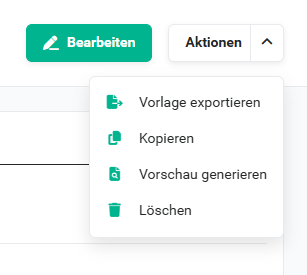 Actions flyout menu
3.2.1. Export template
If a template is to be taken over into another brainX system, it is possible to export it via the detail view and import it back into the desired system via List view → Actions → Import template.
3.2.2. Copy
To simplify the creation of multiple templates with a similar layout, templates can be copied. As with creating, name, module, language and description must first be saved before further settings can be adjusted.
The module can only be changed after creation. When changing the module, a confirmation prompt appears. If this is confirmed, all module-related placeholders are removed from the layout and the layout as well as the module are saved immediately. This action cannot be undone!
3.2.3. Generate preview
The "Generate preview" action offers the possibility of displaying the PDF file in a preview before export, in order to check the presentation and content in advance.
After clicking the action, a popup opens in which a record of the module defined as the main module can be selected. After clicking the record title, the PDF preview is generated and displayed in a new browser tab.
3.2.4. Delete
After clicking the "Delete" action, a confirmation prompt is displayed. If this is confirmed with Confirm, the template is deleted from the Templates module and moved to the Recycle Bin module.
4. Swiss QR Bill
When generating PDF files for the Invoices module, there is a special feature for invoice recipients based in Switzerland.
All domestic and foreign companies that work with Swiss companies must be able to receive (creditors) or send (debtors) a QR code.
A QR invoice is an invoice with a payment part and receipt that in Switzerland replaces the previous orange and red payment slips. The payment part contains the Swiss QR Code, which contains all relevant information necessary for both invoicing and payment.
On 1 October 2022, the red and orange payment slips were abolished and completely replaced by the QR invoice. Since then, all invoices must contain a QR code that can be scanned with the recipient's smartphone, PC camera, or a special scanner in order to make the payment. This simplifies payment, provides additional security, and reduces transfer errors.
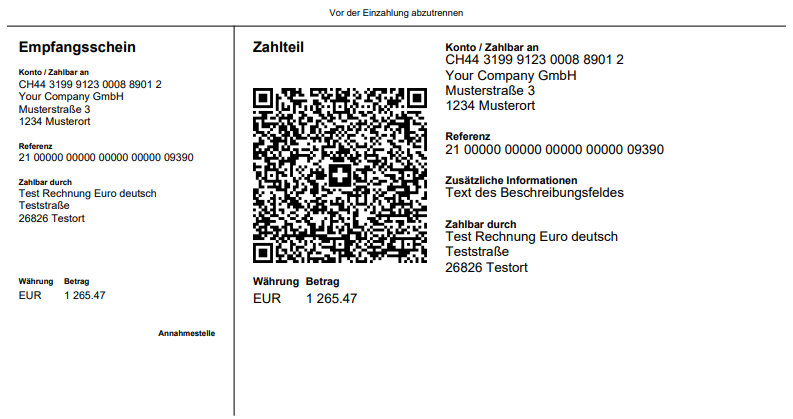
The prerequisite for generating a PDF file that contains a QR code is the specification of the bank account details of your own company. These must be entered in Global Settings - Basic Setup - Company information - Organization in the "Bank account" block.
In addition to the standard fields Bank name, sort code, account no., IBAN and BIC, the fields SCOR, QR IBAN and BESR-ID must be filled in the Company information.
SCOR (creditor reference according to ISO 11649):
This is a 25-digit alphanumeric reference that begins with RF, followed by 2 check digits that are calculated in the same way as the IBAN check digits.
SCOR is required if your own company location is not in Switzerland. In addition, the IBAN is mandatory for the Swiss QR Bill.
QR IBAN:
The QR-IBAN is a variant of the account number (IBAN). It replaces the ESR participant number as a process feature and is required for the "QR reference" invoice type. In addition, it is the identification feature of the process, which ensures that the structured reference is always included when paying the QR invoice.
Only required if your own company is based in Switzerland.
BESR-ID:
BESR stands for "BankEinzahlungsSchein mit Referenznummer" (bank payment slip with reference number). The BESR-ID consists of a 6-digit individual number that is specifically assigned to an account and forms the first digits of the reference number.
Only required if your own company is based in Switzerland and the account is NOT with the "Post Finance" bank.
A QR invoice is only generated if the currency of the invoice is Euro or Swiss Francs! For all other currencies, the PDF generation fails.
In this case, the following error message is displayed: "PDF creation failed: The currency of the record is neither Euro nor Swiss Francs."
5. Visibility of records and field values during export
Templates can in principle be used by multiple users.
Field values of the placeholders for data used in the templates are only displayed during export if the executing user also has permission to see the corresponding fields and modules!
[Roles](): The visibility of records of a module can be regulated via roles.
If a referenced record is not visible to the user performing the export, the placeholders from the record are replaced with an empty value!
[Profiles](): The visibility of individual fields of a record can be regulated via profiles.
If a field is not visible to the user performing the export, the placeholder of the field is replaced with an empty value.
6. Practical examples
1 – Creating a PDF template for invoices with header and footer
A company wants to generate professional invoice PDFs with its own company logo, a uniform header, and a footer with contact details and bank account information. In the Templates module, a header template and a footer template with general placeholders are first created. Subsequently, a PDF template for the Invoices module is created and both templates are embedded in it.
The Default template for this module switch is activated so that the template is automatically preselected during PDF export. For customers with a Swiss address, the QR invoice switch is additionally activated – during PDF generation, a Swiss QR Bill payment slip is then automatically attached. Using the Generate preview action, the template is checked based on a real invoice record before it is put into productive use.
2 – Email template for quotes with module-bound placeholders
A sales employee regularly sends similar quote emails in which the customer name, quote total, and closing date should be filled in individually. In the Templates module, a new email template with module binding to Deals is created.
In the template, placeholders for the relevant fields of the Deals module are inserted – e.g. customer name, quote amount, and closing date. When composing a new email from a Deal, the template can be selected via Load template – all placeholders are automatically filled with the values of the respective Deal record. This saves the employee time and ensures consistent communication.
3 – Exporting a template from one brainX system and importing it into another
A company operates two brainX instances – a test and a productive instance. An elaborately designed invoice template is to be transferred from the test instance to the productive instance after a successful test.
In the test instance, the template is saved as an export file via the Export template action in the detail view. In the productive instance, the exported file is read in via the list view action Import template in the Templates module. The template is then fully available in the productive instance with all settings and the layout.
7. Frequently Asked Questions
What is the difference between a PDF template, a header template, and an email template?
A PDF template relates to a specific module and enables the use of extensive module-related placeholders. Header and footer templates can be embedded in PDF templates but support only general placeholders. An email template can optionally be bound to a module – with module binding, extensive placeholders are available, and without binding, only general ones.
How can I set a template as the default template?
In the fields of a PDF template, there is the Default template for this module switch. When activated, this template is automatically preselected during the PDF export of the respective module. One template can be defined as the default for each module.
What happens if a placeholder refers to a record that the exporting user is not allowed to see?
If a referenced record or a field is not visible to the exporting user due to role or profile restrictions, the corresponding placeholder in the PDF is replaced with an empty value. The rights of the executing user determine which field values appear in the export.
When is a Swiss QR Bill attached to the PDF file?
The QR payment slip is automatically attached if the QR invoice switch is activated in the PDF template, the invoice recipient has a Swiss address, and the currency of the invoice is Euro or Swiss Francs. In addition, the prerequisite is that the bank account of your own company is correctly stored in the Global Settings – Company information.
Can I use my own fonts for PDF templates?
Yes. Via the list view action Manage fonts, your own fonts in .ttf and .woff format can be uploaded and used for PDF templates and PDF export. The stored fonts are only effective for the template system and do not affect the rest of the brainX system.
Can I transfer a template between two brainX instances?
Yes. Via the Export template action in the detail view, the template is saved as an export file. In the target instance, it can be imported again via the list view action Import template – including all layout settings and placeholders.