
SalesViewer
Package: SALES MARKETING
1. General
SalesViewer is a company, or rather the provider of a software of the same name, which decrypts anonymous website visitors and thereby delivers usable new customer potential.
Under certain conditions, information such as the company name, industry, address, telephone number and email address of the visitor can be determined from the website visitors.
The data determined by SalesViewer is transferred automatically to brainX. This offers the opportunity to contact potential new customers in a targeted manner.
SalesViewer is 100% GDPR-compliant and is regularly audited and certified by external data protection experts and international organisations!
In order to use the SalesViewer function, a paid licence with SalesViewer is a prerequisite!
The integration of SalesViewer into brainX essentially comprises two modules:
- MQL → data on Market Qualified Leads (MQL) captured by SalesViewer
- Website Visits → data on website visits captured by SalesViewer
2. Activation and configuration
2.1. Activation
After opening the settings item “SalesViewer” in the company information, it appears as follows:
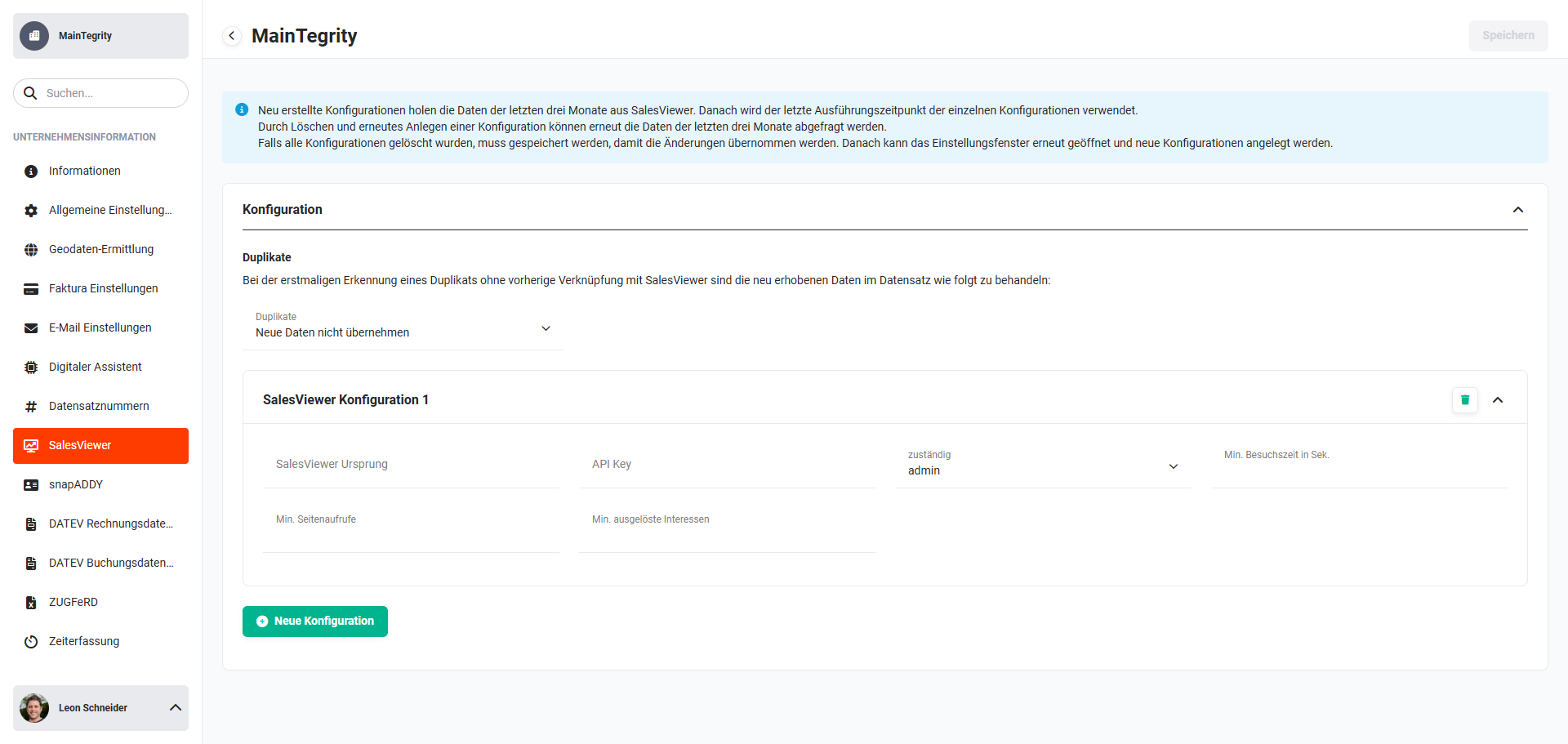 Global settings - Company information - SalesViewer
To activate SalesViewer, at least one SalesViewer configuration must be saved.
After activation, the permission settings (Roles, Profiles and Global permission assignment) can be used to define which brainX users are authorised to use the MQL and Website Visits modules.
2.2. Configuration
2.2.1. Duplicates
In the settings item “Duplicates”, the picklist “Duplicates” can be used to define how duplicates are handled.
When a duplicate is first detected, without a prior link to SalesViewer, the newly collected data in the record can be handled as follows:
- Do not adopt new data
- New data should supplement existing data
- New data should supplement and replace existing data
2.2.2. Settings items of the SalesViewer configuration
The following fields are available for the SalesViewer configuration:
| Field | Type | Description |
|---|---|---|
| SalesViewer origin | Text | URL or company nameThe field is used to define what this SalesViewer is called. |
| API Key | Text | API Keys can be assigned to selected websites in SalesViewer.Several websites and thus several API keys are possible per SalesViewer account. |
| responsible | Reference | User or group that is to be responsible for the generated record. |
| Min. visit time in sec. | Number | Specification of the minimum visit time in sec.A sensible value here is, for example, 60 sec, as only then was there genuine interest in the page.The field can also be left empty. |
| Min. page views | Number | Minimum number of page viewsThe field can also be left empty. |
| Min. triggered interests | Number | The interests set in SalesViewer can be defined here as a minimum number of views.The field can also be left empty. |
Newly created configurations retrieve the data of the last three months from SalesViewer. After that, the last execution time of the individual configurations is used.
By deleting and re-creating a configuration, the data of the last three months can be queried again.
If all configurations have been deleted, you must save so that the changes are applied. After that, the settings window can be reopened and new configurations can be created.
A blacklist for tracking can be set in SalesViewer itself. This allows, for example, your own company or competitors to be excluded from tracking.
2.2.3. Further SalesViewer configurations
Several SalesViewer configurations can be stored, which obtain the data from different websites.
To create a further SalesViewer configuration, the button “New configuration” must be clicked.
The block “SalesViewer configuration 2” is now displayed, in which the settings items of the SalesViewer configuration of the further configuration can be edited.
2.2.4. Background task
In Global settings - System Automation - Background tasks, the background task “SalesViewer” in the block “Integrations” must be activated.
The default setting of the execution interval is 1 hour.
The background task transfers the data determined in SalesViewer via the API (interface) automatically into the brainX system. In doing so, records are created in the MQL and Website Visits modules.
3. MQL module
MQL (abbr.: Marketing Qualified Lead) is a term from marketing and refers to a lead whose interest in the product or service range of a brand or company was awakened by their marketing measures.
Marketing Qualified Leads are considered leads that are more likely to become customers. Often, MQLs are leads that have consciously engaged with a product or manufacturer - e.g. by visiting the website.
Companies usually use static IP addresses. These companies are recognised by SalesViewer on the basis of the IP address and the corresponding company data is then determined by SalesViewer.
In the ideal case, the following company data can be determined:
- Company name
- Address
- Website
- Email address
- Telephone number
- Xing URL
- LinkedIn URL
Furthermore, the referrer of the visit can also be determined.
Referrer of the visit: If the page was accessed via a link on a website, or via a search engine (Google, Bing, etc.), the source is specified here.
Companies and private individuals that do not have static IP addresses are not tracked by SalesViewer!
By means of the SalesViewer API (interface) and the background task “SalesViewer”, the data determined by SalesViewer is transferred into the brainX system at regular intervals and created automatically as records in the MQL module.
3.1. Duplicate check
Within brainX there is already a rudimentary duplicate check: If an Organization, Partner or Lead with the relevant data (email or URL/website) already exists, no MQL record is created, but only a record in the Website Visits module.
When checking against the URL/website, only the domain itself is checked, no “https://” or “www” in the website address.
Analogously with email addresses, here too only the domain name is checked. In brainX, all email fields of Organizations, Partners or Leads are checked. In the Organizations, Partner or Leads modules, the record of the Website Visits module is then referenced accordingly.
3.2. List view
The list view in the MQL module has the usual functionalities of a list view. For detailed information on this, see the section Layout/Structure - List view.
In this module - as in most modules - a custom list view can also be created.
3.2.1. Actions
The following actions are available in the list view:
- Delete
- Mass edit
- Mass tag
- Mass subscribe
- End subscription
- Merge duplicates
- PDF export
For more detailed information on the actions, see the section Actions (list view).
After the activation of SalesViewer, a PDF template for generating an overview is available for the “PDF export” action.
3.3. Detail view
The detail view in the MQL module has the usual functionalities of a detail view. For detailed information on this, see the section Layout/Structure - Detail view.
3.3.1. Actions
The following actions are available in the detail view:
- Edit
- Copy
- Delete
- Change tracking
- PDF export
- Recommend
For more detailed information on the actions, see the section Actions (detail view).
3.3.2. Special fields/actions
3.3.2.1. Fields
All data determined by SalesViewer is entered in the block “MQL”.
Block MQL
The following fields are available in the block “MQL”:
| Field | Type | Description |
|---|---|---|
| Name | Text | Name of the company/organisation |
| Industry | Picklist | Industry of the company/organisation |
| Referrer of the visit | Text | If the page was accessed via a link on another website or via a search engine (Google, Bing, etc.), the source is specified here. |
| Telephone | Telephone | Telephone number of the company/organisation |
| Email address of the company/organisation | ||
| SalesViewer origin | Text | URL or company name of the respectively configured SalesViewer. |
| Website | URL | Link to the homepage of the company/organisation |
| SalesViewer URL | URL | Link to the record in SalesViewer itself |
| Xing URL | URL | Xing URL of the company/organisation |
| LinkedIn URL | URL | LinkedIn URL of the company/organisation |
3.3.2.2. Actions
The following actions are available in the detail view - in addition to the standard actions:
- Convert to Lead
- Convert to Organization
- Convert to Partner
A record in the MQL module can be converted into a record of the Leads, Organizations or Partner modules.
A record conversion means the record of the lead is deleted and a new record is automatically created in the respective module.
Record conversion
When converting a record in the MQL module, the following points apply for the newly created records in the Leads, Organizations or Partner modules:
- The picklist value of the Industry field is transferred to the Industry field of the converted record. If the respective value does not exist in the picklist of the target module, it is newly created or added, provided this is configured accordingly in the module manager.
- The address data from the MQL record is adopted in the target record in the block “Address” for both the billing address and the delivery address.
- After the conversion of an MQL record, all already referenced records from the Website Visits module are automatically referenced to the record of the target module.
Should new website visits take place after the conversion, these are automatically referenced to the converted new record. The referenced records of the Website Visits module are listed accordingly in the “More information” tab. - If an MQL record is converted to a record of the Leads module, the picklist value of the “Lead source” field is automatically “SalesViewer”.
A record in the MQL module is completely deleted by the conversion and is also not located in the [Recycle Bin]() module!
4. Website Visits module
For each website visit captured by SalesViewer, a record is automatically created in the Website Visits module.
Each record in the Website Visits module is referenced to a record in the MQL module. All pages of the website visit that were accessed and the triggered interests are listed in the block “additional information” in the “Visited websites” field.
In the Website Visits module, users cannot create, copy or edit records.
In addition, the settings item [Layout]() in the [module management]() is not available for the Website Visits module.
4.1. List view
The list view in the Website Visits module has the usual functionalities of a list view. For detailed information on this, see the section Layout/Structure - List view.
In this module - as in most modules - a custom list view can also be created.
4.1.1. Actions
The following actions are available in the list view:
- Delete
- Mass tag
- Mass subscribe
- End subscription
- PDF export
For more detailed information on the actions, see the section Actions (list view).
After the activation of SalesViewer, a PDF template is available for the “PDF export” action.
4.2. Detail view
The detail view in the Website Visits module has the usual functionalities of a detail view. For detailed information on this, see the section Layout/Structure - Detail view.
4.2.1. Actions
The following actions are available in the detail view:
- Delete
- Change tracking
- PDF export
- Recommend
For more detailed information on the actions, see the section Actions (detail view).
4.2.2. Special fields/actions
All data determined by SalesViewer is entered in the blocks “Website Visits” and “additional information”.
4.2.2.1. Fields
Block Website Visits
The following fields are available in the block “Website Visits”:
| Field | Type | Description |
|---|---|---|
| Website Visits | Text | Reference to the record in the MQL module |
| Visit duration | Text | Visit duration in the format hh:mm:ss |
| Visit started | Date/time | Date and time when the visit started |
| Visit ended | Date/time | Date and time when the visit ended |
| Language of the visit | Text | Country code of the language used by the browser |
| Referrer of the visit | URL | If the page was accessed via a link on another website or via a search engine (Google, Bing, etc.), the source is specified here. |
Block additional information
The following fields are available in the block “additional information”:
| Field | Type | Description |
|---|---|---|
| Number of visited pages | Text | Shows the total number of visited web pages of a session. |
| Visited web pages | URL | URL of the visited web page |
| Number of triggered interests | Number | Shows the number of triggered interests. |
| Triggered interests | Text | Display of the triggered interests (areas of the website, configurable in SalesViewer) |
4.3. Module management
In the module management for the Website Visits module there are a few particularities to note.
In the settings items Record selection (columns and quick filters of popups for selecting records) and Links (columns for displaying records of this module in the Relations tab of other modules), the field “SalesViewer GUID” can be displayed.
The SalesViewer GUID is the unique ID of a visit and is usable in SalesViewer itself.
4.4. Evaluations
Website visits can be evaluated in detail via the Reports module.
Report with calculations on which website visitors visited certain pages and for how long.
5. Practical examples
1 - Identifying and contacting website visitors as new customer potential
Starting situation: The sales team wants to find out which companies have visited their own website, in order to be able to address potential new customers in a targeted manner.
Procedure: SalesViewer is activated in brainX and the background task runs hourly. In the MQL module, all companies recognised by SalesViewer are automatically created as records - including company name, industry, address, website and, where determinable, also telephone number and email address. The sales representative reviews the new MQL entries, checks the stored information and converts promising records directly into a lead via the action Convert to Lead.
Result: Potential new customers are captured automatically and can be contacted in a targeted manner - without manual research effort.
2 - Recognising a known customer on a repeat website visit
Starting situation: An existing customer visits the website again. The sales team wants to know which pages the customer visited, in order to prepare the next conversation in a targeted manner.
Procedure: Since a record already exists in brainX for the customer’s organisation, SalesViewer does not create a new MQL record, but references the website visit directly at the existing record of the organisation. In the More information tab of the organisation record, all website visits are listed with visit duration, visited pages and triggered interests.
Result: The sales representative sees at a glance which product pages or topic areas most recently interested the customer, and can align the conversation accordingly.
3 - Evaluating website visits by interests
Starting situation: Marketing wants to analyse which areas of the website are accessed particularly frequently by potential new customers, in order to align campaigns more precisely.
Procedure: In the Reports module, a report based on the Website Visits module is created. The fields Triggered interests, Number of triggered interests and Visit duration are evaluated. The report can be filtered and exported as a PDF.
Result: Marketing receives a data-based overview of the most-used website areas and can optimise campaign content and landing pages accordingly.
4 - Defining minimum criteria for relevant visits
Starting situation: The SalesViewer integration delivers a very large number of MQL records, including short visits without genuine interest. Sales wants to consider only visits where an actual interest is recognisable.
Procedure: In the SalesViewer configuration, the fields Min. visit time in sec. (e.g. 60 seconds), Min. page views (e.g. 3) and Min. triggered interests (e.g. 1) are filled with sensible threshold values. Only visits that meet all defined minimum criteria are created as an MQL record in brainX.
Result: The number of MQL records is reduced to qualitatively relevant visits. Sales saves time in reviewing and concentrates on genuine prospects.
6. Frequently asked questions
Why are some website visitors not captured as MQLs?
SalesViewer recognises visitors exclusively on the basis of static IP addresses. Private individuals and companies with dynamic IP addresses are not tracked and therefore not created as MQLs in brainX. Visits that do not meet the configured minimum criteria (visit time, page views, triggered interests) are also not transferred.
What happens if a recognised company already exists in brainX?
If an organisation, a partner or a lead is already stored in brainX for the recognised company (match based on domain or email domain), no new MQL record is created. Instead, the website visit is automatically referenced at the existing record.
Can an MQL record be restored after the conversion?
No. When an MQL record is converted into a lead, an organisation or a partner, the original MQL record is completely deleted. It does not end up in the Recycle Bin module and cannot be restored. Before the conversion, you should therefore ensure that all relevant information is correctly adopted in the target record.
Can I connect several websites to one brainX instance?
Yes, several SalesViewer configurations can be stored. Each configuration can be assigned its own API key and thus its own website. Via the SalesViewer origin field, it can be seen in the MQL record which website the visit came from.
How far back does the data go when first setting up a configuration?
A newly created configuration automatically imports the data of the last three months from SalesViewer. After that, only new data from the last execution time is transferred. By deleting and re-creating a configuration, the data of the last three months can be queried again.
Can your own employees or competitors be excluded from tracking?
Yes, a blacklist for tracking can be configured directly in SalesViewer. This allows, for example, your own company domain or known competitors to be excluded from tracking. The blacklist is not maintained in brainX, but in the SalesViewer account itself.