
Roles
Package: BASIC
1. General
For a better understanding of the meaning of roles, a brief overview follows.
- Roles: Govern access to records, to my records and to subordinate roles. Every role has at least one profile.
- Profiles: Govern access to modules and their fields.
- Role + Profile: The sum of the positive permission applies.
- Groups: Serve to share records. Recommendation: only create groups from users or roles and subordinates.
- Custom access rules: Can be used to override part of the permissions/rights.
As a general principle:
- Profiles are for modules
- Roles are for the hierarchy
In contrast to the role concept, the regulation of which modules are available to which user is handled in the Profiles.
2. Hierarchy View of the Roles
The role concept of brainX is hierarchically structured. The hierarchy determines which records a user gets to see across all modules.
The hierarchy view graphically shows which roles can see which data:
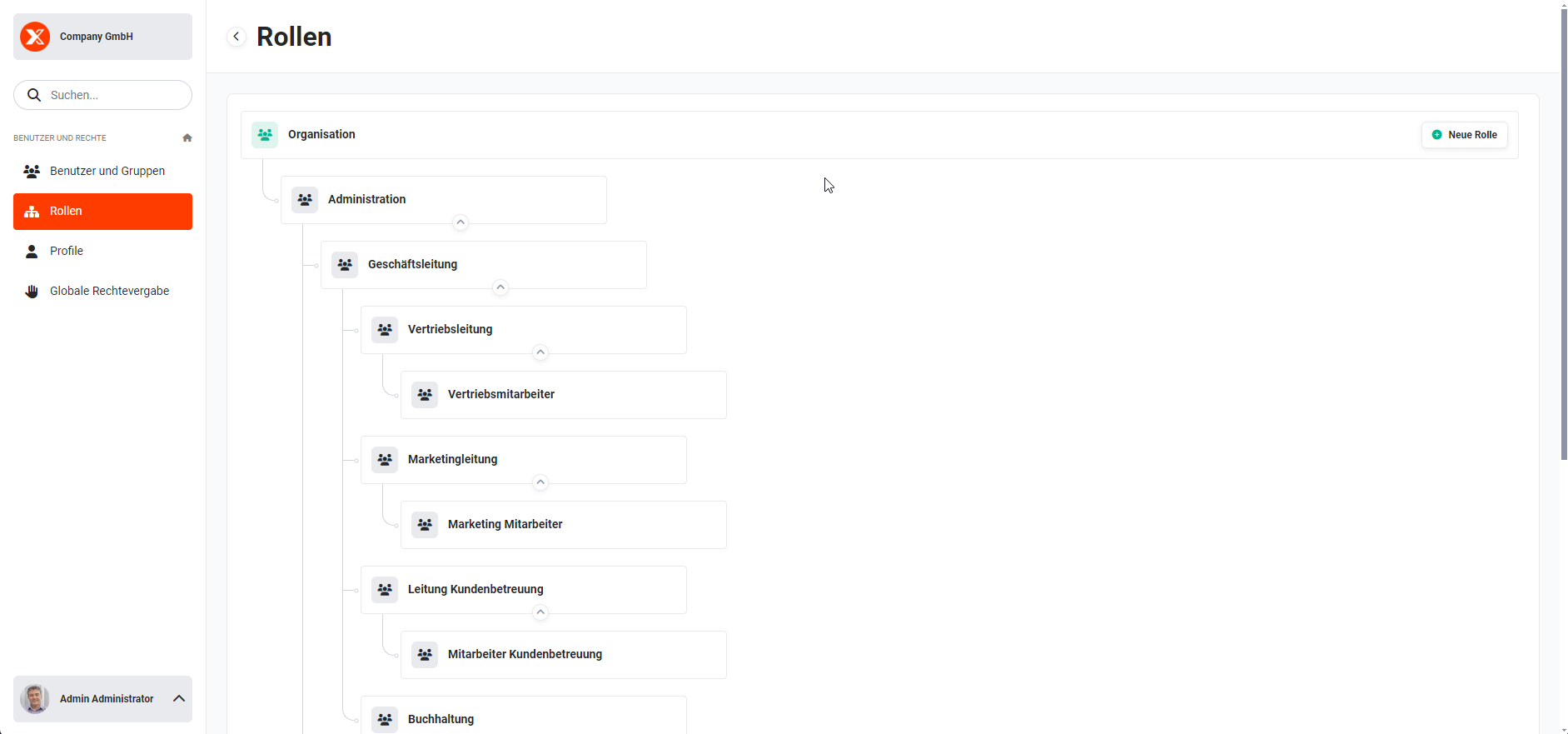 Roles hierarchy view
As a general principle, a superordinate role can always view all data of the roles subordinate to it. Unless exceptions have been defined in the Global Permission Assignment, there is no access to the data of a superordinate role. The same behaviour also exists for roles on the same level.
3. Creating a New Role
New roles can be created in two ways:
- Button “New Role” in the area of the “Organization” role
- Actions icon “New Role” (“Plus” icon) which is displayed on mouseover of a role. The new role is then created in the hierarchy tree directly below the relevant role.
4. Editing a Role
On mouseover of a role, the “Actions” icon (“three dots” icon) is displayed. After clicking the “Actions” icon, the Actions menu opens with the following actions:
- Edit role
- Copy role
- Delete role
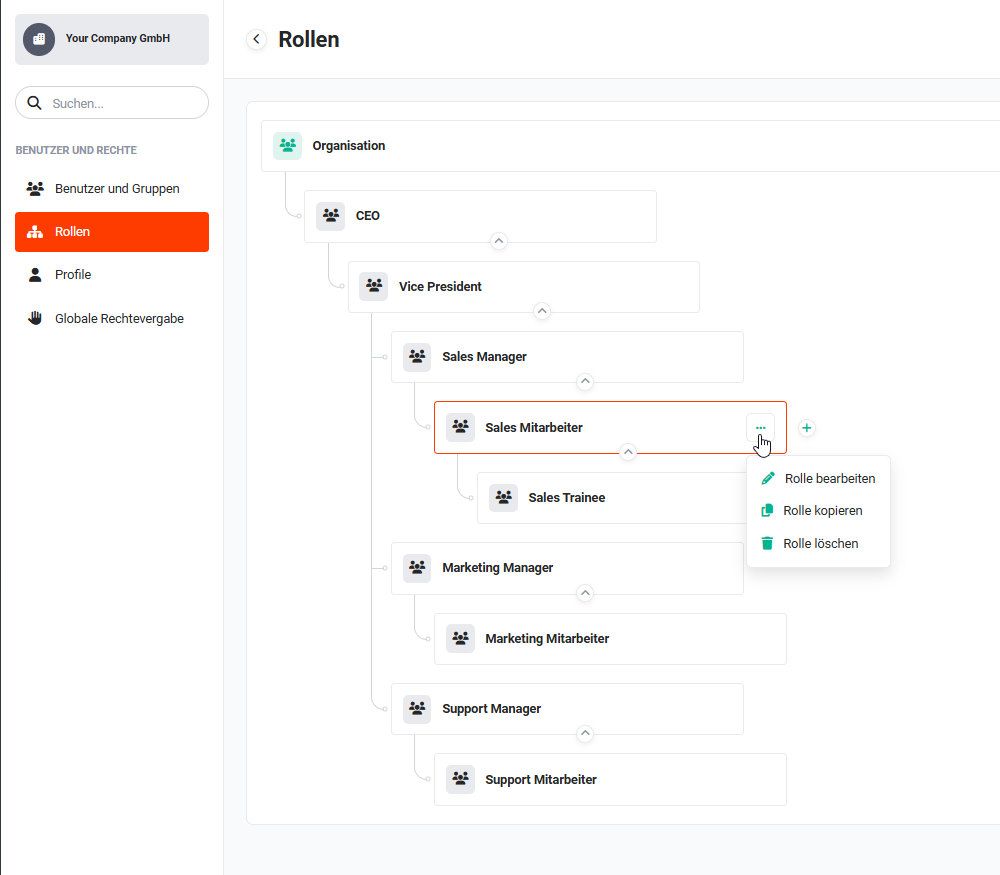 Roles - Actions menu
After clicking the “Edit role” action, the “Edit role” popup opens. Both the role name and the assigned profiles can be changed.
To apply the changes, the “Save” button must be clicked. As soon as changes have been made to a role, the rights must be recalculated. After saving, a corresponding notice is displayed for this:
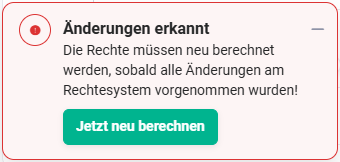 Notice: changes detected
Only after clicking the “Recalculate now” button are the changes in the permission system recalculated and take effect!
Users subordinate to the role see the change after their next click in the brainX system, since the changes take immediate effect after a reload of the browser.
If, at the time the role is saved, a user is in a module that is to be denied to them in future, they will be notified on their next click in the blocked module.
If a user makes changes to a record in the future-blocked module at this time, any unsaved changes in the record will be lost in this case!
5. Copying a Role
On mouseover of a role, the “Actions” icon (“three dots” icon) is displayed. After clicking the “Actions” icon, the Actions menu opens with the following actions:
- Edit role
- Copy role
- Delete role
Roles - Actions menu
After clicking the “Copy role” action, the “Copy role” popup opens. The role name, the superior, and the assigned profiles can all be changed.
To apply the changes, the “Save” button must be clicked. When a new role is created, the rights must be recalculated. After saving, a corresponding notice is displayed for this:
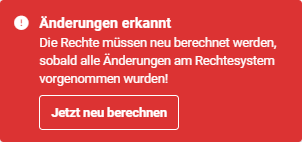 Notice: changes detected
Only after clicking the “Recalculate now” button are the changes in the permission system recalculated and take effect!
6. Deleting a Role
On mouseover of a role, the “Actions” icon (“three dots” icon) is displayed. After clicking the “Actions” icon, the Actions menu opens with the following actions:
- Edit role
- Copy role
- Delete role
Roles - Actions menu
After clicking the “Delete role” action, the “Delete role” popup opens. A replacement role must now be selected.
All users who were previously subordinate to the role being deleted are subsequently transferred to the selected role.
To apply the changes, the “Confirm” button must be clicked.
When deleting a role - unlike other actions on roles - no recalculation in the permission system is necessary.
Users subordinate to the role see the change after their next click in the brainX system, since the changes take immediate effect after a reload of the browser.
If, at the time the role is saved, a user is in a module that is to be denied to them in future, they will be notified on their next click in the blocked module.
If a user makes changes to a record in the future-blocked module at this time, any unsaved changes in the record will be lost in this case!
7. Moving a Role
Moving a role is done via drag & drop. The role to be moved is simply dragged to the desired position in the hierarchy tree.
As soon as changes have been made to a role, the rights must be recalculated. After saving, a corresponding notice is displayed for this:
Notice: changes detected
Only after clicking the “Recalculate now” button are the changes in the permission system recalculated and take effect!
Users subordinate to the role see the change after their next click in the brainX system, since the changes take immediate effect after a reload of the browser.
If, at the time the role is saved, a user is in a module that is to be denied to them in future, they will be notified on their next click in the blocked module.
If a user makes changes to a record in the future-blocked module at this time, any unsaved changes in the record will be lost in this case!
8. Practical Examples
1 – Building a role hierarchy for Sales
A company structures its sales into three levels: Sales Management, Sales Team Leader and Sales Employee. The Sales Employee role is created directly below Sales Team Leader – who thereby sees all records of their employees. Sales Management is positioned above Sales Team Leader and thus has insight into the data of both roles below.
2 – Creating a role for external service providers
External service providers should maintain their own records but not see other users' data. A new role External Service Provider is created directly below the organization role, without assigning it a superordinate sales role. The assigned profile allows access only to the Tasks module. Since there are no subordinate roles, these users see exclusively their own records.
3 – Creating an intern role by copying an existing role
A company wants to create a new role Sales Intern that is almost identical to Sales Employee – but without delete permission. Using Copy role on the Sales Employee role, the creation view is opened. The name is changed to Sales Intern and a profile that does not allow deletion is assigned. After saving and recalculating, the role is available for users.
9. Frequently Asked Questions
How does a role's position in the hierarchy tree affect data visibility?
A superordinate role always sees all records of the roles subordinate to it. Roles on the same level do not see each other – unless custom access rules are configured in the Global Permission Assignment. The higher a role is in the hierarchy, the more data is visible.
What happens to the users of a deleted role?
When deleting a role, a replacement role must be specified. All users of the deleted role are automatically transferred to the replacement role. A recalculation of the rights is not necessary in this case.
Must “Recalculate now” be clicked after every role change?
Yes – for all changes except deleting a role. Only after recalculation do changed permissions take effect for the affected users. Deleting a role is the only exception where no recalculation is required.
Can a role have multiple profiles?
Yes. Multiple profiles can be assigned to a role. The sum of the positive permissions of all profiles applies: if even just one of the profiles has read access to a module, the user receives this access.