
Tab Relations
- Package: BASIC
1. General
The structure of the detail view is the same or very similar in most modules (exceptions include modules such as Reports, Email accounts or Templates).
In terms of presentation, the detail view of a record is divided into three tabs:
- Information → Display of fields grouped in blocks as well as various actions
- Relations → Display of linked (referenced) records grouped in blocks as well as various actions
- Dashboard → Display of freely configurable widgets
If colours are configured for picklist fields, these are also displayed for the linked records shown in the Relations tab as well as in the “select record” pop-up.
In the detail view, the Relations tab displays linked (referenced) records grouped by module in blocks.
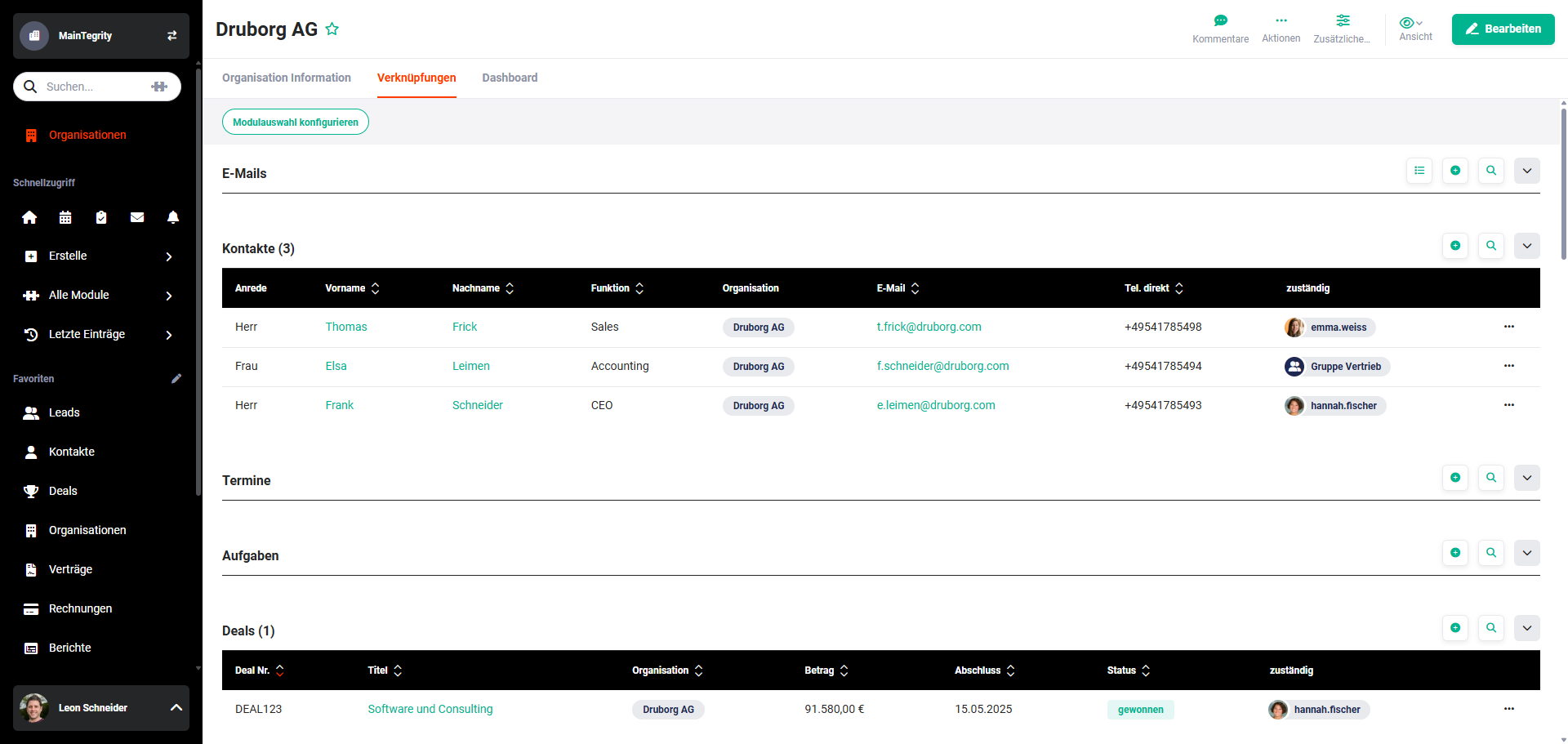 Detail view - Relations tab
2. Configuring the module selection
Which modules are to be displayed in the Relations tab can be set using the “configure module selection” button.
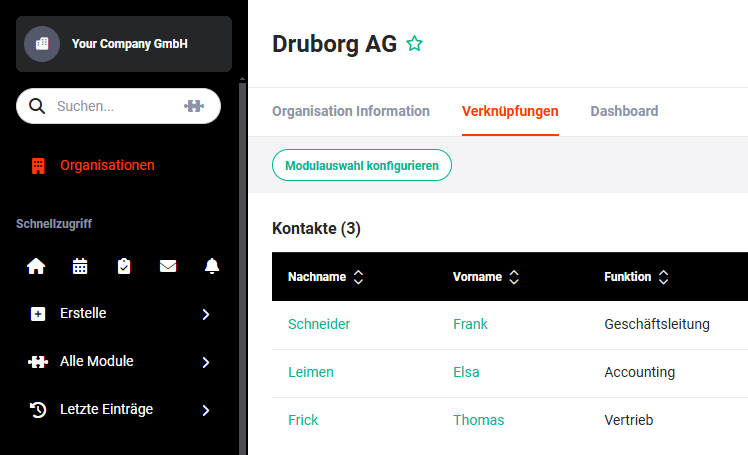 Relations tab - configure module selection button
After clicking the “configure module selection” button, all available modules are displayed.
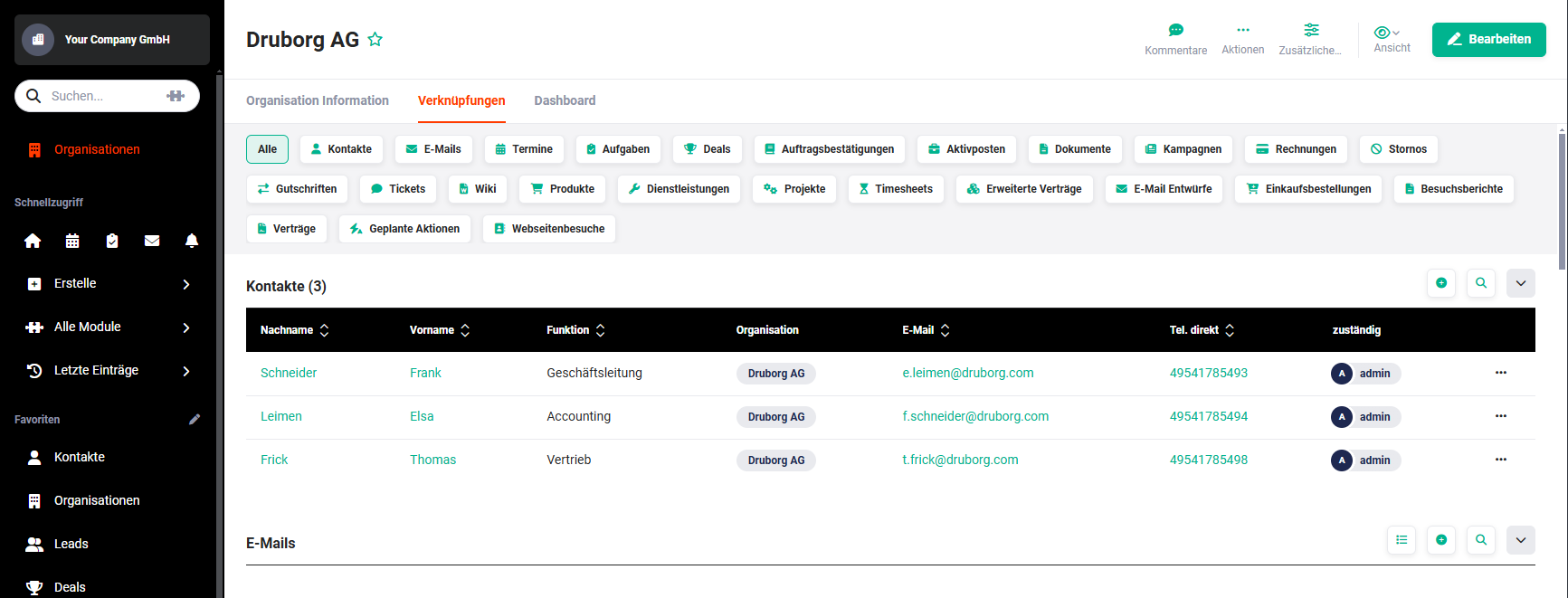 Relations tab - configure module selection
By clicking one or more modules, these are selected for display. If all modules are to be selected, this can be done by clicking “All”.
The order of the modules can be arranged using drag & drop.
There is no need to save separately here; the configuration is saved by reloading the page.
3. Actions
3.1. Block actions
Each block of a module contains up to four action icons in the top right-hand corner of the block.
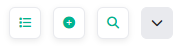 Action icons
- select record → After clicking, a pop-up window opens in which records can be searched for.
- create record → After clicking, a pop-up window opens for quickly creating a record.
- search in list → After clicking, an input field is shown in the centre for searching within the displayed records of the block.
- hide/show → The block can be hidden/shown.
Which actions are displayed depends on the module and on a user's permissions.
3.2. Record actions
The actions
- Edit → The editing view of the record opens in the respective module.
- Delete relation → The relation (link) is deleted.
- Delete → The record is deleted from the respective module.
- Subscribe → The record is subscribed to.
can be carried out directly from the list view for each individual record. In the last column, the “three dots” action icon is displayed. When this is clicked, a flyout menu with the actions mentioned opens.
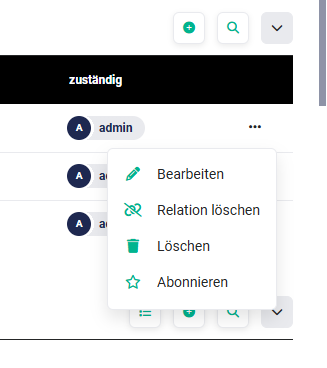 Actions flyout menu