
Price Lists
Package: SALES
1. General
The Price Lists module makes it possible to define individual prices for [Products]() and/or [Services]() that apply to specific customers, customer groups, or occasions. Conditions that deviate from the standard price can thus be managed flexibly and centrally.
Any number of price lists can be created, each with any number of products and/or services.
Typical use cases are:
- Customer-group price lists -> e.g. different prices for end customers, dealers, or key accounts
- Contract price lists -> e.g. individually negotiated prices for a specific customer or partner
- Quantity-discount price lists -> e.g. tiered prices by order quantity (1–24 pcs., 25–49 pcs., 50+ pcs., etc.)
- Promotional price lists -> e.g. time-limited special prices for campaigns or promotions
Price lists can be used when creating records in the following modules: Sales Orders, Deals, Purchase Orders, Invoices.
Once a product or service from a price list has been selected in the product block, the desired price list can be chosen via the action icon "Select price list" (icon arrow pointing right) in the List price field. The price stored there is applied automatically.
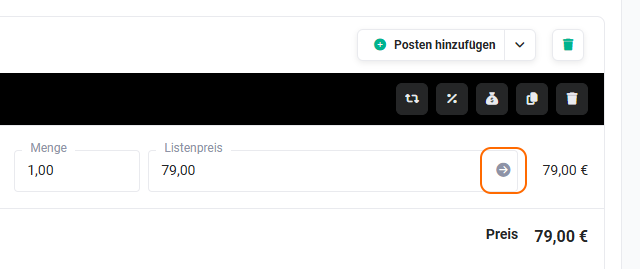
For further information on using price lists in the product block, see the section Product block of the Billing modules - Select price list.
Based on a framework agreement, a dealer receives a 15% discount on all products. A price list Dealer XY is created in which all products are stored with the contractually agreed prices. When creating a sales order for this dealer, the Dealer XY price list is selected – the reduced prices are automatically applied to the line items.
Separate price lists are created for quantity discounts (e.g. Tiered price 1–24 pcs., Tiered price 25–49 pcs.) in order to enter the appropriate price quickly and without errors depending on the ordered quantity.
This section describes only special fields or functionalities of the module, as all general brainX functionalities are described elsewhere in the handbook.
2. List view
The list view in the Price Lists module offers the usual functionalities of a list view. For more detailed information, see the section Layout/Structure - List view.
2.1. Actions
In the list view, general actions are available – depending on the module. An overview and description of all general actions can be found in the section Actions (List view).
There are no module-specific actions in this module.
3. Detail view
3.1. Fields
The following table describes mandatory fields as well as fields whose function is not self-explanatory. All other fields are self-explanatory.
Basic data block
| Field | Description |
|---|---|
| Price list name * | Name of the price list |
| Active | When deactivated, the price list is no longer available for selection in the product block |
| Currency * | Currency of the price list |
*Mandatory field
3.2. Actions
The following actions are available in the detail view:
3.2.1. General actions
- PDF Export
- Recommend
- Copy
- Delete
- Change tracking
For detailed information on the actions, see the section Actions (Detail view).
4. Create and edit a price list
After a new record has been created, the actual price list is maintained in the Relations tab of the record. There, products and services can be added, removed, and their list prices edited.
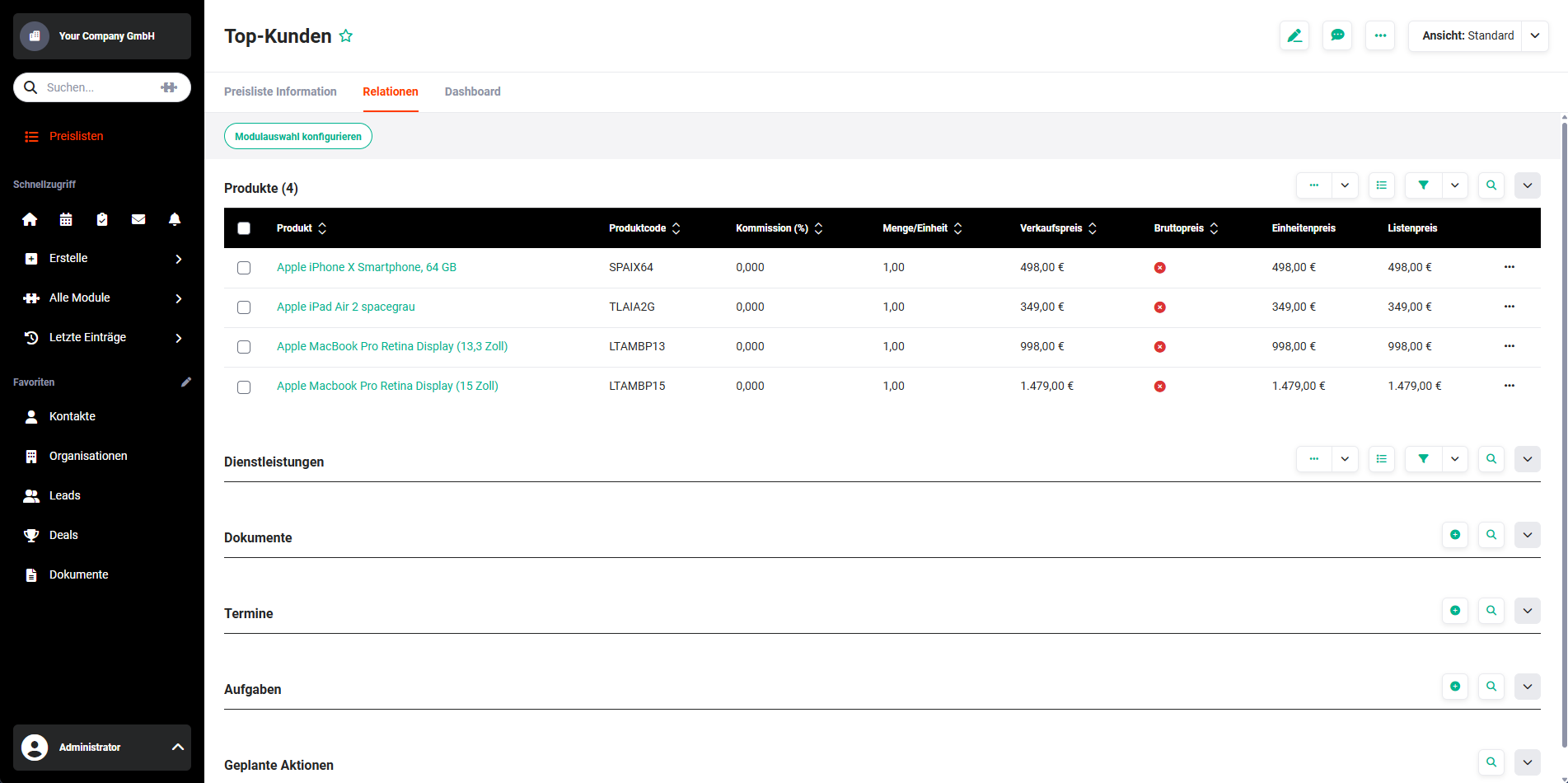 Price Lists module - Relations tab
4.1. Adding products and/or services
In the "Relations" tab, records from these modules can be added to a price list in the Products and Services blocks.
Three options are available:
4.1.1. Select records
After clicking the action icon select products or select services, a popup opens. Products or services can be added individually by clicking the name, or via multiple selection using checkboxes and the Select button.
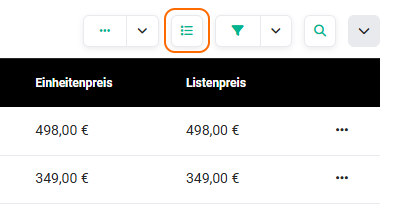 Action icon select products/services
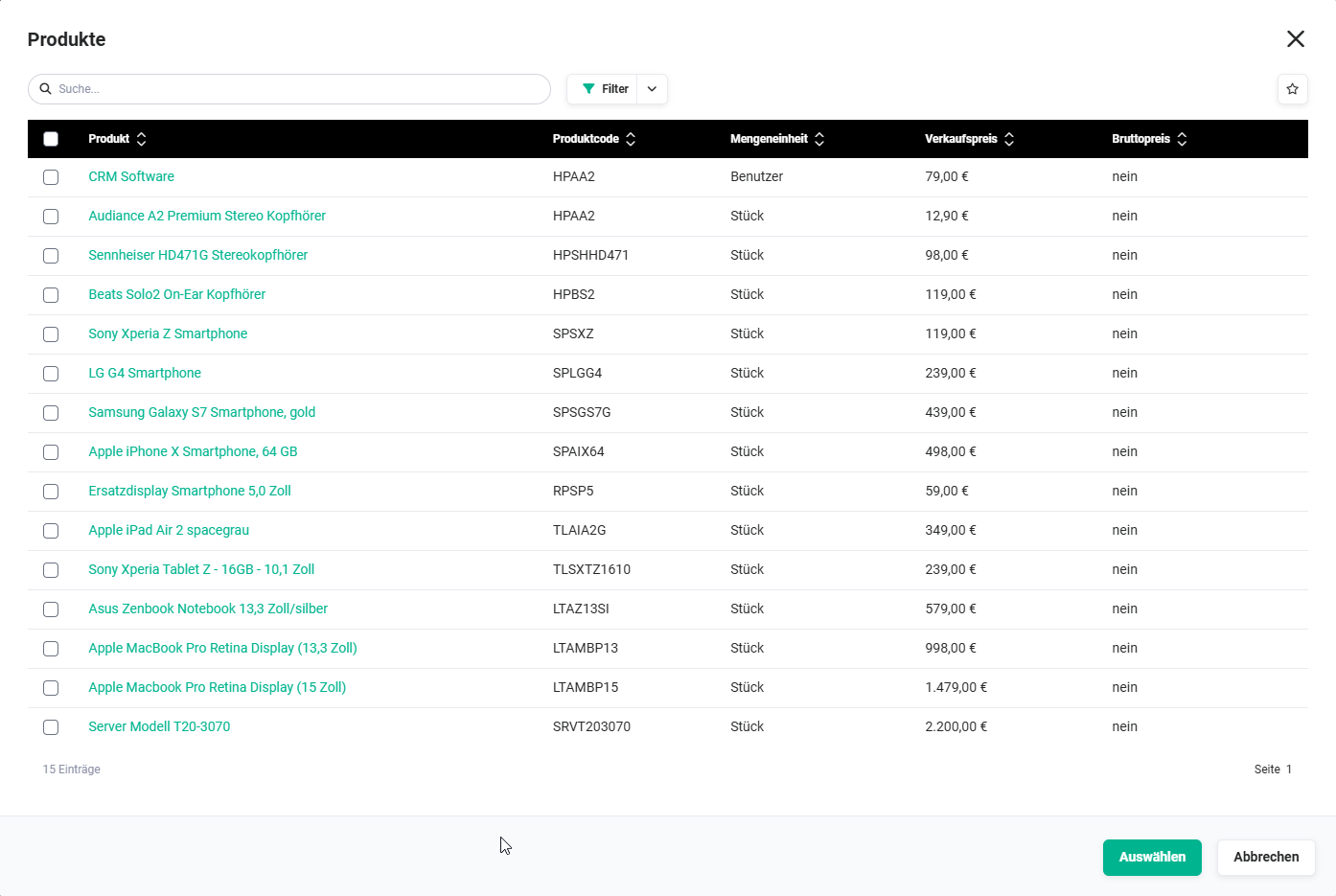 Products popup
4.1.2. Load list
After clicking the action icon load products or load services, a flyout menu opens for selecting a list view of the respective module. All products or services contained in the selected list are added to the price list.
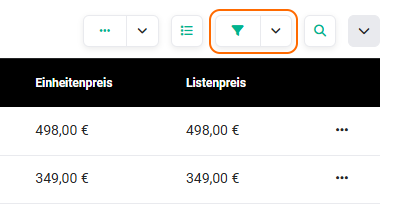 Action icon load products/services
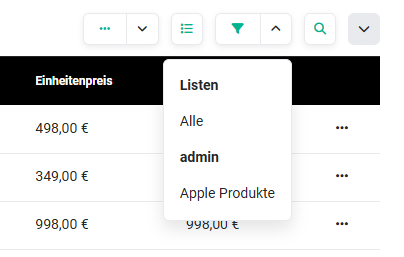 Flyout menu list selection
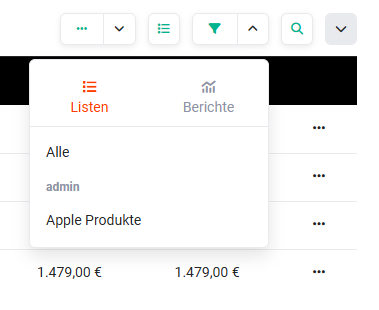 Flyout menu selection of lists and reports
4.1.3. Load report
Using the same action icon load products or load services, a report can also be selected in the flyout menu. All records contained in the report are added to the price list.
Action icon load products/services
The "Load report" option in the flyout menu is only available if a report for the Products or Services module already exists.
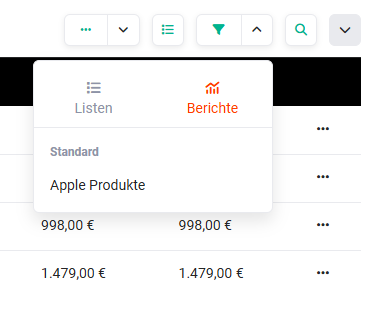 Flyout menu report selection
4.2. Removing products and/or services
To remove a product or a service from the price list, select the action Delete relation (icon broken chain) in the action menu of the respective line item (icon three dots). The link is deleted; the record itself remains in the respective module.
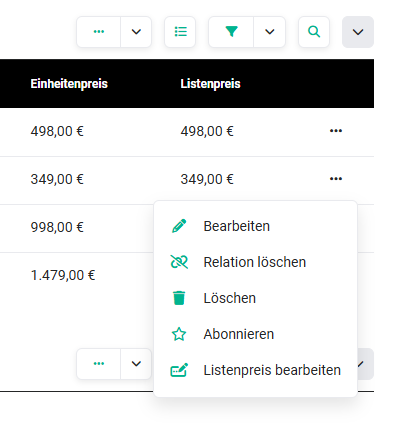 Actions flyout menu
4.3. Edit list price
List prices can be changed either via bulk editing or individually.
4.3.1. Bulk editing
Select several line items via checkbox and then click the action icon Edit list price.
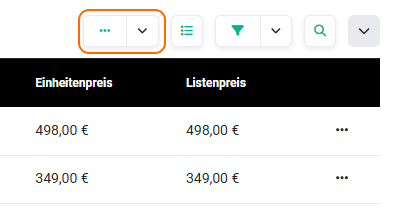 Action icon
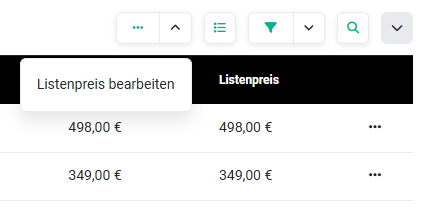 Action icon - Edit list price
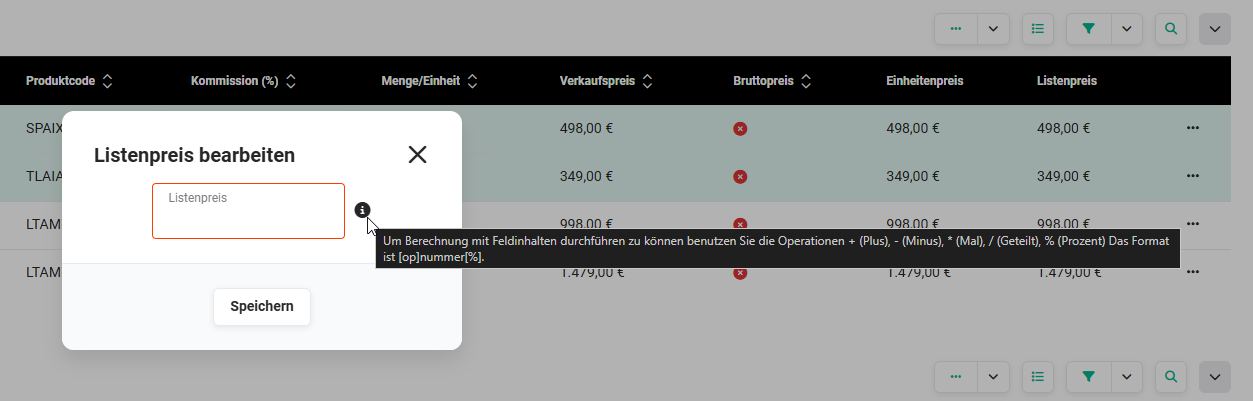 Edit list price popup incl. tooltip on the calculation operators
In the popup, a value with an operator can be entered:
| Input | Meaning |
|---|---|
-10% | Reduce all selected list prices by 10% |
-20 | Reduce all selected list prices by EUR 20.00 |
+5% | Increase all selected list prices by 5% |
Format: [Operator]Number[%] – operators: +, -, *, /, %
To reduce all selected list prices by 10%: enter -10%. To reduce all selected list prices by EUR 20.00: enter -20.
Calculations with operators can only be applied to a multiple selection. When a single line item is selected, the entered value is set directly as the new list price.
4.3.2. Individual editing
In the action menu of a line item (icon three dots), select the action Edit list price. In the popup, enter the new list price and save.
Actions flyout menu
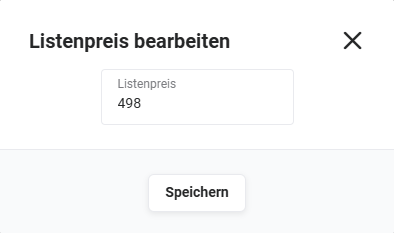 Edit list price popup
4.4. Actions per line item
The following actions are available in the action menu of each line item (icon three dots):
| Action | Functionality |
|---|---|
| Edit | Opens the record of the product/service in the edit view |
| Delete relation | Removes the product/service from the price list; the record remains in the module |
| Delete | Removes the product/service from the price list and deletes the record into the Recycle Bin module |
| Subscribe | Subscribes to the record of the product/service |
| Edit list price | Opens the individual editing of the list price |
Actions flyout menu
5. Practical examples
1 – Creating a dealer price list with individual conditions
Based on a framework agreement, a dealer receives a 15% discount on all products. In the Price Lists module, a new price list Dealer XY is created, the currency is defined, and the record is saved. In the Relations tab, all relevant products are added to the price list via select products.
Next, all line items are marked via checkbox and the value -15% is entered via the bulk editing Edit list price – all list prices are thereby automatically reduced by 15%. The finished price list is stored in the dealer's organization record in the Price list field. On the next sales order entry for this dealer, the price list is applied automatically and the reduced prices are applied to the line items.
2 – Setting up quantity-discount price lists for tiered ordering
A company wants to set up quantity discounts for three tiers: 1–24 pieces at the standard price, 25–49 pieces with a 5% discount, and 50+ pieces with a 10% discount. For this, two separate price lists are created: Tiered price 25–49 pcs. and Tiered price 50+ pcs..
In each price list, all products from the existing product list are imported via Load list. The list prices are adjusted via bulk editing with -5% or -10%. When creating a sales order, the employee selects the price list matching the order quantity in the product block via Select price list – the correct tiered price is applied automatically.
3 – Creating a promotional price list for a time-limited campaign
The marketing team is planning a summer promotion with special prices on selected products. In the Price Lists module, a new price list Summer promotion 2026 is created. Via Load report, a previously created report containing all promotional products is selected – these are thereby added to the price list in one step.
The prices are adjusted individually for each product via individual editing. After the promotion ends, the Active switch is deactivated, so that the price list is no longer available for selection in the product block but remains in the system for later reference purposes.
6. Frequently asked questions
In which modules can price lists be used?
Price lists can be used when creating records in the Sales Orders, Deals, Purchase Orders, and Invoices modules. In the product block, the desired price list is chosen via the action icon Select price list and the stored price is applied automatically.
How are products and services added to a price list?
In the Relations tab of the price list record, three options are available: manually select individual records via Select records, import all records of a saved list view via Load list, or add all records of an existing report via Load report.
Can I change the list prices of several line items at once?
Yes. Via bulk editing, several line items can be marked via checkbox and adjusted together via the action icon Edit list price. Here, a relative value (e.g. -10% for a 10% reduction) or an absolute value (e.g. -20 for a EUR 20 reduction) can be entered.
What is the difference between "Delete relation" and "Delete" for a price list line item?
Delete relation merely removes the product or service from the price list – the record itself remains in the respective module. Delete, on the other hand, removes the record from the price list and additionally moves it to the Recycle Bin of the respective module.
Can I deactivate a price list without deleting it?
Yes. A price list can be deactivated via the Active switch in the Basic data block. It is then no longer available for selection in the product block but remains in the system and can be reactivated at any time.