
Automations
Package: BASIC
1. General
Overall, automations help to optimise business processes, increase efficiency and improve the quality of customer relationships.
Automations (workflows) in brainX are predefined processes that automatically execute certain tasks or actions – based on defined triggers or conditions. They help to optimise recurring tasks and increase efficiency.
Benefits of automations:
- Time savings – Routine tasks such as sending emails, creating tasks or updating records are handled automatically.
- Error reduction – Automated processes reduce the risk of human error during manual data entry or task execution.
- Consistency – Workflows are executed uniformly, contributing to better data quality and a consistent customer experience.
- Traceability – All steps in the workflow are logged, which facilitates analysis and reporting.
- Productivity – Employees can focus on strategic tasks instead of spending time on administrative activities.
- Better customer interaction – Customer enquiries are processed faster, e.g. through automated replies or follow-up emails.
A no-code editor makes it possible to create automated workflows quickly and easily. Via a user-friendly interface, individual steps (triggers, conditions and actions) can be moved, added, deleted and individually adjusted via drag & drop – without any programming knowledge.
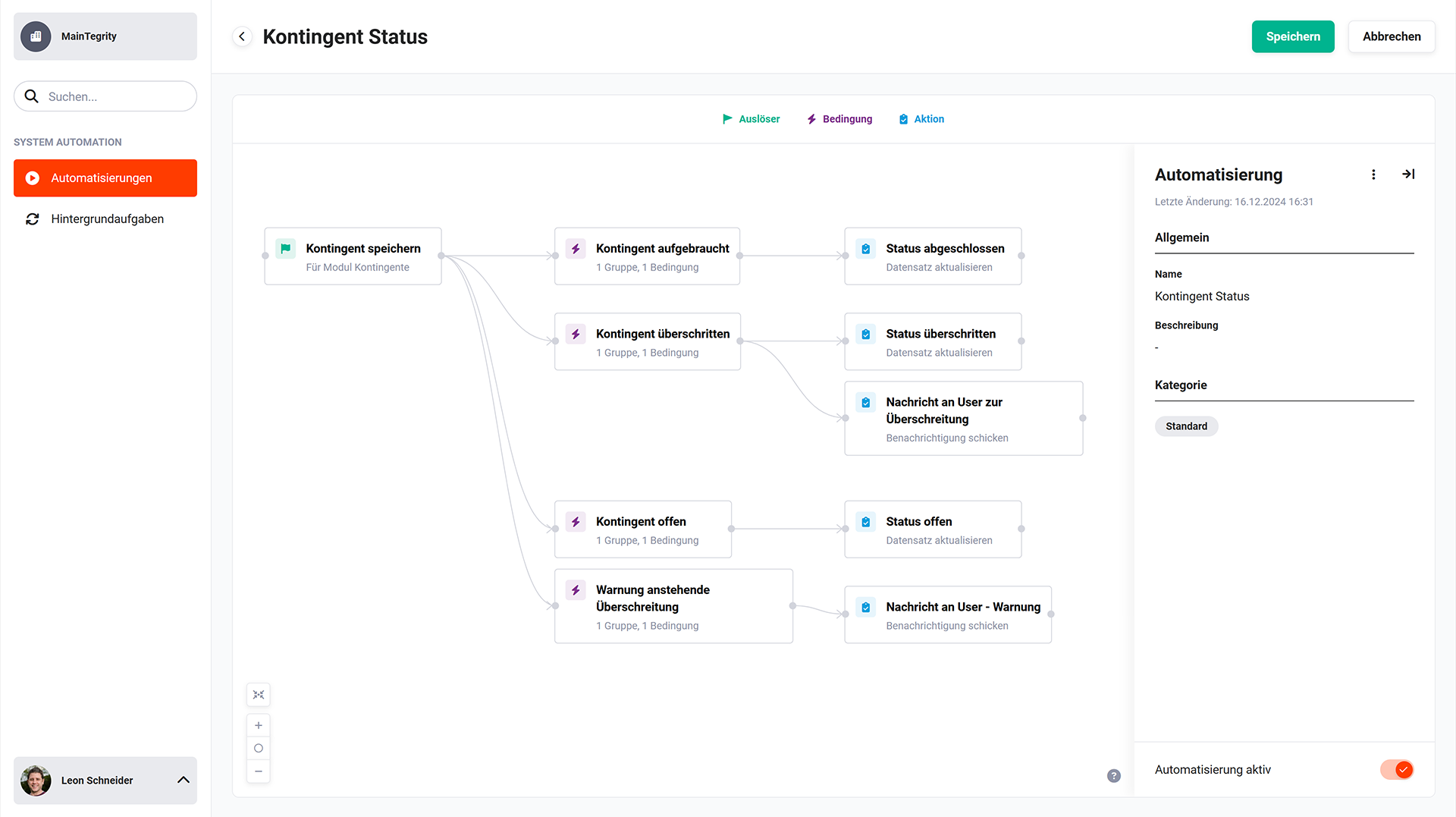 Example illustration of an automation
Automations consist of three essential components:
- Trigger → defines when a specific part of the automation is started.
- Condition → defines whether actions should only be executed under certain prerequisites.
- Action → defines what should happen when an event occurs and any prerequisites are met.
Triggers, conditions and actions are also referred to as “nodes” in the following descriptions.
Due to the wide range of configuration options, creating an automation is a complex topic. It is recommended to read the subpages of this documentation in full before creating the first automation, in order to gain an overall overview.
Our YouTube channel features a video on the topic of automations, which explains the setup and application step by step.
The following example explains the flow of a simple automation in the Deals/Sales Order area:
- Trigger 1 → a record in the Deals module is saved
- Condition 1 → the value in the Status field is won
- Action 1 → a new record is created in the Sales Orders module; the line items of the deal are carried over
- Trigger 2 → a record in the Sales Orders module is saved (= Action 1)
- Action 2a → the sales order is automatically sent to the customer by email
- Action 2b → the Sales department receives a CRM notification informing them of the creation and dispatch of the sales order
1.1. Permissions
Creating and modifying automations in a CRM system can have far-reaching effects on processes, data integrity and user rights. Therefore, this function is reserved for users with administrative rights, in order to avoid misconfigurations, security risks and unintended changes to business-critical processes.
Granting administrative rights is done via the “Rechtemanagement” field in the user settings.
Users with administrative rights are assigned the setting “Admin” or “CustomerAdmin” in the “Rechtemanagement” field.
Users with the “Superuser” setting only have read access to:
- Automations list view → display of which automations are active/inactive
- Automation details (triggers, conditions and actions) → detailed information about the automations
2. Contents of this documentation
The documentation on automations is divided into the following subpages:
| Subpage | Content |
|---|---|
| Automations - List View | Columns of the list view, general actions (manage categories, import), row menu |
| Automations - Creating and Editor | Creating an automation, overview of the editor functionalities, sidebar, connection arrows, zoom, numbering |
| Automations - Triggers | Configuration of triggers, all available event types |
| Automations - Conditions | Configuration of conditions, comparison operators, abort condition, order |
| Automations - Actions | Configuration of all available action types |
| Automations - Configuring the Workspace | “Set value” popup, placeholders, calculations and functions |
| Automations - Notes and Tips | Multi-tenancy, time delay, avoiding cycles, recommended approach |
| Automations - Preconfigured Automations | Overview of the automations included in the system for brainX CRM and brainX APP |
| Automations - Examples | Step-by-step description of concrete automations (sales process, letter salutation) |
3. Video-Tutorials
The following videos are available in German only.