
Product Block in Billing Modules
Package: BASIC
1. General
The blocks “Line items - Basic settings”, “Line items“ and “Summary“ in the Billing modules are also referred to as the “product block”, since Products, Services, Licenses and Contingents can be selected here.
The product block offers, among others, the following features:
- Multilingual fields for the modules Products and Services can be configured in Module management - Layout.
- Default values for currency, language, base discount and tax setting can be defined for Organizations.
- Individual line items can be marked as "optional".
- For product line items, a License can be created directly or an existing License can be selected.
- For service line items, an existing Contingent can be selected.
- Inserting alternative line items to a line item is possible.
- For product bundles, the quantity of the added products can be configured.
- Moving individual line items or entire blocks via Drag & Drop.
- Option, when converting deals to a Sales Order/Invoice, to select which optional or alternative line items should be adopted.
- Custom fields for line items are configurable for Products and Services, including permissions via the Profiles.
- A Price List can be selected for an Organization. When line items are inserted into a product block, prices from the Price List stored on the Organization are loaded preferentially.
- In the Deals module, line items from the selection popup can be inserted directly as optional line items.
The product block is available in the following modules, which are among the so-called "Billing modules":
- Sales Orders
- Deals
- Incoming Invoices
- Purchase Orders
- Credits
- Delivery Notes
- Invoices
- Cancellations (product block only usable to a limited extent)
- Contracts (brainX APP only)
In the settings item Global Settings - Basic Setup - Product block, general settings for the product block can be made. These include the following items:
- Settings for formatting numeric values in product blocks and for dynamic line item groups
- create and edit audit-proof and optional fields for product and service line items
- edit properties of line item groups (including managing values for line item groups and defining default billing intervals per line item group
In the creation view of a new record - here in the Invoices module - the product block appears as follows:
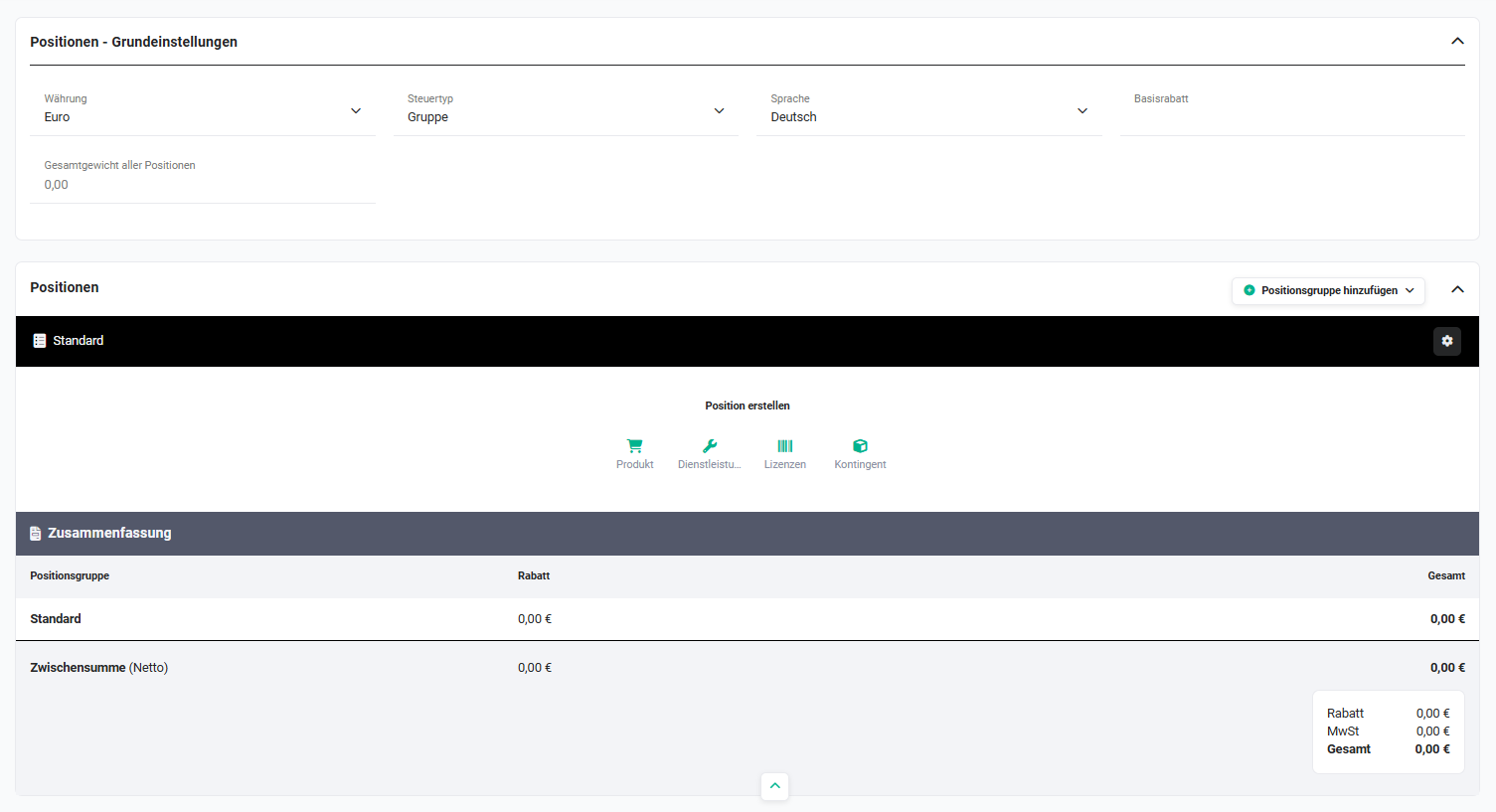 Product block in the Invoices module
2. Product block
The product block is divided into the following areas:
2.1. Block Line items - Basic settings
The block “Line items - Basic settings“ contains the following fields:
The information for these fields can be stored in the record of an Organization in the fields of the same name.
If an Organization is selected - e.g. in a deal or in an Invoice - this information is adopted automatically.
After selecting the Organization, a popup is displayed in which you can choose which settings should be adopted.
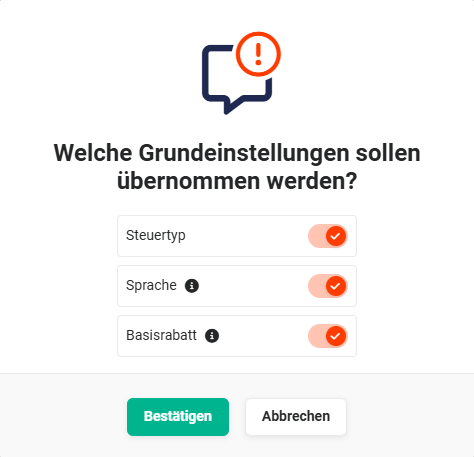 Popup Basic settings
2.1.1. Currency
The Currency field is a field of type picklist, in which all active currencies can be selected that are configured in Global Settings - Basic Setup - Currencies & Taxes - Currencies, or have the status “active“.
2.1.2. Tax type
The following picklist values are available by default:
- none → no VAT
- Group → VAT is listed as a group tax after the subtotal
- Individual → VAT is listed per line item
The tax type “none“ can be used, for example, when an Invoice is issued to customers outside Germany.
For further information on the topic of tax type, see section Global Settings - Basic Setup - Currencies & Taxes - Tax rates.
2.1.3. Language
The Language field is a field of type picklist, in which a language can be selected.
The following languages are available for selection:
- -none-
- Deutsch
- English
- Francais
- Italian
- Spanish
2.1.4. Base discount
By default, no discount fields are shown for line items. These are only shown automatically if a positive value is present in the “Base discount“ field for the selected Organization. In this case, the discount fields are shown for each new line item and calculated automatically when the product/service is selected.
If no base discount is set for an Organization, a percentage or direct discount can be entered for each line item in the product block.
After clicking the actions icon “three dots”, a flyout menu opens, containing the actions “Percentage discount” and “Direct discount”.
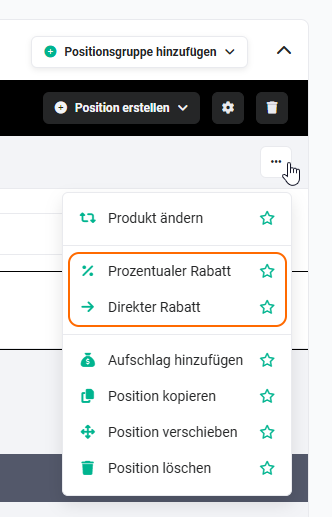 Actions discount
After clicking one of these actions, the input field “Percentage discount” or “Direct discount” is shown in the line item.
2.2. Block Line items
In the Line items block, line items are added in the creation view of a record and, if required, assigned to a specific line item group. Furthermore, line items and line item groups can be sorted/moved.
The display, selection and editing of quantities, list prices, VAT (only for tax type “individual“) and prices is also located in the line item group.
A “line item” in the product block is a [Product](), a [Service](), a [License]() or a [Contingent]().
Which modules are available here depends on which [brainX packages]() have been booked:
- Product → Basic package
- Service → Basic package
- Licenses → Sales and Billing packages
- Contingent → Service and Projects packages
The block “Line items” appears in the creation view of a new record as follows:
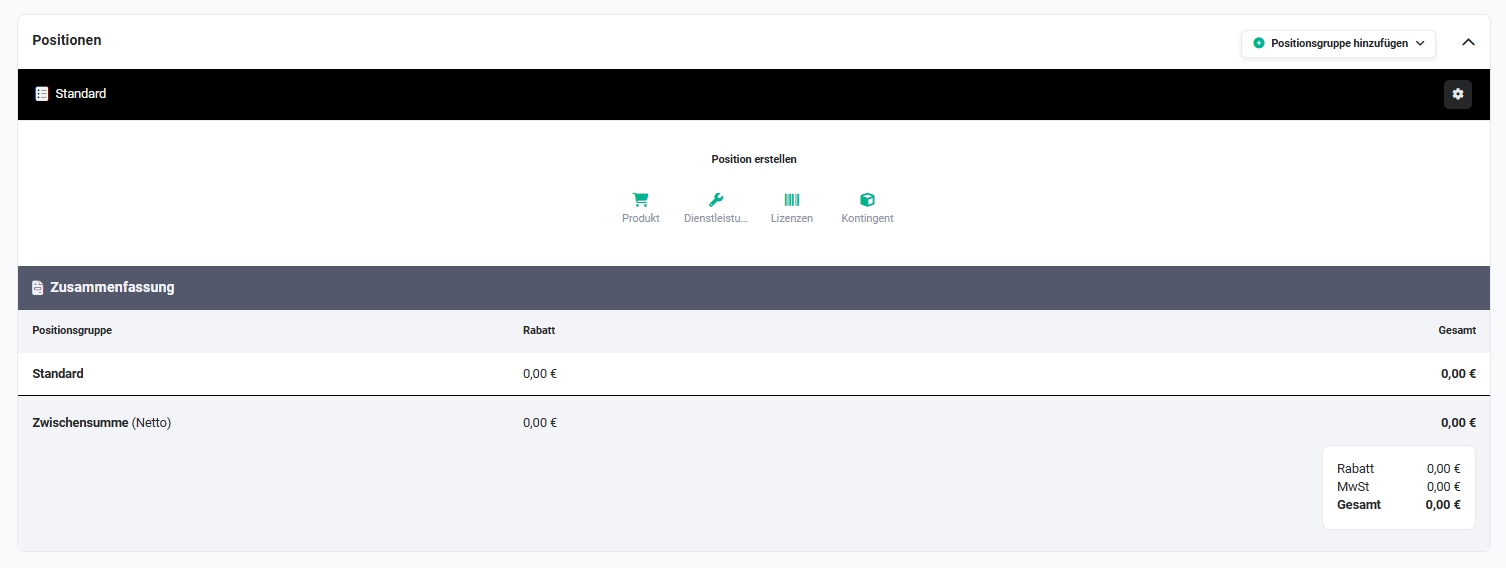 Product block - Block Line items
In the “Create line item” area, corresponding records from the respective modules can be inserted as a line item into a line item group using the buttons “Product”, “Service”, “Licenses” or “Contingent”.
After clicking a button, a popup window opens in which a record from the corresponding module can be selected.
A License can only be selected if an Organization has already been selected.
2.2.1. Line item group actions
Within the line item group, various actions are available:
- Add line item group
- Line item group actions and settings
- Move blocks and line items
- Select line item group
- Create line item
- Delete group
- Assigned line item
- Create Contingent from Service
- Change line item
- Change discount
- Add surcharge
- Copy line item
- Delete line item
- Line item description editor
- Select Price List
- Insert page break after line item
- Insert page break after subtotal
- Add actions to favourites
- Scheduled Actions for line items
- Allow automatic price increase
- Deviating billing
- Create License from Product
- Select License
- Select Contingent
In the Change tracking, all changes to line items in product blocks are displayed.
2.2.1.1. Add line item group
Within a line item group, line items can be grouped, for example, thematically. The line item group “Standard” is always present by default.
After clicking the button “Add line item group”, a flyout menu of the available line item groups is displayed.
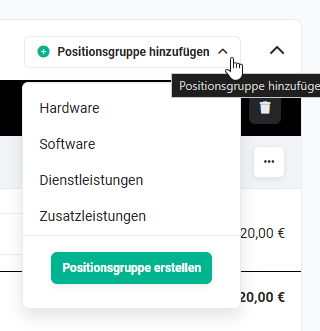 Button „Add line item group"
Line item groups are configured per module in [Global Settings - Module management - Layout](). Line item groups can be created, sorted or also changed here.
If the option “Creation of new values allowed” was activated in the field properties of the “Line item group” field, new groups can also be created directly when selecting a line item group.
2.2.1.2. Line item group actions and settings
In each line item group there is an action icon (icon “gear”) for actions and settings of the line item groups.
After clicking the actions icon, a flyout menu with actions opens:
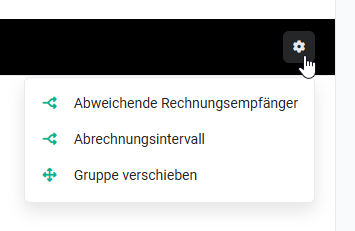 Flyout menu Actions
Action Deviating invoice recipients
After clicking the action “Deviating invoice recipients”, the popup “Invoice recipients“ opens:
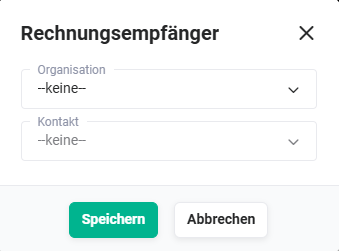
In the popup, deviating invoice recipients can be selected from the modules Organizations and Contacts.
Action Billing interval
After clicking the action “Billing interval”, a picklist with the available billing intervals is shown in the header of the line item group:
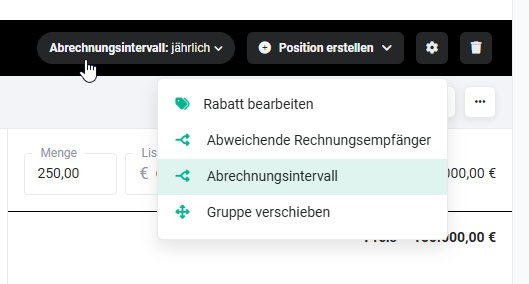 Picklist Billing interval
Action Move group
After clicking the action “Move group”, the popup “Sort line item group” opens, in which the line item groups can be re-sorted via Drag & Drop:
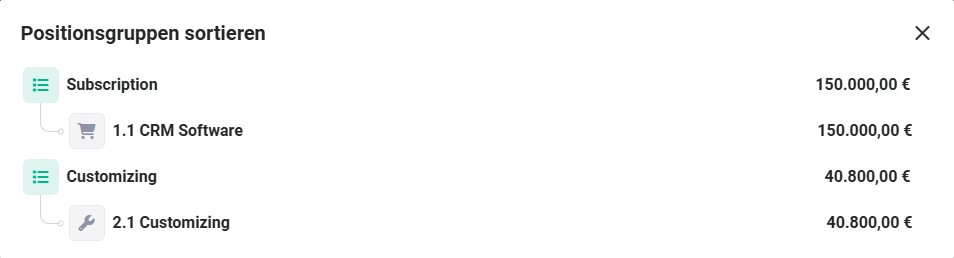 Popup Sort line item groups
Action Edit discount
If line items are already contained in the line item group, the action “Edit discount” is additionally displayed - depending on the line items:
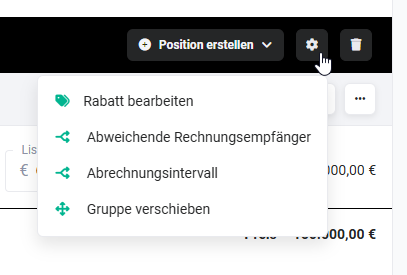 Flyout menu with action Edit discount
After clicking the action “Edit discount”, the popup “Discount” opens:
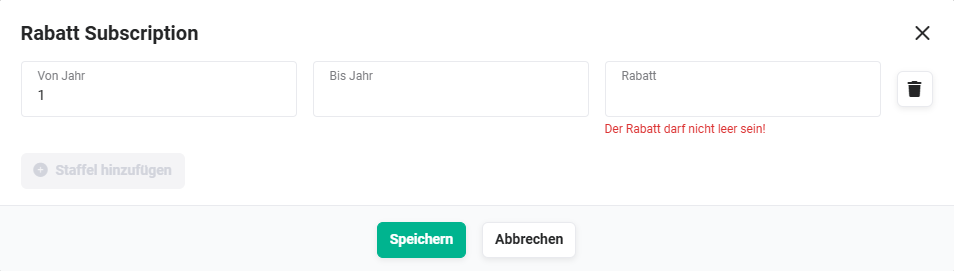 Popup Discount
In the popup, discount scales can be stored for the line item. Once a first discount scale has been entered, the button “Add scale” is active and further discount scales can be entered.
2.2.1.3. Move blocks and line items
Using the actions “Move group” and “Move line item”, both line item groups and individual line items can be sorted subsequently.
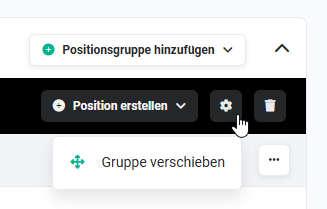 Action „Move group"
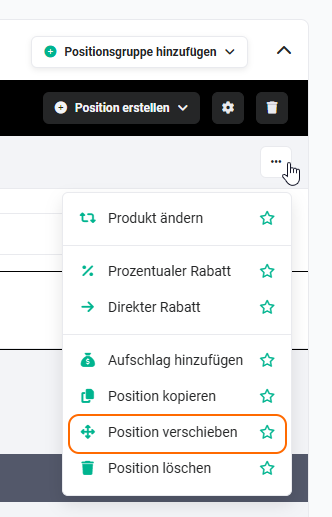 Action „Move line item"
After clicking the action “Move group” or “Move line item”, the popup “Sort line item groups” opens, in which both the line item groups and the line items themselves can then be rearranged via Drag & Drop.
In the popup, the current status of the line item is displayed for each line item – if available – to enable a better overview of the state of the individual line items when moving.
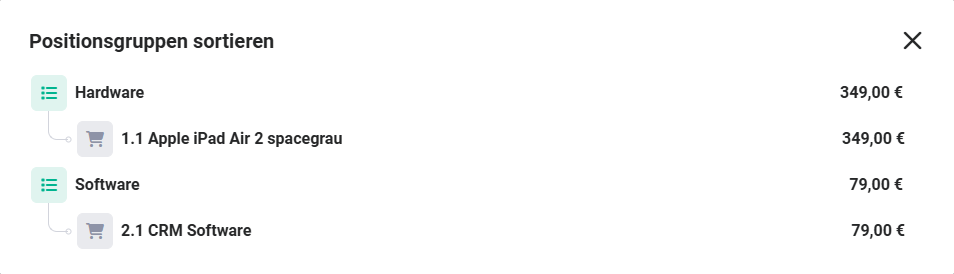 Popup „Sort line item groups"
2.2.1.4. Select line item group
Already selected line item groups can be changed subsequently by clicking the line item name.
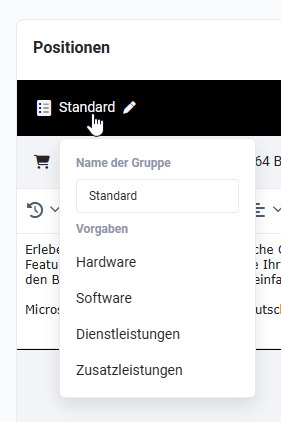 Product block - Selection line item group
By clicking a name of an existing line item group in the “Presets” area, the group is changed.
In the input field, the name of the line item group can be changed directly to a new value. After the change and pressing the Enter key, the name is adopted.
Line items that are already located in the line item groups are retained.
2.2.1.5. Create line item
New line items (Product, Service, Licenses or Contingent.) are selected using the button “Create line item”.
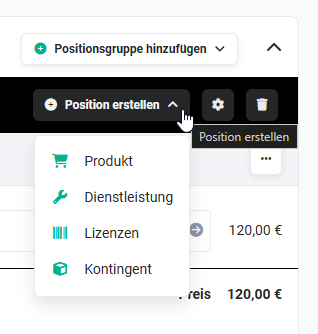 Button „Create line item"
After clicking the actions button “Create line item”, a flyout menu of the available modules is displayed.
After the selection - or after clicking - a module, a popup opens in which a Product/Service/License/Contingent can be selected by clicking.
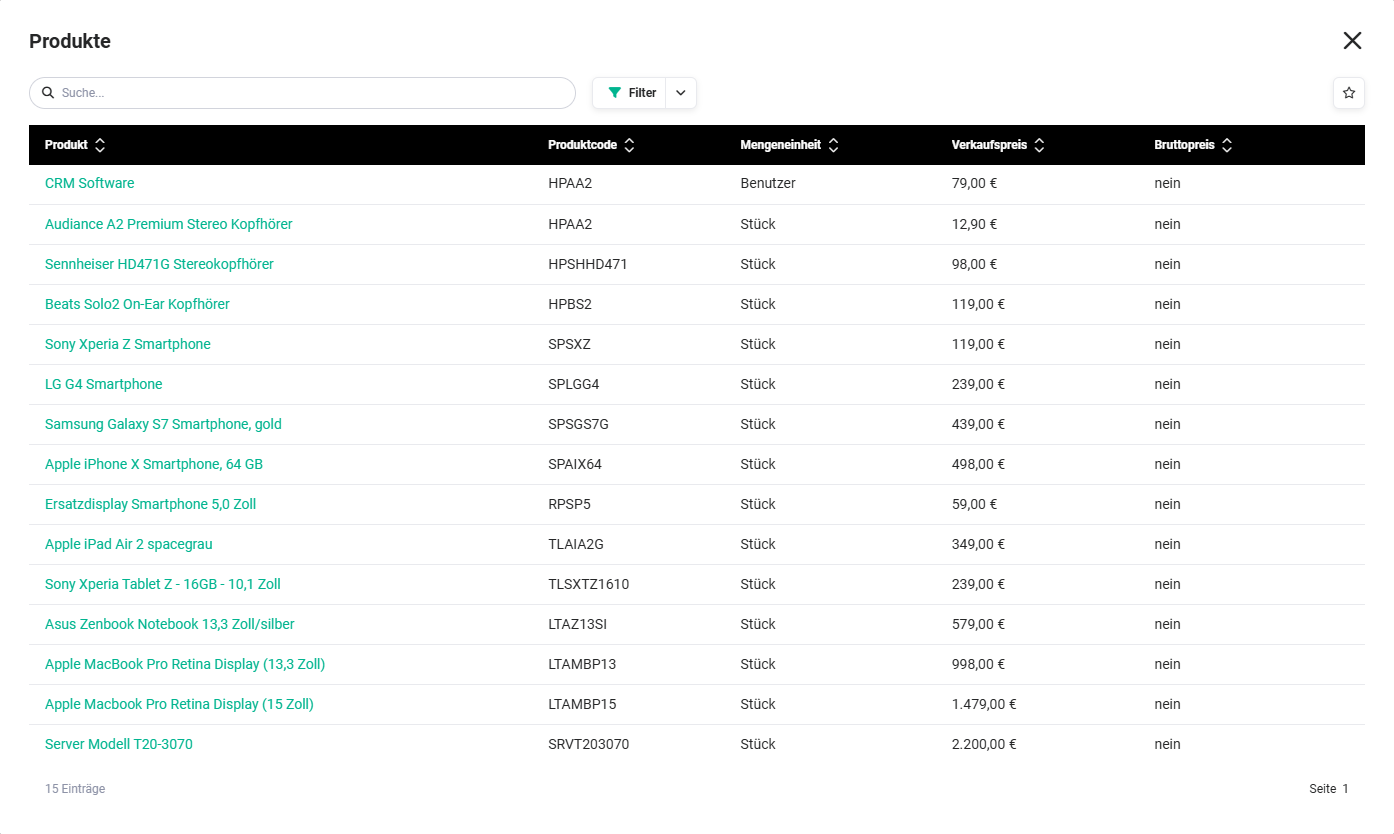 Popup „Products"
A search field is available in the popup. After entering a search term and pressing the Enter key, the search is executed and the results are displayed in the popup. When entering a single character, only hits are displayed whose words begin with that character. When entering two or more characters, hits that contain the entered character string at any position are additionally displayed.
Filtering by price type when a billing interval is set
If a billing interval is set for a line item group (see section 2.2.1.2.), a filter for the matching price type is automatically applied in the selection popup. The displayed products are thus restricted to those whose price type matches the selected interval.
The filter can be removed manually in the popup in order to also display products with a deviating price type.
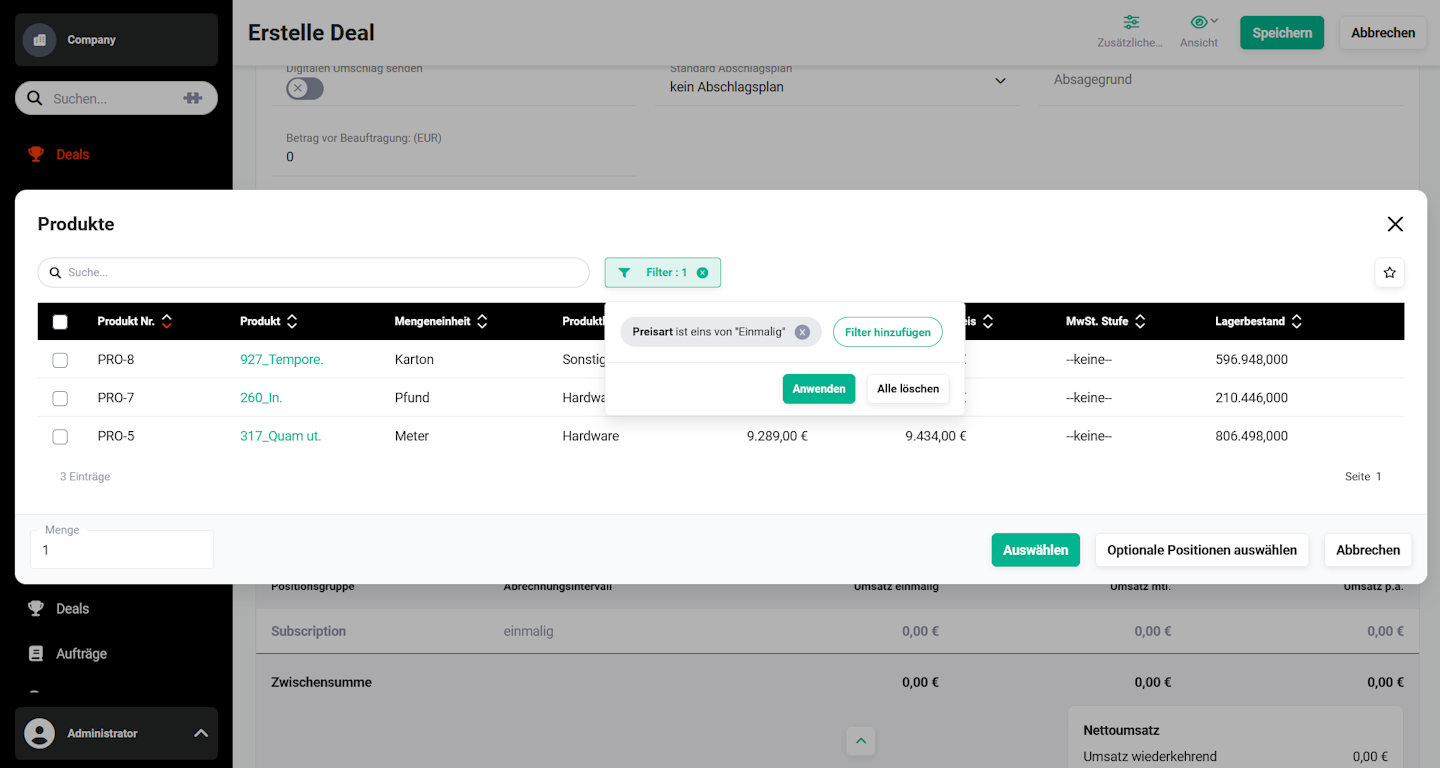 Popup Selection Products - Filter price type
If such a product is selected, a warning appears: “The price type of the selected line item(s) deviates from the block. Please select again or change the billing interval.”
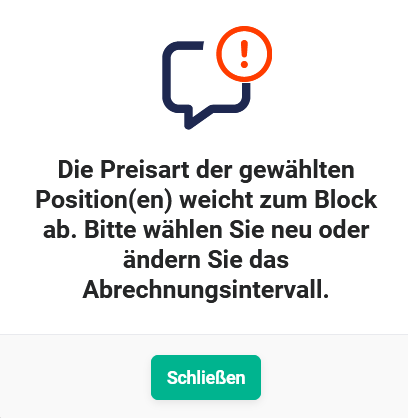 Popup note deviating price type
In this case, either a product with a matching price type must be selected or the billing interval of the line item group must be adjusted accordingly.
2.2.1.6. Delete group
Line item groups - including the line items contained therein - can be removed again using the actions button “Delete group”.
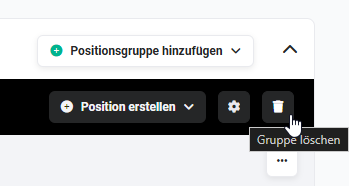 Actions button „Delete group"
2.2.1.7. Assigned line item
By clicking a line item, the direct link to it is displayed in a flyout menu.
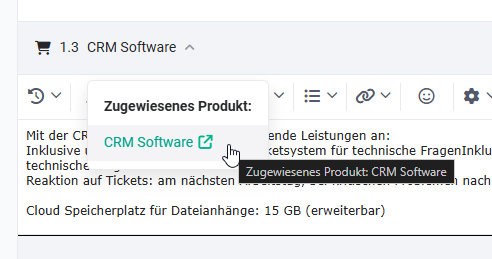 Line item - assigned product
If a yellow note icon (icon “exclamation mark”) is displayed on the right side of a line item, this means that parts of the line item deviate from the referenced product.
To check the line item, the edit mode of the record must be opened.
2.2.1.8. Create Contingent from Service
The action “Create Contingent from Service” is only displayed if the line item is a Service.
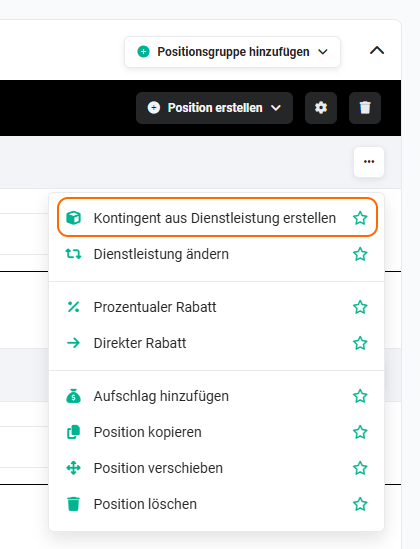 Action „Create Contingent from Service"
After clicking the action “Create Contingent from Service”, the popup “Create Contingent” opens, in which a new record for the Contingents module can be created.
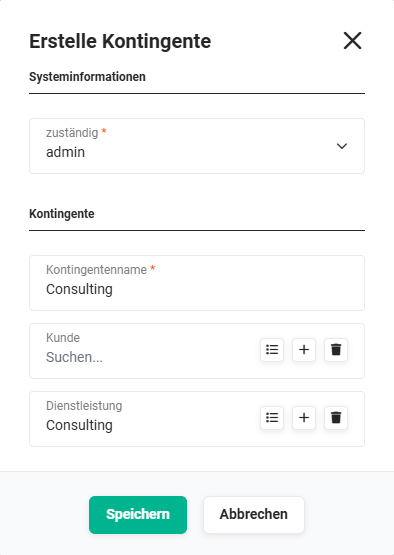 Popup „Create Contingent"
The action Select Contingent makes it possible to link an already existing Contingent with the service line item – see section Select Contingent.
2.2.1.9. Change line item
Line items can also be changed directly - without deleting them first - using the action “Change line item”.
Depending on whether the line item is a Product/Service/License/Contingent, the action is named accordingly.
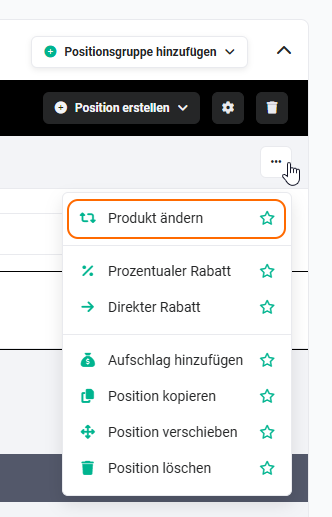 Action „Change product"
After clicking the action “Change line item”, a popup for selecting a new line item is displayed - as with the action “Add line item”.
If a line item has been deleted from the respective module (Product, Service, License or Contingent), a corresponding note is displayed for the line item:
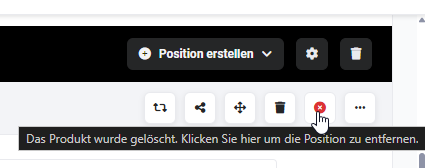 Note line item deleted
By clicking the actions icon (icon “x”), the line item is removed.
2.2.1.10. Change discount
After clicking the actions icon “three dots”, a flyout menu opens, containing the actions “Percentage discount” and “Direct discount”.
Actions discount
After selecting the option “Percentage discount” or “Direct discount”, an input field for entering the discount is shown.
2.2.1.11. Add surcharge
After clicking the actions icon “three dots”, a flyout menu opens, containing the action “Add surcharge”.
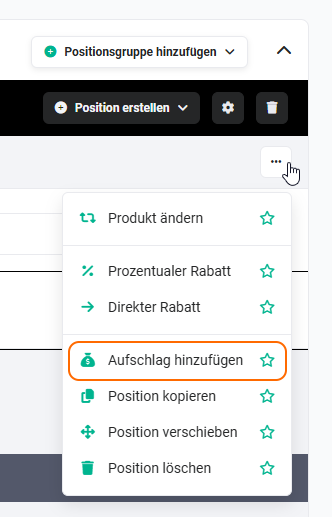 Action „Add surcharge"
After clicking the action “Add surcharge”, an input field for entering a percentage surcharge is added.
2.2.1.12. Copy line item
After clicking the actions icon “three dots”, a flyout menu opens, containing the action “Copy line item”.
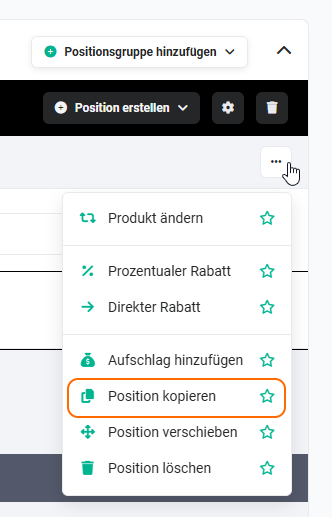 Action „Copy line item"
After clicking the actions button “Copy line item”, the line item is copied and inserted directly below the respective line item.
2.2.1.13. Delete line item
After clicking the actions icon “three dots”, a flyout menu opens, containing the action “Delete line item”.
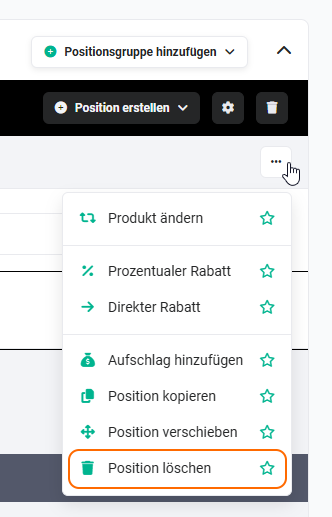 Action „Delete line item"
After clicking the actions button “Delete line item”, the line item is removed.
2.2.1.14. Line item description editor
The line item description editor offers the following text formatting options:
- Font/font size
- Font/highlight colour
- Text formatting (bold, italic, strikethrough and underline)
- Superscript/subscript
- Alignment
- Lists
- Links
- Further functions
2.2.1.15. Select Price List
In the “List price” field there is the actions icon “Select Price List” (icon “arrow to the right”). After clicking, the popup “Price Lists” opens for selecting a Price List.
If a product/service is contained in one or more Price List(s), the corresponding Price List can be selected in the popup. After selection, the list price stored in the Price List is loaded.
2.2.1.16. Insert page break after line item
By clicking “Insert page break after line item”, a page break is inserted at this point when a PDF file is generated (see module Templates) and a new page is started.
By clicking the icon again, the inserted line break after the line item is removed again.
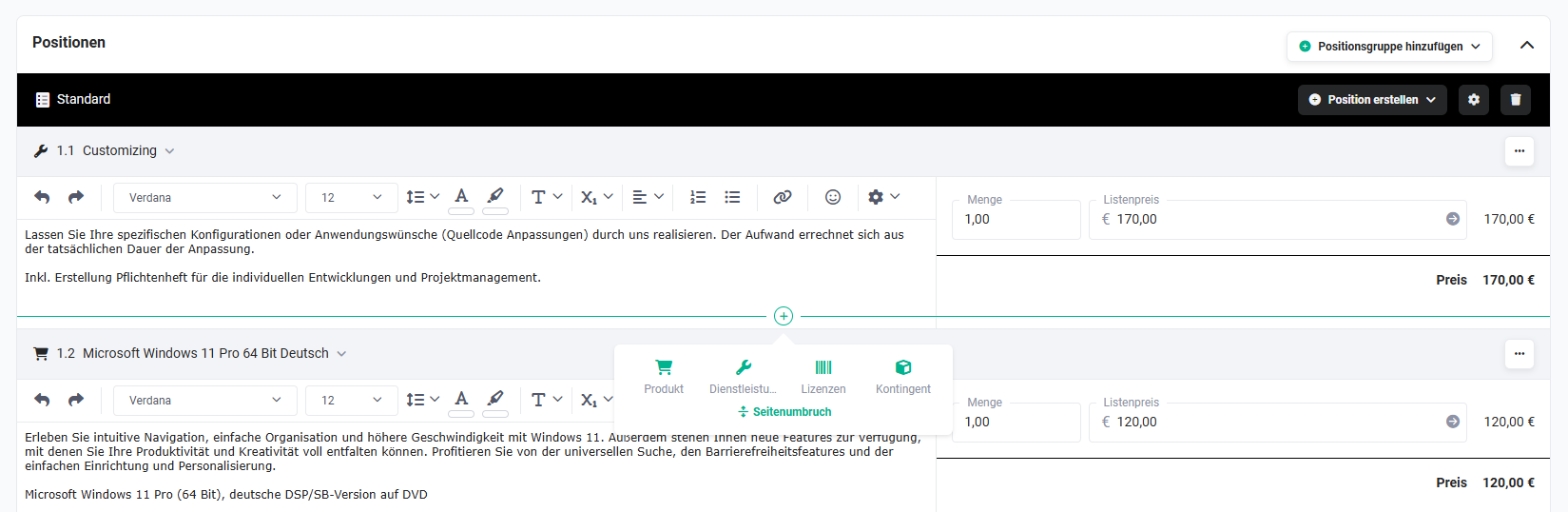 Insert page break after line item
2.2.1.17. Insert page break after subtotal
By clicking “Insert page break after subtotal”, a page break is inserted at this point when a PDF file is generated (see module Templates) and a new page is started.
By clicking the icon again, the inserted line break after the line item is removed again.
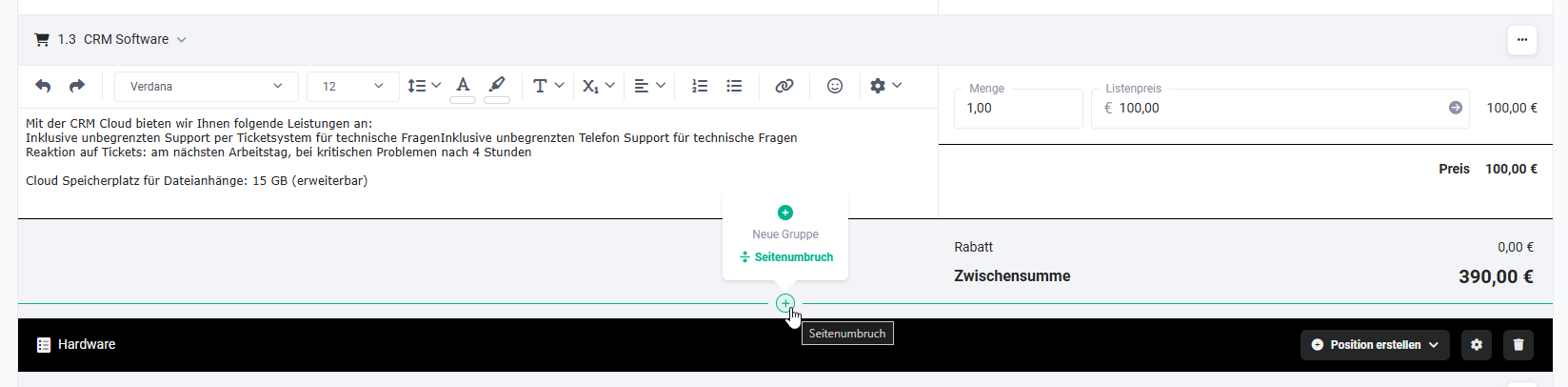 Insert page break after subtotal
2.2.1.18. Add actions to favourites
In the flyout menu of the actions of a line item (icon “three dots”), all actions available for this line item are displayed.
Via the actions icon “Add to favourites” (icon “star”), an action can be added to the favourites. The favourites are displayed in the line item to the left of the actions icon (icon “three dots") as separate action icons.
The state of the “star" icon indicates the favourite status of the respective action:
- Star empty: The action is not set as a favourite and can be added to the favourites by clicking.
- Star filled: The action is already set as a favourite and can be removed from the favourites by clicking again.
Favourited actions in the product block are additionally described with text and have an adapted active state: A selected action (e.g. a percentage discount) is highlighted in green. Any number of favourited actions can be selected; if required, you can scroll horizontally.
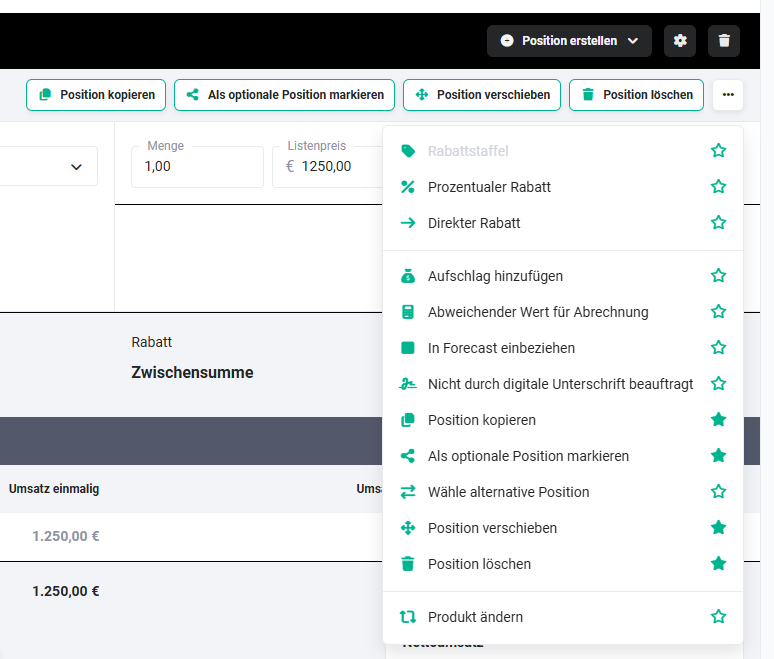 Flyout menu Actions - Favourites
2.2.1.19. Scheduled Actions for line items
If Scheduled Actions for a line item are present in an Automation, these are displayed in the line items in the edit mode of the record (icon “lightning bolt with letter A”).
On Mouseover over this icon, the tooltip “Show Scheduled Actions for this line item” is displayed.
After clicking the icon, a small popup is shown in which the scheduled changes are displayed.
2.2.1.20. Allow automatic price increase
After clicking the actions icon "three dots", a flyout menu opens, containing the action "Allow automatic price increase".
By activating this action, it is allowed for the respective line item in the Contract that stored automatic price increases - e.g. for defined price increases - are applied to this line item.
This action is available exclusively in the Contracts module!
2.2.1.21. Deviating billing
After clicking the actions icon "three dots", a flyout menu opens, containing the action "Deviating billing".
After clicking the action "Deviating billing", the fields "Billing from" and "Billing until" are added to the line item. Via these fields, a billing period deviating from the Contract can be defined for the respective line item - e.g. if a line item should only be billed from a certain date or only for a limited period.
This action is available exclusively in the Contracts module!
2.2.1.22. Create License from Product
The action “Create License from Product” is only displayed if the line item is a Product.
After clicking the actions icon “Three dots”, a flyout menu opens with the action “Create License from Product”. After clicking the action, the popup “Create License” opens, in which a new record for the Licenses module can be created.
2.2.1.23. Select License
The action “Select License” is only displayed if the line item is a Product.
After clicking the actions icon “Three dots”, a flyout menu opens with the action “Select License”. After clicking the action, a popup opens for selecting an existing License to be linked with the product line item.
2.2.1.24. Select Contingent
The action “Select Contingent” is only displayed if the line item is a Service.
After clicking the actions icon “Three dots”, a flyout menu opens with the action “Select Contingent”. After clicking the action, a popup opens for selecting an existing Contingent to be linked with the service line item.
2.3. Block Summary
In the block “Summary“, the line item groups, the discount totals of the line item groups, the total net sums of the line item groups, the subtotal(s), the VAT total and the total amount are displayed.
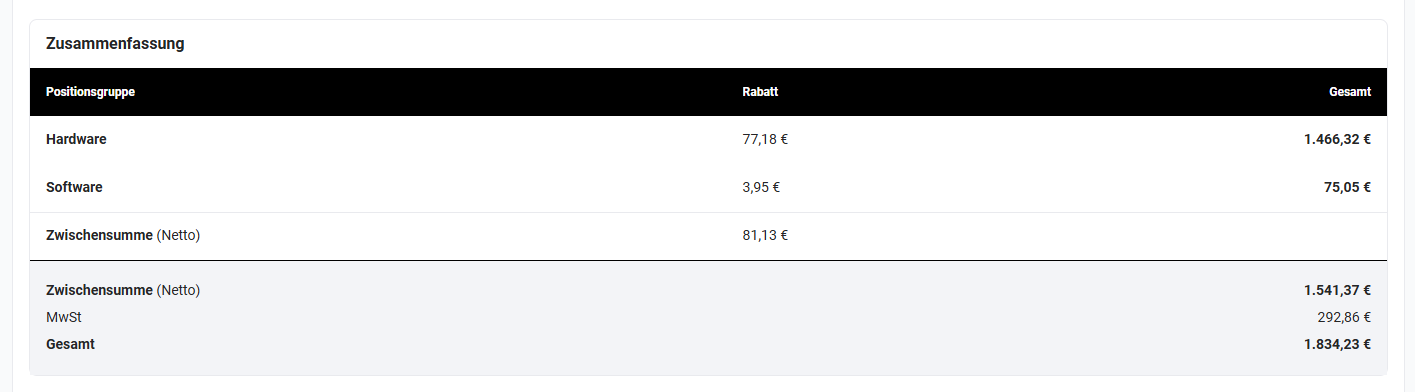 Product block - Block „Summary"