
Information
Package: BASIC
1. General
In the settings section “Information”, all fundamental information about an Organization is stored. This includes the following settings sections:
- Company information
- Basic information → Organization, Role, Managing Director, Phone, Fax, Website, Email address, Register court, VAT ID
- Address → Street, City, Postcode, State, Country, Country code
- Bank details → Bank name, Sort code, Account no., IBAN, BIC, SCOR, QR IBAN, BESR-ID
- Files
- Terms and conditions
2. Company information
The company information can be embedded into PDF and email templates using placeholders in the Templates module.
When generating PDF files - e.g. quotes, invoices, etc. - the information stored here can be used.
The advantage here is that the company information can be managed in a central place. If there are changes to the address, phone number or similar, for example, these changes only need to be entered once in the company information.
2.1. Basic information
| Field | Description |
|---|---|
| Organization | Name of the organization/company |
| Role | Display of which role in the rights management the organization is assigned to. The field is for display only and is filled automatically by the system. |
| Managing Director | Name of the managing director |
| Phone | Phone number of the organization/company |
| Fax | Fax number of the organization/company |
| Email address | Email address of the organization/company |
| Website | Web address (URL) to the homepage of the organization/company |
| Register court | Responsible register court of the organization/company |
| VAT ID | VAT ID of the organization/company |
2.2. Address
| Field | Description |
|---|---|
| Street | Street of the organization/company |
| City | City of the organization/company |
| Postcode | Postcode of the organization/company |
| State | State of the organization/company |
| Country | Country of the organization/company |
| Country code | Country code of the organization/company |
2.3. Bank details
| Field | Description |
|---|---|
| Bank name | Name of the bank of the organization/company |
| Sort code | Bank sort code of the organization/company |
| Account no. | Account no. of the organization/company |
| IBAN | IBAN (International Bank Account Number) of the organization/company |
| BIC | BIC (Business Identifier Code) of the organization/company |
| SCOR | Creditor reference according to ISO 11649 - 25-digit alphanumeric reference that begins with RF, followed by 2 check digits. Only required if your own company location is not in Switzerland and a Swiss QR Bill is created. See the following “Note Switzerland”. |
| QR IBAN | Only required if your own company location is in Switzerland. See the following “Note Switzerland”. |
| BESR-ID | Only required if your own company location is in Switzerland and a bank account exists at a bank other than “Post Finance”. See the following “Note Switzerland”. |
The details in the SCOR, QR IBAN and BESR-ID fields are required either if your own company is based in Switzerland, or if your own company works with Swiss companies. The details are required to generate a so-called “Swiss QR Bill”.
A QR invoice is an invoice with a payment part and receipt that replaces the previous orange and red payment slips in Switzerland. The payment part contains the Swiss QR Code, which contains all relevant information necessary for both invoicing and payment.
For a detailed description of how to create a QR invoice in PDF format and information on the SCOR, QR IBAN and BESR-ID fields, see the section Modules - Templates - Swiss QR Bill in the handbook.
3. Files
Logos for the corporate identity can be used in the CRM header, for the PDF export and on the login page of brainX.
A separate upload field is available for each logo, into which image files can be uploaded to brainX by dropping (Drag & Drop) or browsing (file explorer of the operating system).
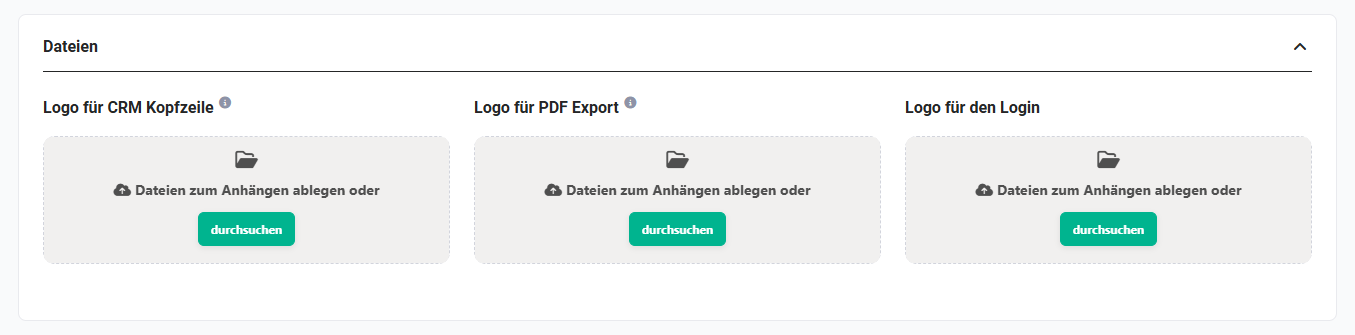 Company information logos
If the GDPR option is activated in the Company information settings section, the area Document on the right to information according to Art. 13 and 14 GDPR appears in the “Files” block, via which a document can be uploaded.
3.1. Logo for CRM header
The logo for the CRM header is displayed at the top left in the navigation bar / main menu.
 Example: logo of the company “Subsecure” in the navigation bar
Notes on image size:
- recommended height: 40px
- maximum width: 200px
3.2. Logo for PDF export
Logo that can be inserted into PDF templates using a placeholder (variable “Company information - Logo”) and is used for the PDF export.
Note on image size:
- maximum height: 50px
3.3. Logo for the login
Logo that is displayed on the login page of brainX.
A login logo can only be stored for the main organization. For additional organizations the upload field for the login logo is not available.
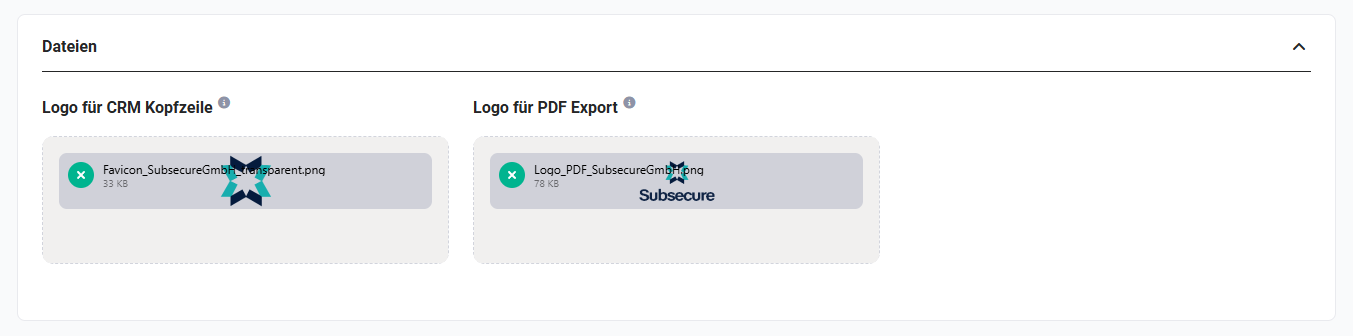 Files/logos of an additional organization
Notes on display:
- There are limits to the height and width of the logo. Either a square company logo or an elongated wordmark is recommended.
- Other aspect ratios may be displayed stretched or compressed depending on the format and thus appear illegible or visually unfavourable.
3.4. Document on the right to information GDPR
If the GDPR option is activated in the Company information settings section, the area “Document on the right to information according to Art. 13 and 14 GDPR” appears in the “Files” block, via which a document can be uploaded.
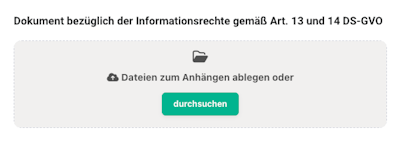 Company information document on the right to information GDPR
The document should contain details about the following information obligations:
- Art. 13 GDPR – Information obligation when collecting personal data directly from the data subject
- Art. 14 GDPR – Information obligation when personal data has not been collected from the data subject
The document according to Art. 13 and 14 GDPR must be created by the CRM customer themselves and cannot be provided by brainX GmbH, as it is a company-specific document.
As soon as a document has been stored in the company information, the checkbox “Attach document on the right to information according to Art. 13 and 14 GDPR” is automatically displayed when creating, replying to or forwarding an email.
4. Terms and conditions
General terms and conditions (abbreviated: T&C) are, in legal terms, all contractual terms pre-formulated for a large number of contracts that one contracting party presents to the other contracting party when concluding a contract. Quotes, invoices, etc. refer accordingly to the general terms and conditions.
Our general terms and conditions can be found at https://www.meine-domain.com/agb.pdf
In the settings section “Company information - Information - Terms and conditions”, the terms and conditions are stored.
The stored value can then be used - per organization - system-wide - e.g. in PDF templates.
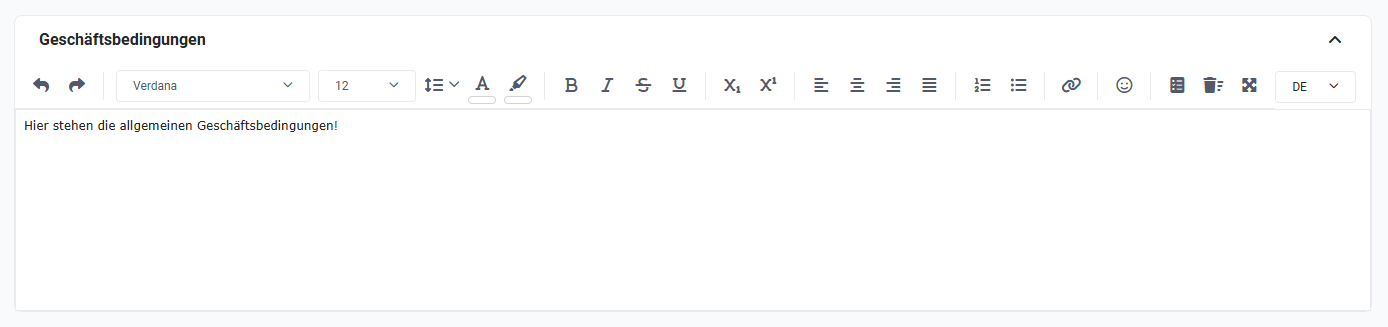 Information - Terms and conditions
The integrated editor offers all the functionality needed to format the text of the terms and conditions.
The terms and conditions can be stored in multiple languages. To switch the language, simply select the appropriate language from a picklist.
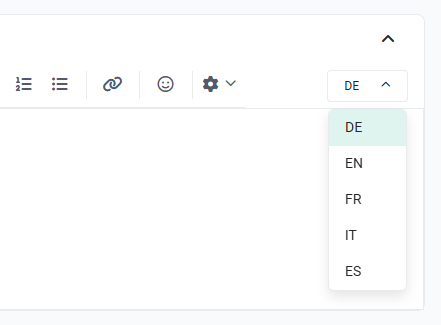 Terms and conditions - language selection
The text of the terms and conditions is displayed in the product-related modules in the detail view of a record. Product-related modules are modules in which the so-called product block is displayed in the detail view.
In the following modules, the “Terms and conditions” field is displayed in the “Conditions” block in the detail, create and edit views: