
Contacts
Package: BASIC
1. General
The Contacts module records natural persons. In addition to personal data such as name, address, email and phone, it also stores all relationships to records from other modules – e.g. to [Organizations](), [Deals]() or [Invoices]().
A contact does not necessarily have to be assigned to an organization or a record from another module. Contacts can also be recorded and used independently, without any link.
A new sales contact at an existing customer is created. The contact is linked to the corresponding organization and receives it as the main relationship. All organization-related fields (e.g. address, industry) are automatically taken over from the organization and can be viewed directly on the contact.
An external consultant works for two companies. A contact record is created and both organizations are stored as references. Using the angle bracket icon in the Organization field, you can switch between the two organizations, whereby the organization-related fields update accordingly.
This section only describes special fields or functionalities of the module, as all general brainX functionalities are described elsewhere in the handbook.
2. List View
The list view in the Contacts module has the usual functionalities of a list view. For more detailed information, see the section Setup/Structure - List View.
2.1. Actions
In the list view, general actions are available – depending on the module. An overview and description of all general actions can be found in the section Actions (List View).
In addition, the following module-specific actions are available:
| Action | Prerequisite | Functionality |
|---|---|---|
| Create Google Maps route plan | – | Creates a Google Maps route based on the selected records – see Actions (List View) – Create Google Maps route plan |
| Determine geodata | – | Determines the geodata of the selected records based on the stored address – see Actions (List View) – Determine geodata |
When using the actions "Search for duplicates" or "Merge duplicates", for a contact assigned to multiple organizations, the merge always takes over all organization references and organization-related field values of the primarily selected contact. The organization-related fields of the other contacts are not taken into account and are lost.
3. Detail View
3.1. Fields
The following table describes mandatory fields as well as fields with non-obvious functions. All other fields are self-explanatory.
Base Data block
| Field | Description |
|---|---|
| Last name * | Last name of the contact |
| Organization | Reference field to one or more organizations; a contact can be linked to multiple organizations – see Section 3.1.1 |
| Email opt-out | When activated, no automated emails are sent to the contact by the system |
| Newsletter unsubscribed | When activated, the email address is ignored when added to a newsletter recipient list (e.g. in the Email Marketing module) |
| Do not call | When activated, the phone number can no longer be clicked with a configured phone connection (Softphone Connector) |
| Customer number | Customer number from the DATEV number range |
*Mandatory field
3.1.1. Organization-related data
Organization-related data includes all fields marked as organization-related in the [Global Settings – Module Management – Layout](). In addition to the fields marked as such by default, custom fields can also be marked as organization-related.
The Organization field in the Base Data block is a special reference field: It allows linking to multiple organizations at the same time, as a contact can work for multiple organizations (e.g. as a service provider or technical contact person).
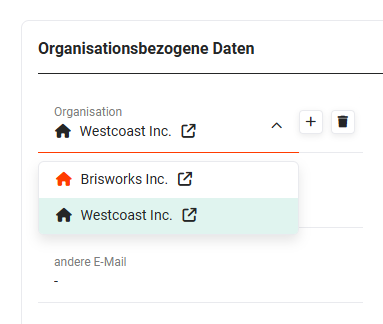 Example: two referenced organizations, main relationship "Brisworks Inc."
The following functions are available in the Organization field:
| Function | Description |
|---|---|
| Make main relationship (house icon) | Sets the chosen organization as the main relationship. The current main relationship can be recognised by the coloured highlighted house icon. |
| Open organization (square with arrow icon) | Opens the linked organization in the detail view |
| Show referenced organizations (angle bracket icon) | Switches between the linked organizations; the organization-related fields update accordingly |
| Select related organization (plus icon) | Opens a popup to select a further organization to link |
| Delete related organization (trash can icon) | Removes the link to the organization; the organization record itself is not deleted |
Customer Portal block
Three fields are available in the Customer Portal block:
- Active?
- Support start date
- Support end date
The "Customer Portal" block is required exclusively for functionalities of the Jira and Jira Service Management integrations.
3.2. Actions
The following actions are available in the detail view:
3.2.1. General actions
- PDF Export
- Recommend
- Copy
- Delete
- Change tracking
For detailed information on the actions, see the section Actions (Detail View).
3.2.2. Module-specific actions
| Action | Prerequisite | Functionality |
|---|---|---|
| Create invoice | – | Creates a new invoice and links it to the contact |
| Generate QR code (vCard) | – | Generates a QR code with the contact data as a vCard |
| New document | – | Creates a new document and links it to the contact |
| Export vCard | – | Exports the contact data as a vCard file |
| Show org chart | – | Shows the org chart of the linked organization with the contactNote: The displayed hierarchy relates exclusively to the entity of the current record. Records from other entities are not taken into account. |
| New task | – | Creates a new task and links it to the contact |
| New appointment | – | Creates a new appointment and links it to the contact |
| New email | Configured email account | Opens the email editor with reference to the contact |
| Unsubscribe from email marketing | Configured email marketing module | Unsubscribes the contact from email marketing |
| Send SMS | Configured Connect integration | Sends an SMS to a phone number stored in the record |
4. Practical Examples
1 – Creating and managing a contact person of an organization
A company gains a new customer. As part of setting up the customer, the organization is first recorded in the Organizations module. The responsible contact person is then created in the Contacts module and linked to the organization via the Organization field. The organization-related fields – such as address, industry and phone – are automatically taken over from the organization and can be viewed directly on the contact.
As things progress, deals, invoices and emails are linked directly to the contact. Using the Show org chart action, the structure of the linked organization with the contact can be displayed in the overview at any time. If the contact person leaves the company and moves to another customer, the existing organization link can be removed and a new one set – without having to create the contact record anew.
2 – Managing a contact for multiple organizations
An external IT consultant works simultaneously as a technical contact person for two customer companies. A single contact record is created and both organizations are linked as references via the Organization field.
One of the organizations is set as the main relationship via the Make main relationship icon – this organization determines the organization-related fields displayed by default. Using the Show referenced organizations icon, you can switch between the two organization contexts, whereby the organization-related fields update in each case. This way, the consultant is present with full context in both customer records, without being recorded twice.
3 – Exporting and sharing contact data
After a customer meeting, a field sales employee wants to transfer the contact data of the contact person to their smartphone. In the detail view of the contact, a QR code with all relevant contact data is generated via the Generate QR code (vCard) action, which can be scanned with the smartphone and saved directly as a contact.
Alternatively, a vCard file (.vcf) can be exported via the Export vCard action and shared by email or imported into an external address book. Both actions are available in the detail view of the contact without any further prerequisites.
5. Frequently Asked Questions
Does a contact have to be linked to an organization?
No. A contact can also be recorded and used independently without a link to an organization – e.g. as a private individual or when the company affiliation is not yet known.
Can a contact be linked to multiple organizations?
Yes. The Organization field allows linking to multiple organizations at the same time. One of them can be set as the main relationship, which determines the organization-related fields displayed by default. Using the Show referenced organizations icon, you can switch between the linked organizations.
What happens to the organization data when two contact records are merged?
When merging duplicates, all organization references and organization-related field values of the primarily selected contact are always taken over. The organization-related fields of the second contact are not taken into account and are lost. It is therefore advisable to check before merging which contact is chosen as the primary record.
What does the "Email opt-out" switch do?
When the Email opt-out switch is activated, no more automated emails are sent to this contact by the system – e.g. via automations. Manually sent emails are not affected by this.
What is the difference between "Email opt-out" and "Newsletter unsubscribed"?
Email opt-out prevents automated email sending from brainX automations. Newsletter unsubscribed means that the contact's email address is ignored when added to a recipient list in the Email Marketing module. Both switches can be activated independently of each other.
How can I unsubscribe a contact from email marketing?
Using the module-specific action Unsubscribe from email marketing in the detail view of the contact, the contact is unsubscribed from email marketing. This requires a configured email marketing module. Alternatively, the Newsletter unsubscribed switch can be activated manually.