
Global Rights Assignment
Package: BASIC
1. General
The “Global Permission Assignment” section contains two very important functions of the brainX system for defining permissions within the system:
The following permissions can be assigned per module:
- May view → Permission to view records of the module
- May edit → Permission to view and edit records of the module
- May edit and delete → Permission to view, edit and delete records of the module
2. Company-wide Access Rights
In the overview of company-wide access rights, all modules of the system are displayed in a table-like structure.
The table has three columns:
- Module → Module name and toggle for module public/not public
- Permissions → Display and configuration of the permissions for the module
- Custom Access Rules → Display of the number of custom access rules for the module
- Actions → for each module the action “Custom Access Rules“ is available here
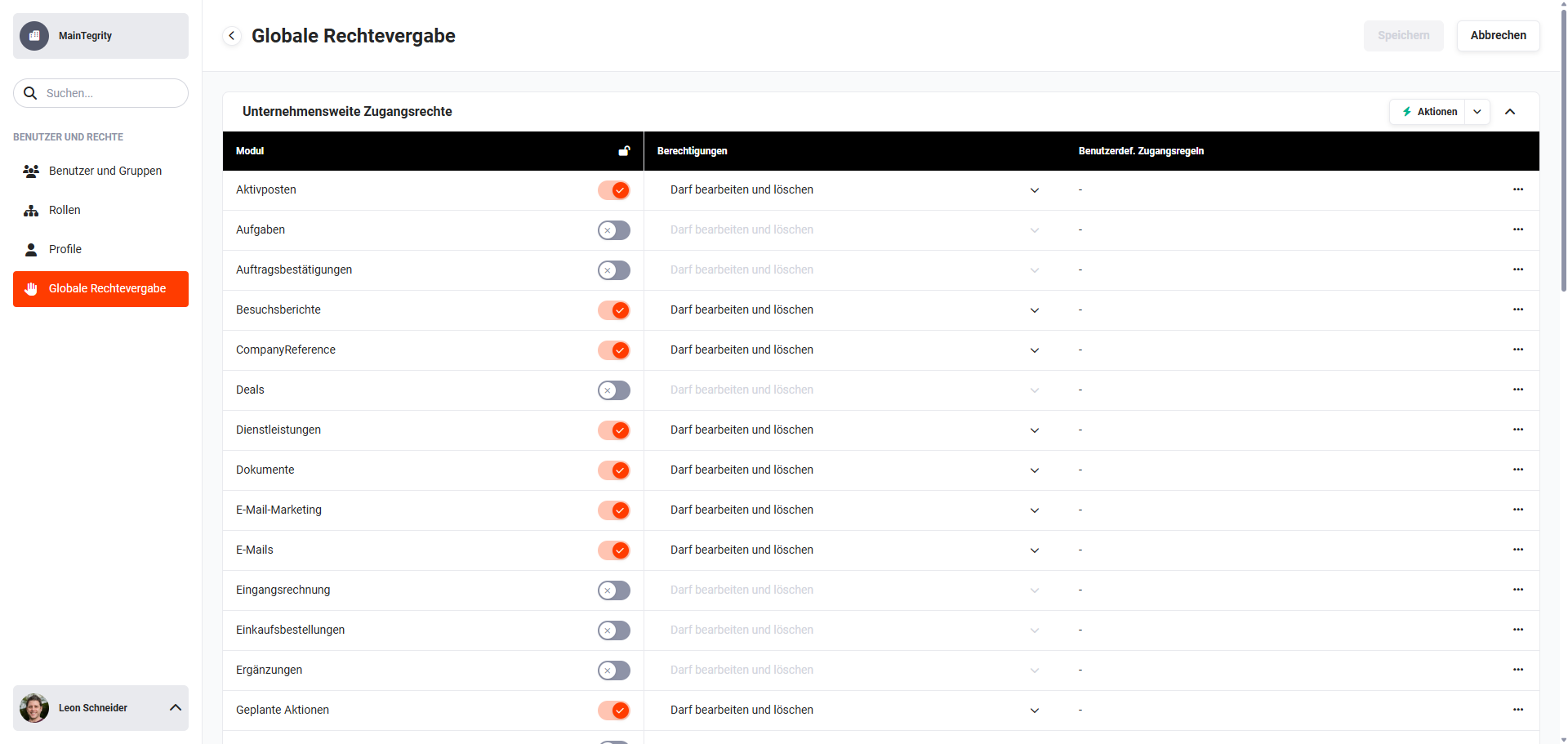 Global Permission Assignment
2.1. Module public/not public
Using the “public” toggle in the “Module” column, you define whether a module is public/not public.
Only with the setting “not public” (toggle “not active”) is the hierarchical permission system taken into account!
This way, each user only sees the data they have access to based on their hierarchy level. Whether a user may then create, edit or delete records depends on the configuration of the Roles and Profiles.
2.2. Permissions
If a module has been set to “public”, further permissions for the module can be assigned:
- May view → Records may be viewed, but not edited or deleted
- May edit → Records may be viewed and edited, but not deleted
- May edit and delete → Records may be viewed, edited and deleted
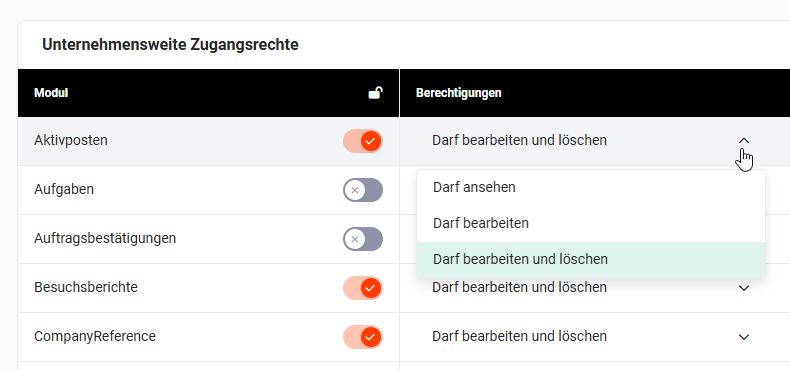 Company-wide Access Rights - Permissions
2.3. Actions button
In the “Company-wide Access Rights” block, the “Actions” button is located at the top right, which can be used to configure permissions for all modules.
After clicking the “Actions” button, a flyout menu opens with the following actions:
- “May view” for all modules → Records may be viewed, but not edited or deleted
- “May edit” for all modules → Records may be viewed and edited, but not deleted
- “May edit and delete” for all modules → Records may be viewed, edited and deleted
- “Private” for all modules → Only with the setting “private” (= “not public”) is the hierarchical permission system taken into account. This way, each user only sees the data they have access to based on their hierarchy level. Whether a user may then create, edit or delete records depends on the configuration of the Roles and Profiles.
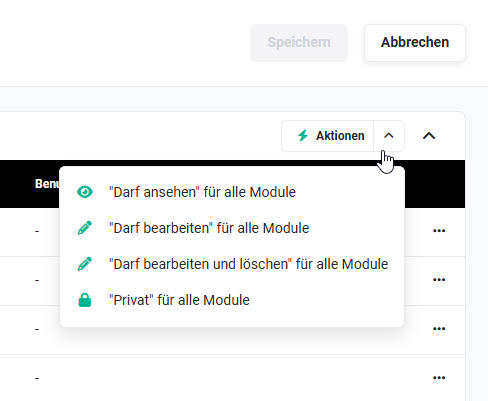 Company-wide Access Rights - Actions button - Flyout menu
3. Custom Access Rules
Custom access rules only make sense if a module has the setting “May view” or “private” (= “not public”)!
In the “Custom Access Rules” block, all existing custom access rules are listed.
Custom access rules grant additional rights to the data of a module for specific Users, Groups, Roles or Roles and Subordinates.
Data shares are always created from top to bottom or at the same level in the hierarchical permission concept. Sharing from bottom to top is not necessary, as a superior role can see, edit and delete all data of its subordinate roles.
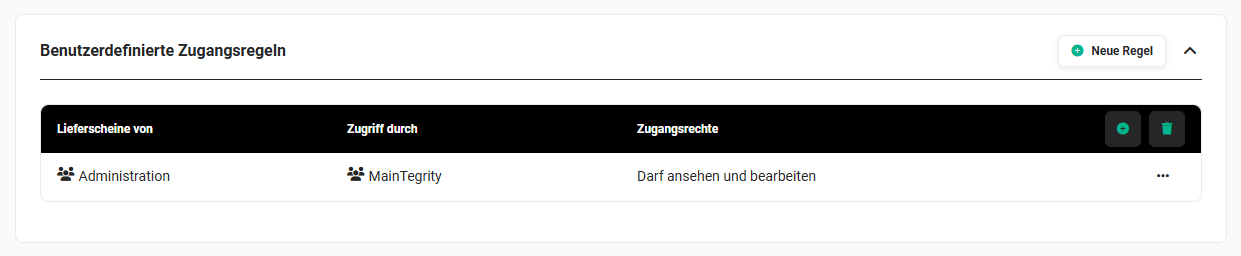 Global Permission Assignment - Custom Access Rules
3.1. Create new rule
After clicking the “New Rule” button, the “New Access Rule” popup opens.
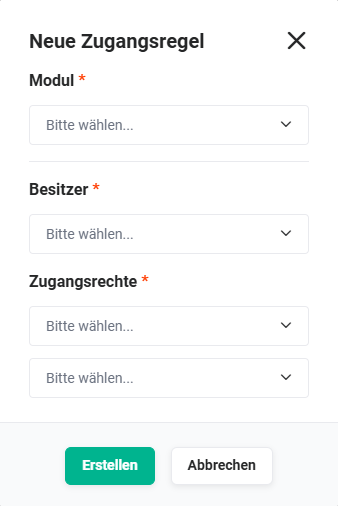 Popup New Access Rule
The popup is divided into the following areas:
- Module → Selection of the module for which the access rule is to be created.
- Owner → Selection of the owner of the records.
Available options are Roles, Roles and Subordinates and Groups. - Access Rights → Selection of the permission to be assigned.
Available options are “May only view” and “May view and edit”. - Access rights to related modules (only displayed once a module has been selected, as related modules are always module-dependent) → Selection of the permission to be assigned to related modules. The modules Emails, Tasks and Appointments are additionally inserted dynamically.
Available options are “May only view”, “May view and edit” and “No access”.
Once a new access rule has been created, the rights must be recalculated. After the save process, a corresponding notice is displayed for this:
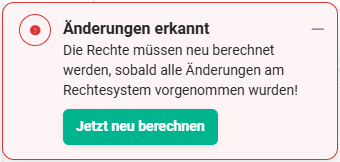 Notice Changes detected
Custom access rule for the Deals module:
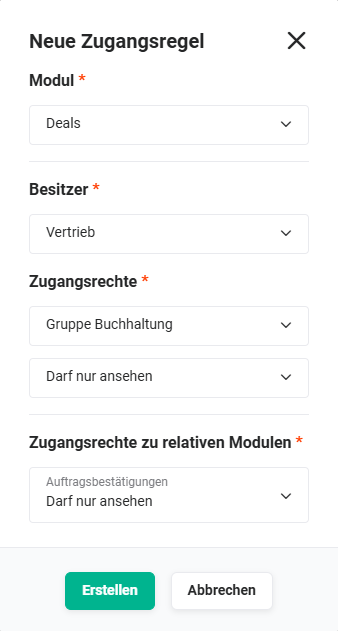
The Accounting group may only view all records of the Sales role. The access right to the related module Sales Orders is “May only view”.
3.2. Edit rule
To edit a custom rule, click the “three dots” actions icon in the “Actions” column of the rule to be edited and select the “Edit” action in the flyout menu.
The “Edit Access Rule” popup opens:
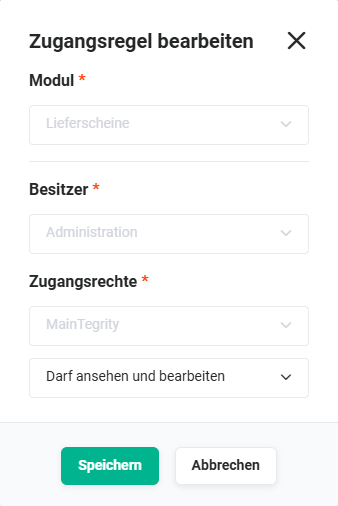 Popup Edit Access Rule
All non-changeable settings are greyed out and cannot be edited.
If an access rule has been changed, the rights must be recalculated to apply the changes. After the save process, a corresponding notice is displayed for this:
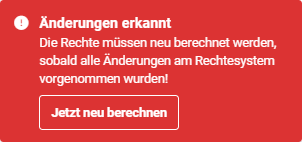 Notice Changes detected
After clicking the “Recalculate now” button in the notice, the rights are recalculated in the system. All changes are now valid.
3.3. Delete rule
When deleting custom access rules, two options are available:
3.3.1. Delete individual rule
To delete a custom rule, click the “three dots” actions icon in the “Actions” column of the rule to be deleted and select the “Delete” action in the flyout menu.
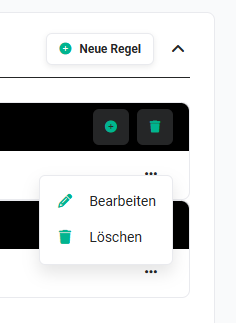 edit/delete individual custom rule
After clicking the “Delete” action, a popup for confirmation is displayed.
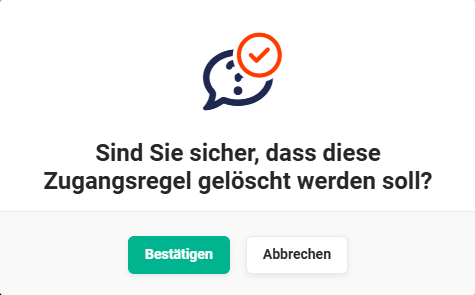 Popup Delete Access Rule
By clicking the “Confirm” button, the access rule is deleted.
3.3.2. Delete all rules of a module
To delete all custom access rules of a module, click the “trash can” actions icon in the block of the corresponding module.
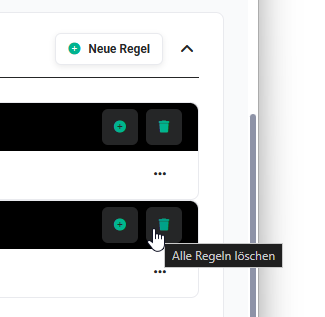 delete all custom rules
After clicking the “Delete” action, a popup for confirmation is displayed.
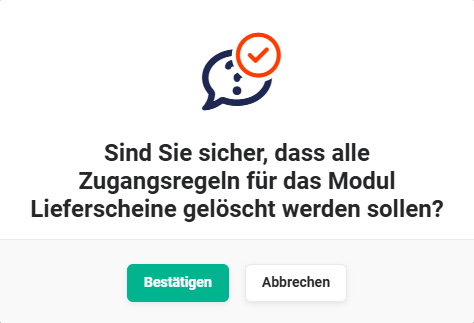 Popup Delete Access Rule
By clicking the “Confirm” button, all access rules of the module are deleted.
4. Practical Examples
1 – Sales only sees own leads, Support sees all
The Leads module is set to not public. As a result, each sales employee only sees their own leads. So that the support team can view all leads for qualification, a custom access rule is created: Support group may view records of the Sales role. After recalculation, Support has read access to all leads without needing to change the hierarchy positions.
2 – Accounting may only read Deals of the Sales role
Accounting needs insight into closed deals, but should not be allowed to edit them. The Deals module remains not public. A custom access rule is created: Accounting group, owner Sales role, access right May only view. For the related module Sales Orders, May only view is also selected. After recalculation, Accounting can read deals and linked sales orders, but not change them.
5. Frequently Asked Questions
When should a module be set to “public” instead of “not public”?
Setting a module to public means that all users can see all records of that module – regardless of their hierarchy level. This is useful for modules with purely internal reference data, e.g. product catalogues or price lists, to which every user should have access. For operational data such as leads, quotes or invoices, not public is recommended so that the role hierarchy takes effect.
When does a custom rule take effect instead of the company-wide setting?
Custom access rules supplement the company-wide setting – they can extend rights, but not restrict them. If a module is not public, a user by default only sees their own data and that of their subordinate roles. A custom rule additionally grants access to records of other roles, groups or users.
Do the rights need to be recalculated after creating a custom access rule?
Yes. As with all changes to the permission system, the Recalculate now button must be clicked after saving a new or changed access rule so that the rule takes effect.