
Notifications
Package: BASIC
1. General
Users receive notifications in connection with the following functionalities/modules:
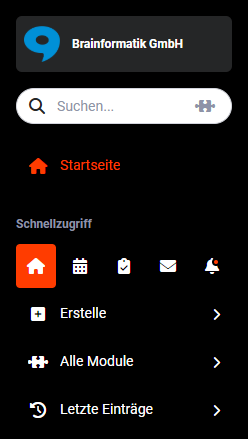
If unread notifications are present, this is indicated by a small, coloured circle directly in the notifications icon (“bell” icon) in the Quick Access of the navigation bar.
2. Displaying notifications
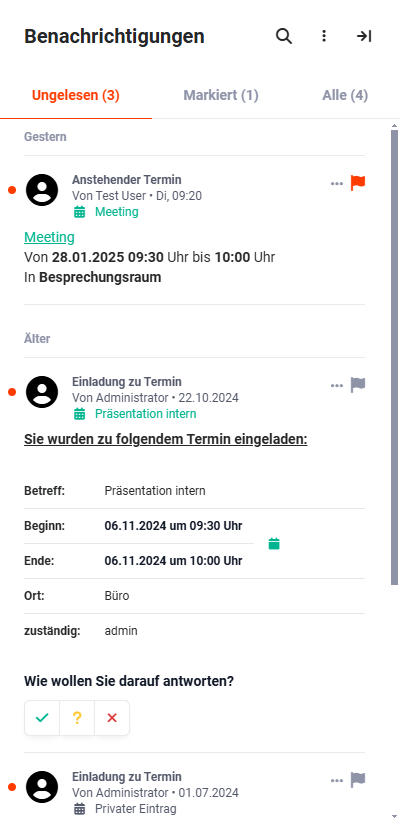
By clicking on “Notifications” (“bell” icon), the notifications window is displayed via a sidebar on the right-hand side. In the sidebar, the unread notifications are listed in descending chronological order (newest notifications are shown first) and the “Unread” tab is highlighted.
3. General actions
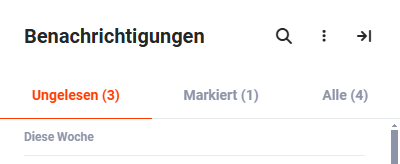
In the notifications sidebar there are three action icons at the top right:
- “Magnifying glass” icon → Search notifications
- “Three vertical dots” icon → Open actions flyout menu
- “Arrow pointing right” icon → Close notifications
3.1. Search notifications
Using the “magnifying glass” action icon, the notifications can be searched for a specific search term. After clicking the “magnifying glass” action icon, the "Search term" input field opens, in which the searched term can be entered.
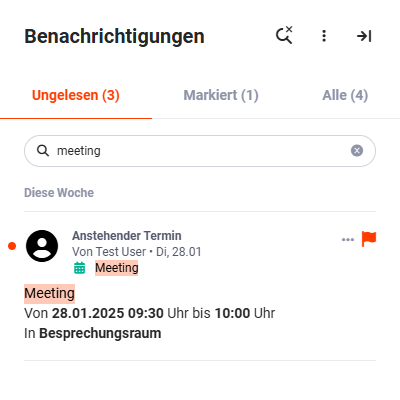
To start the search, simply press the Enter key. The search is carried out and the results are displayed.
By clicking the “x” icon in the search field, the search text is deleted.
By clicking the “magnifying glass” icon again, the search, or rather the search input field, is hidden again.
3.2. Actions flyout menu
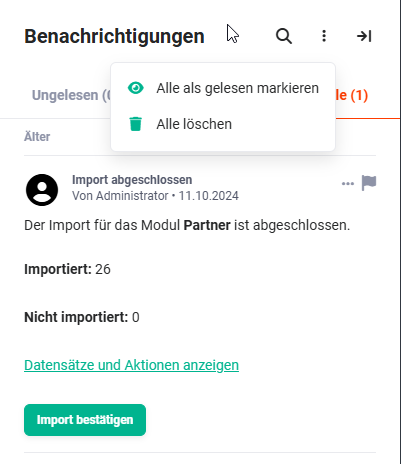
By clicking the “three vertical dots” icon, an actions flyout menu opens with the actions “Mark all as read” (marks all unread messages as read) and “Delete all” (deletes all notifications).
3.3. Close notifications
By clicking the “arrow pointing right” icon, the notifications sidebar can be closed.
4. Notification tabs
The sidebar with the notifications itself is divided into three tabs:
- Unread → By clicking the “Unread” tab, all unread notifications are displayed. The button text is highlighted in the process. In addition, the number of unread notifications is shown in brackets.
- Flagged → By clicking the “Flagged” tab, all flagged notifications are displayed. The button text is highlighted in the process. In addition, the number of flagged notifications is shown in brackets.
- All → By clicking the “All” tab, all read and unread notifications are displayed. The button text is highlighted in the process. In addition, the number of all read and unread notifications is shown in brackets.
5. Actions on notifications
For each individual notification, further actions are available:
5.1. Actions flyout menu
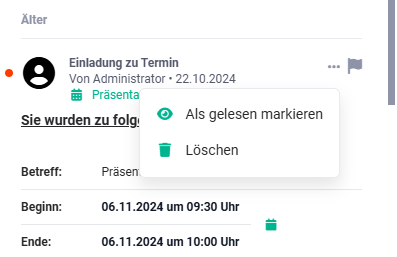
After clicking the “three dots” action icon, an actions flyout menu opens with the following actions:
- Mark as read → The notification is marked as read and removed from the “Unread” tab and shown in the “All” tab.
- Delete → The notification is deleted.
5.2. Flag notification
Important messages can be flagged using the “flag” action icon.

After clicking the “flag” action icon, the colour of the icon changes and the notification is listed in the “Flagged” tab.

5.3. Individual actions on notifications
Depending on the type of notification, further individual actions are available directly on the notifications themselves.
Notification of an invitation to an appointment
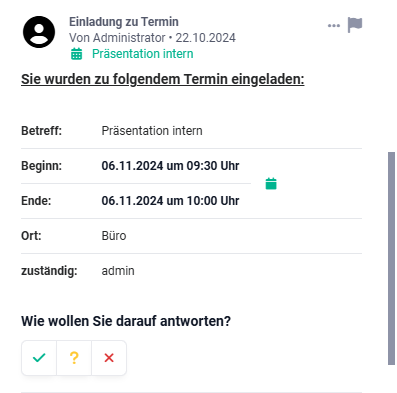
For an invitation to an appointment, the “calendar” action icon is displayed in the Start/End area:
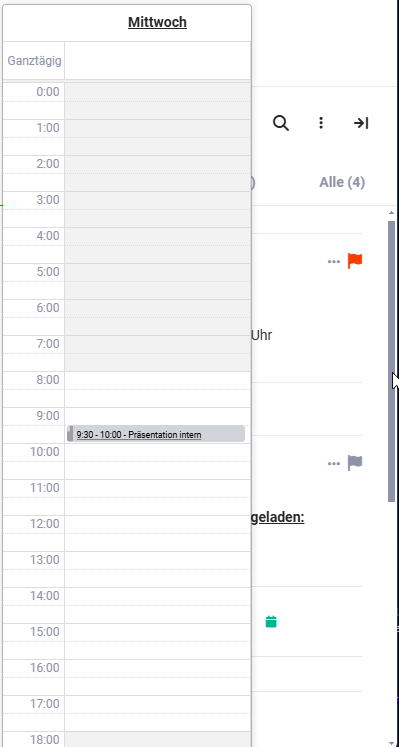
After clicking the “calendar” action icon, a pop-up opens displaying the relevant day so you can quickly check whether the appointment might collide with other appointments:
In the lower area of the notification of an invitation to an appointment, the text “How do you want to respond?” is displayed, including the following action icons:
- accept (“green check mark” icon)
- accept tentatively (“yellow question mark” icon)
- decline (“red X” icon)
By clicking one of the action icons, the corresponding action is carried out.
For further information on appointments, please refer to the Appointments section in the handbook.
Notification of an upcoming appointment
If an appointment invitation has been confirmed, the display changes:
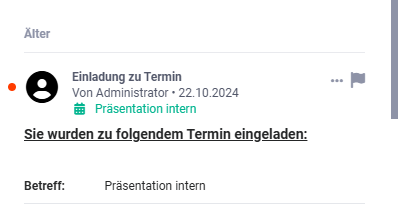
For the invitation to the appointment, the title of the appointment is shown as a clickable link. After clicking the link, the record of the appointment is opened in the detail view in the Appointments module.
Notification of a CSV Import and CSV Update
If a CSV Import or a CSV Update has been carried out, the user is informed accordingly by a notification after it has been performed:
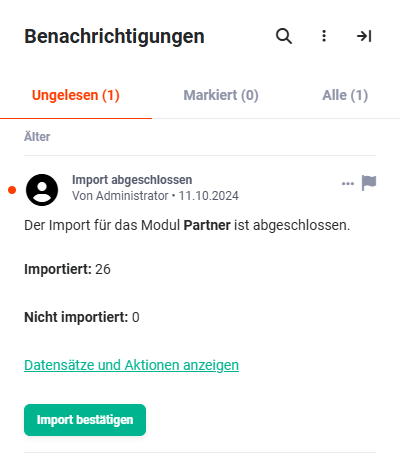
The records and actions can be called up accordingly using the “Show records and actions” link.
The import can be confirmed by clicking the “Confirm import” button.
For further information on imports or updates, please refer to the CSV Import and CSV Update sections.
Mention in a comment
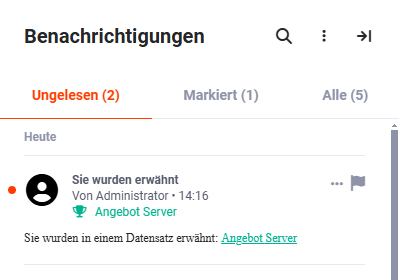
When mentioned in a comment, the user is informed via a notification.
The title of the record in which the comment with the relevant mention is located is shown as a clickable link.
After clicking the link, the record is displayed in the detail view in the relevant module.