
Products
Package: BASIC
1. General
The Products module is used to manage all fixed-priced goods of a company – similar to a product catalogue. The maintained products are available in other modules and can be used there directly, e.g. in [Deals](), [Invoices]() and further Billing modules.
Records from the Products module can be selected in the so-called "product block". For detailed information, see the section [Product block in Billing modules]() in the handbook.
A company sells network switches. The product is created with the product category Hardware, a sales price and the unit of measure Piece. The current stock level is entered and a minimum stock level is set. An automation ensures that a purchase order is automatically created when the minimum stock level is undercut.
A software licence is created as a product with the price type Annual price. To provide volume discounts, a price tier is configured: 1–9 pieces at EUR 95.00, 10–19 pieces at EUR 89.00, from 20 pieces at EUR 79.00. When the quantity is entered in the product block, the matching tier price is applied automatically.
This section describes only the special fields and functionalities of the module, as all general brainX functionalities are described elsewhere in the handbook.
2. List View
The list view in the Products module has the usual functionalities of a list view. For more detailed information, see the section Layout/Structure - List View.
2.1. Actions
In the list view – depending on the module – general actions are available. An overview and description of all general actions can be found in the section Actions (List View).
There are no module-specific actions in this module.
3. Detail View
3.1. Fields
The following table describes mandatory fields as well as fields with a non-obvious function. All other fields are self-explanatory.
Basic Data Block
| Field | Description |
|---|---|
| Product * | Name of the product |
| Active | When deactivated, the product is no longer available for selection in the product block |
| Product category |
|
| Product bundle | Is set automatically as soon as individual products have been added under Product bundle in the Relations tab. Only visible in the detail view, not in the edit view – see Section 3.3. |
| Gross price | When activated, the entered price is treated as a gross price |
| Surcharge monthly / quarterly / semi-annually / annually | Optional percentage surcharge per billing interval; is applied to the base price in the product block when the corresponding interval is selected |
| Price type * |
|
| Mandatory position | If the checkbox is activated, this position must be confirmed by the recipient when signing via Digital Signature (DocuSign/DocuSeal). Mandatory positions are marked accordingly in the document. |
*Mandatory field
The price type determines the period to which the stored sales price refers:
- Annual price – the price applies per year; if the product is inserted into a product block with a different billing interval (e.g. monthly), the price is automatically converted to the selected interval.
- Monthly price – the price applies per month; with a different billing interval in the product block, the price is converted accordingly.
- One-time – the price is charged exactly once, independent of an interval; no conversion takes place.
Quantity, list price and sales prices of positions in the product block can be entered with up to 6 decimal places. Trailing zeros are truncated in the display. This is particularly helpful when billing small units (e.g. API tokens).
If the gross price was activated when creating a product, this can no longer be changed after the first save.
Prices Block
| Field | Description |
|---|---|
| Sales price | Sales price of the product in the base currency. Additional currency prices can be stored via the more currencies action icon – see Section 3.1.1. |
| VAT rate | Assigned VAT rate – see Global Settings – Currencies & Taxes |
3.1.1. More Currencies
The more currencies action icon is only available in the create and edit view. After clicking it, the popup of the same name opens.
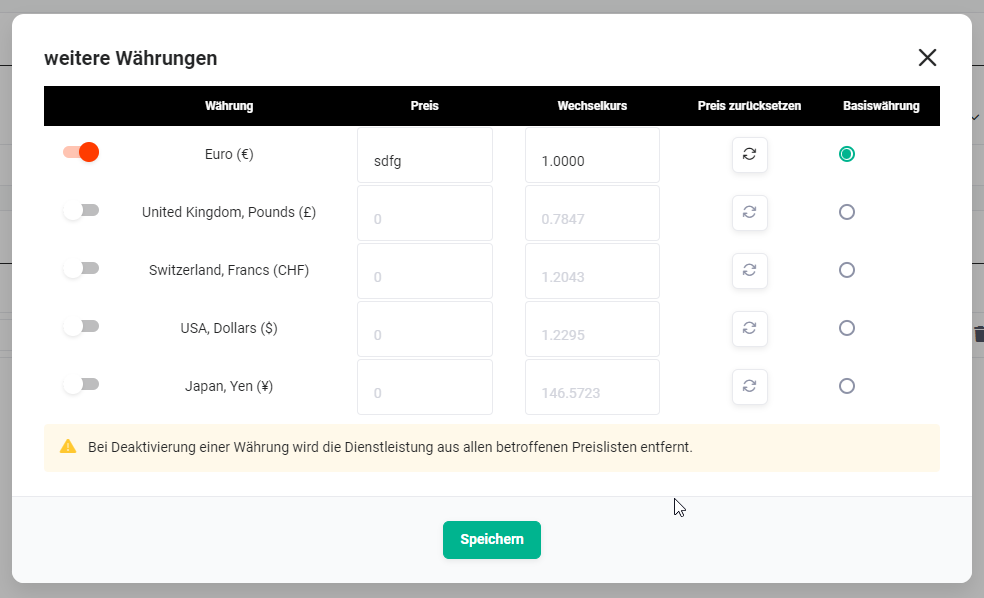 More currencies popup
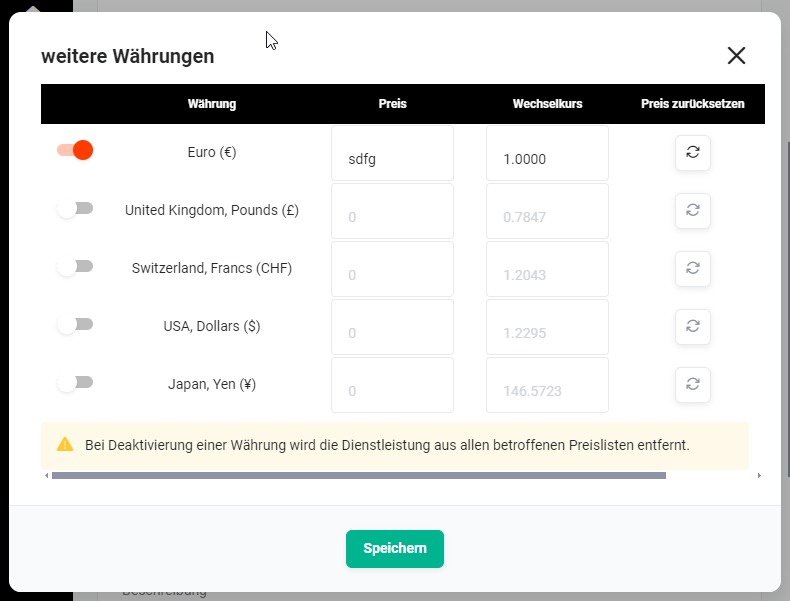 More currencies popup
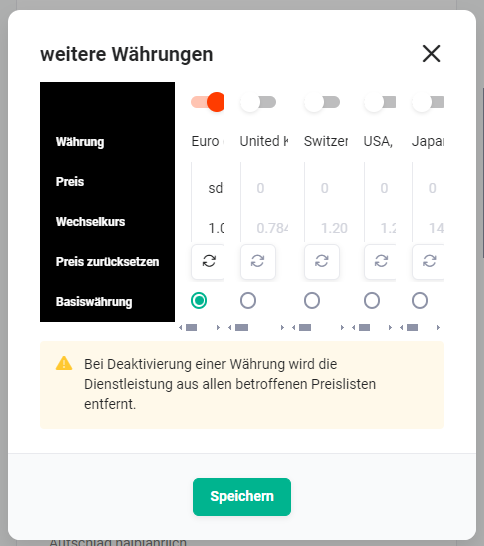 More currencies popup
The popup lists all currencies that have the status active in the Global Settings – Currencies & Taxes. A checkbox determines which currencies are available for the product. A radio button defines the base currency. For all activated non-base currencies, the respective price can be calculated automatically based on the stored exchange rate via the recalculate button.
After saving, the price is displayed in the currency stored in the My Settings – Basic Settings.
When a currency is deactivated, the product is removed from all affected [Price Lists]().
Inventory Block
| Field | Description |
|---|---|
| Unit of measure |
|
| Stock level | Current stock level of the product |
| Minimum stock level | Lower limit of the stock level; can be used as a trigger in an automation to send a notification or create a purchase order when undercut |
| Order quantity | Default quantity for reorders; can be used in an automation |
| Weight in KG | Weight of the product; is used to calculate the total weight of a position |
To activate the weight calculation, the field Total weight position, which is hidden by default, must be shown in Global Settings – Further Settings – Product block – see also audit-proof and optional fields for product positions. In all Billing modules, there is additionally the field Total weight of all positions, which can be shown in custom views if required.
The stock level can be updated automatically via Automations: reduced when a Delivery Note or an Invoice is created and increased when a Purchase Order is created.
DATEV General Ledger Accounts Block
| Field | Description |
|---|---|
| DATEV general ledger account domestic | General ledger account for domestic sales – for configuration, see Billing Settings – General Ledger Accounts) |
| DATEV general ledger account EU | General ledger account for EU sales – for configuration, see Billing Settings – General Ledger Accounts) |
| DATEV general ledger account third countries | General ledger account for sales in third countries – for configuration, see Billing Settings – General Ledger Accounts) |
Price Tiers Block
A price tier can be defined for a specific unit of a product. Any number of tier prices can be created. A new tier price is defined in edit mode via the add tier button.
For the first 9 pieces of a product, EUR 95.00 is charged. For 10–19 pieces, the unit price is reduced to EUR 89.00, for 20–49 pieces to EUR 79.00.
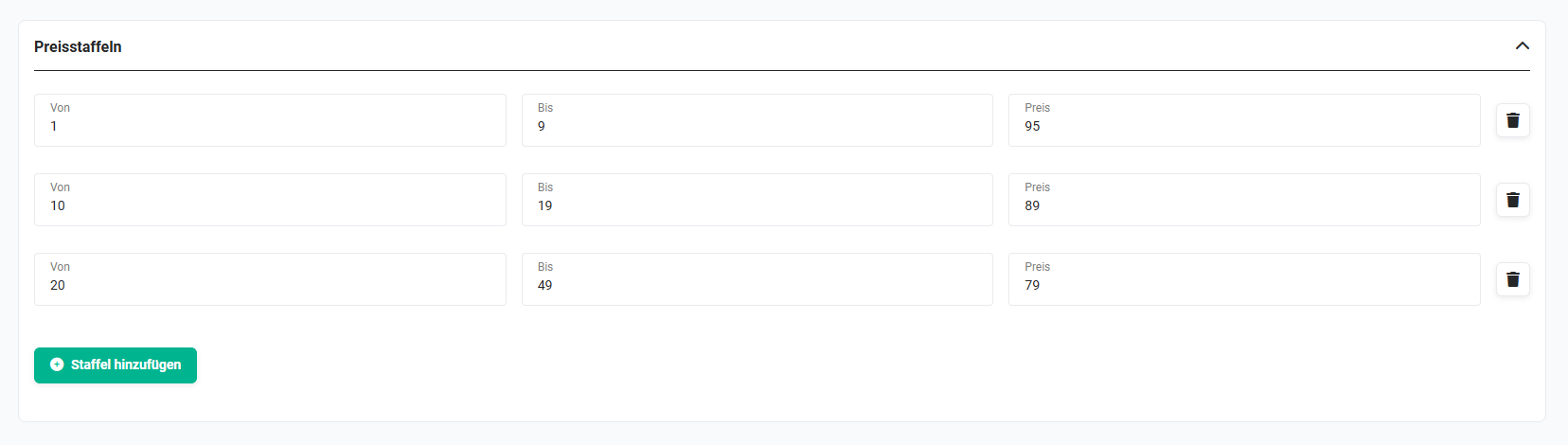 Editing price tiers
3.2. Actions
The following actions are available in the detail view:
3.2.1. General Actions
- PDF Export
- Recommend
- Copy
- Delete
- Change Tracking
For detailed information on the actions, see the section Actions (Detail View).
3.2.2. Module-Specific Actions
| Action | Prerequisite | Functionality |
|---|---|---|
| New Email | Configured email account | Opens the email editor with reference to the product |
3.3. Product Bundle
Several products can be combined into a product bundle. A product bundle consists of any number of individual products, each of which must exist as its own record in the Products module. As soon as individual products have been added, the Product bundle field in the Basic Data block is set automatically.
The sales price of a product bundle is not calculated automatically and must be entered manually in the "Sales price" field.
Adding products to the product bundle
Individual products are added in the detail view via the Relations tab with the following action icons:
| Action Icon | Functionality |
|---|---|
| Select Products | Opens a popup for selecting one or more existing products; single selection by clicking the name or multiple selection via checkbox and the Select button |
| Create Product | Creates a new product and adds it directly to the product bundle |
Use in the product block
A product bundle is added in the product block – e.g. in the Deals and Invoices modules – like any other product. In the edit view of a record, all individual products contained in the product bundle are displayed.
4. Practical Examples
1 – Creating a hardware product with inventory management and automatic reordering
A company distributes network switches. The product is created in the Products module with the product category Hardware, the unit of measure Piece and the price type One-time. The current stock level is entered and a minimum stock level of 5 pieces as well as an order quantity of 20 pieces is defined.
An automation is configured so that when the minimum stock level is undercut, it automatically creates a purchase order for the defined order quantity with the responsible vendor. In addition, another automation automatically reduces the stock level as soon as a delivery note or an invoice is created for this product. This keeps the stock level up to date at all times and reorders take place without manual intervention.
2 – Configuring a software product with price tiers and multiple currencies
A software licence is to be offered with quantity-dependent prices and in two currencies. The product is created with the price type Annual price. In the Price Tiers block, three tiers are configured: 1–9 pieces at EUR 95.00, 10–19 pieces at EUR 89.00 and from 20 pieces at EUR 79.00.
Via the more currencies action icon, prices in USD are additionally stored and calculated automatically via recalculate based on the current exchange rate. In the product block of a sales order or an invoice, the matching tier price is applied automatically when the quantity is entered – depending on the currency in which the Billing record was created.
3 – Composing a product bundle from several individual products
A company offers a starter package consisting of three individual products: hardware, software licence and installation service. All three products are already maintained as standalone records in the Products module.
In the Products module, a new record Starter package is created. In the Relations tab, all three individual products are added to the bundle via Select Products. The Product bundle field is set automatically. The sales price of the bundle is entered manually in the Sales price field. In the product block of a deal or an invoice, the bundle is added like a normal product – all included individual products are displayed in the edit view.
5. Frequently Asked Questions
Can I still change the gross price toggle after saving?
No. If the gross price toggle was activated when creating a product and the record was saved, this setting can no longer be changed. It is therefore advisable to check the price type carefully before the first save.
How is the stock level updated automatically for delivery notes and invoices?
The stock level is not adjusted automatically by the system but is controlled via automations. An automation can be configured so that the stock level is reduced when a delivery note or an invoice is created and increased when a purchase order is created. Detailed information on this can be found in the section Automations.
What happens to a product when it is deactivated?
When the Active toggle is deactivated, the product is no longer available for selection in the product block of the Billing modules. The record remains in the system and can be reactivated at any time.
Can I offer a product in multiple currencies?
Yes. Additional currency prices can be stored via the more currencies action icon in the create or edit view. The prices can be entered manually or calculated automatically based on the stored exchange rates via the recalculate button. When a currency is deactivated, the product is automatically removed from all affected price lists.
Is the sales price of a product bundle calculated automatically?
No. The sales price of a product bundle is not summed automatically from the individual prices of the contained products – it must be entered manually in the Sales price field.
What are the DATEV general ledger accounts in a product used for?
The DATEV general ledger accounts (domestic, EU, third countries) control which posting account is used during the DATEV export of invoices that contain this product as a position. The available general ledger accounts are configured in the Billing Settings – General Ledger Accounts).