
Actions (Detail View)
Package: BASIC
1. General
In the detail view of a record, the upper area of the view contains a number of general actions that are available in most modules.
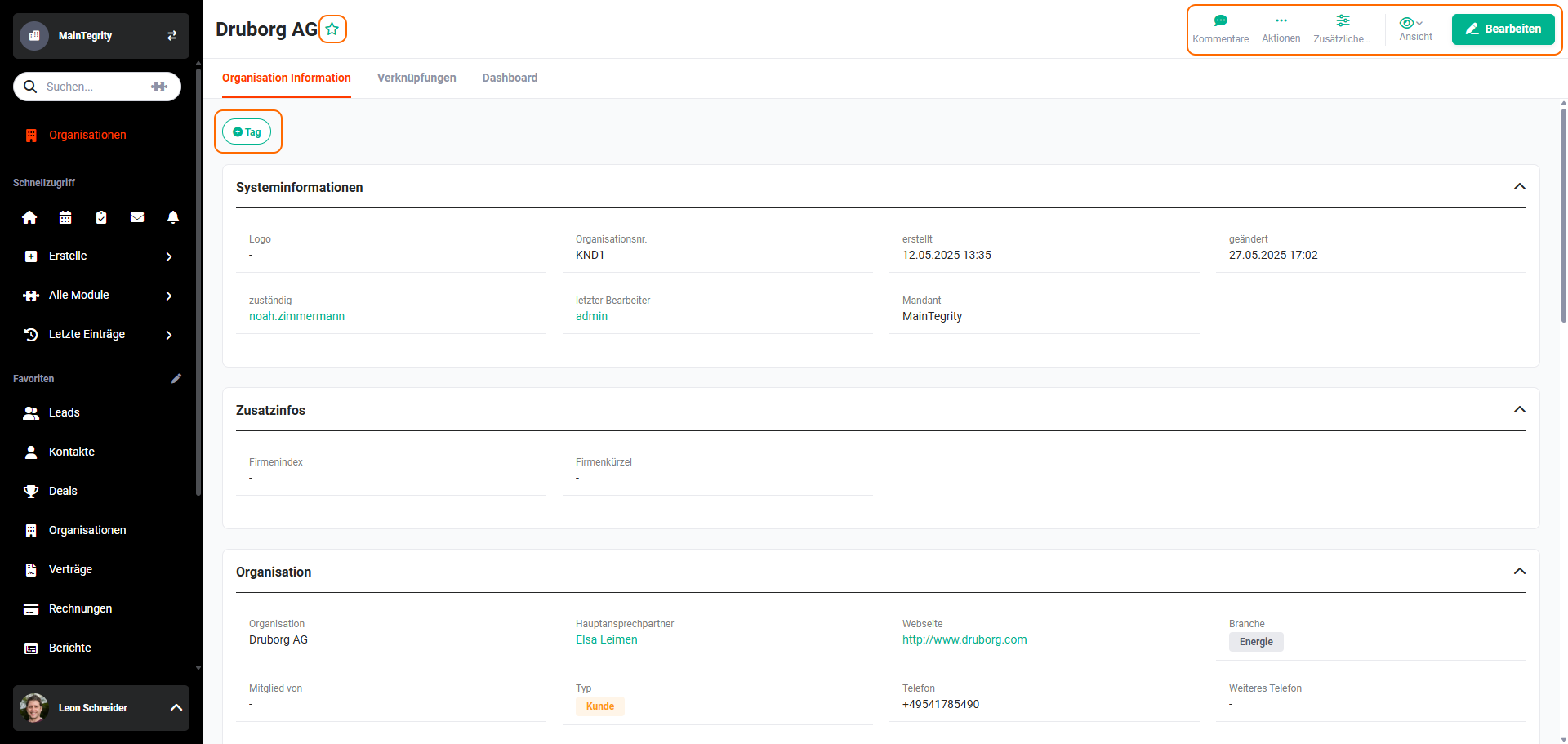 Detail view - general actions
The general actions include:
Exceptions here are special modules, such as Reports, Email accounts or Templates. Module-specific actions are explained in detail on the respective pages of the Modules.
The actions available by default can be configured/edited in Global Settings - Organization management. New actions can also be created, in which the target modules and the values of the fields to be transferred are defined.
Which actions are available to a user can be configured via the setting in the Profiles.
Actions for which a user does not have permission are not displayed to that user.
2. General actions
2.1. Subscribe
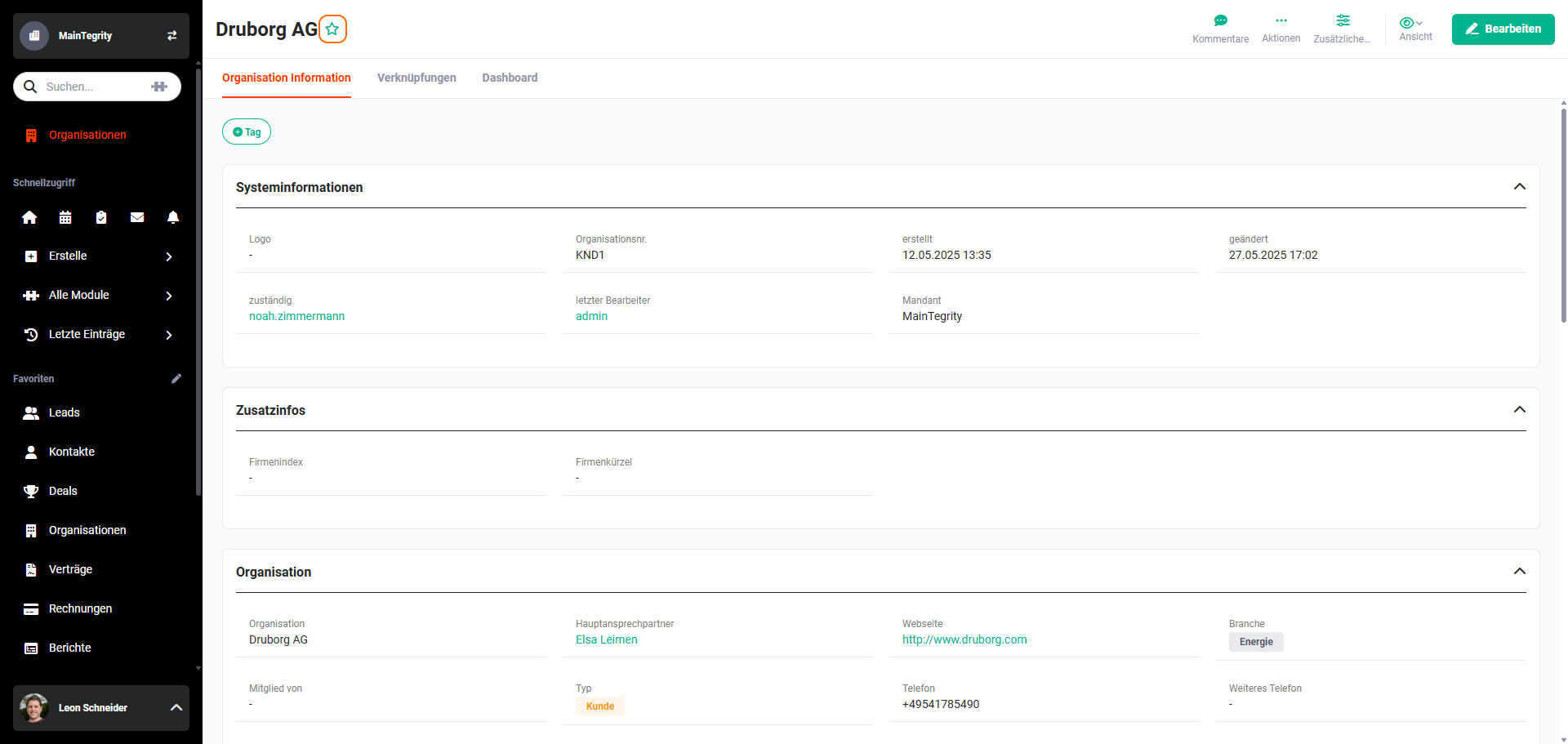 Detail view - Subscribe action
To be informed about changes to records made by other users, there is the “Subscribe” functionality.
There are two ways to subscribe to a record:
- The “Subscribe” action icon in the detail view of a record.
- The Bulk subscribe action in the list view of a record. For detailed information on this, see the section Actions (list view) - Subscribe.
After clicking on the “Subscribe” action icon (“Star” icon), the “Notification options” popup window opens.
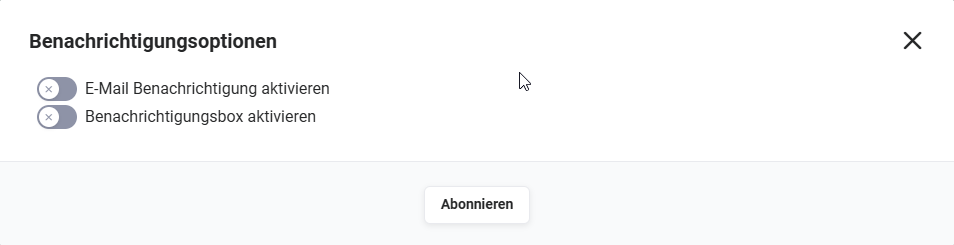
In the “Notification options” popup window, you can select the way in which the notification should be delivered:
- Activate email notification → When records are changed, a corresponding email is sent by brainX (Note: In Global Settings - Company information, the Central mail server must be configured).
- Activate notification box → When records are changed, this is shown in the Notifications.
After clicking on the “Subscribe” button, the selected records are subscribed.
A subscribed record can be recognised by the filled-in “Subscribe” action icon (“Star” icon). For records that are not subscribed, the icon is empty.
To end a subscription, the “Subscribe” action icon (“Star” icon) must be clicked again. The “Notification options” popup window opens.
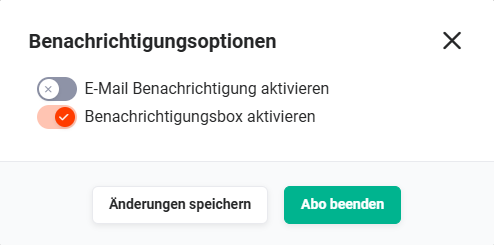
The subscription can be ended using the “End subscription” button.
To change the notification options of a subscribed record, the “Subscribe” action icon (“Star” icon) can likewise be used.
2.2. Edit
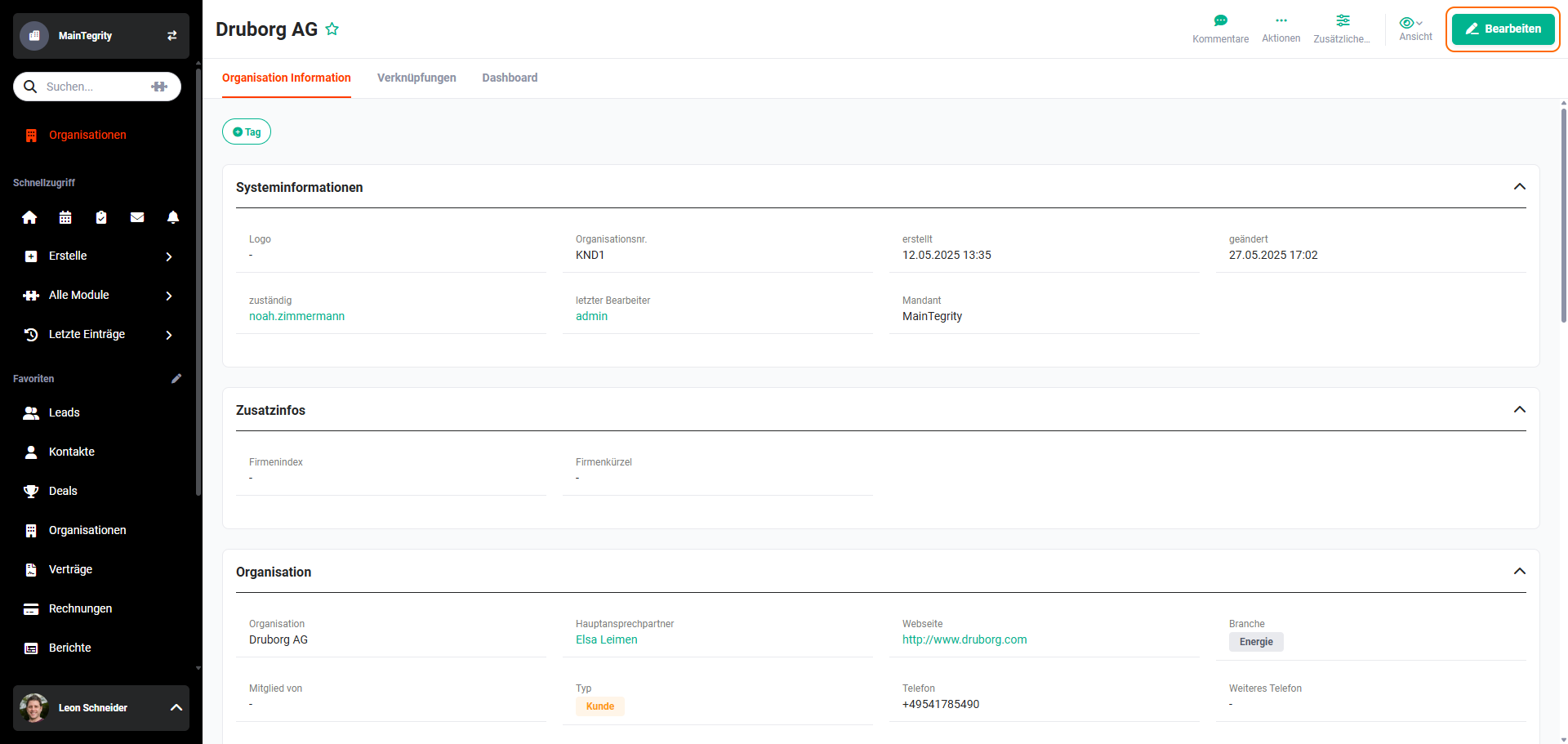 Detail view - Edit action
After clicking on the “Edit” button, the record's edit view opens.
In the edit view, the “Edit” button is hidden and instead the “Save” and “Cancel” buttons are shown.
- Save → the changes made are saved and the record's detail view is displayed again
- Cancel → any changes made are not saved and the record's detail view is displayed again
Individual fields can also be edited directly in the detail view without opening the full edit view. This function is referred to as QuickEdit and is also available in the list view. For detailed information, see the section QuickEdit.
2.3. Comments
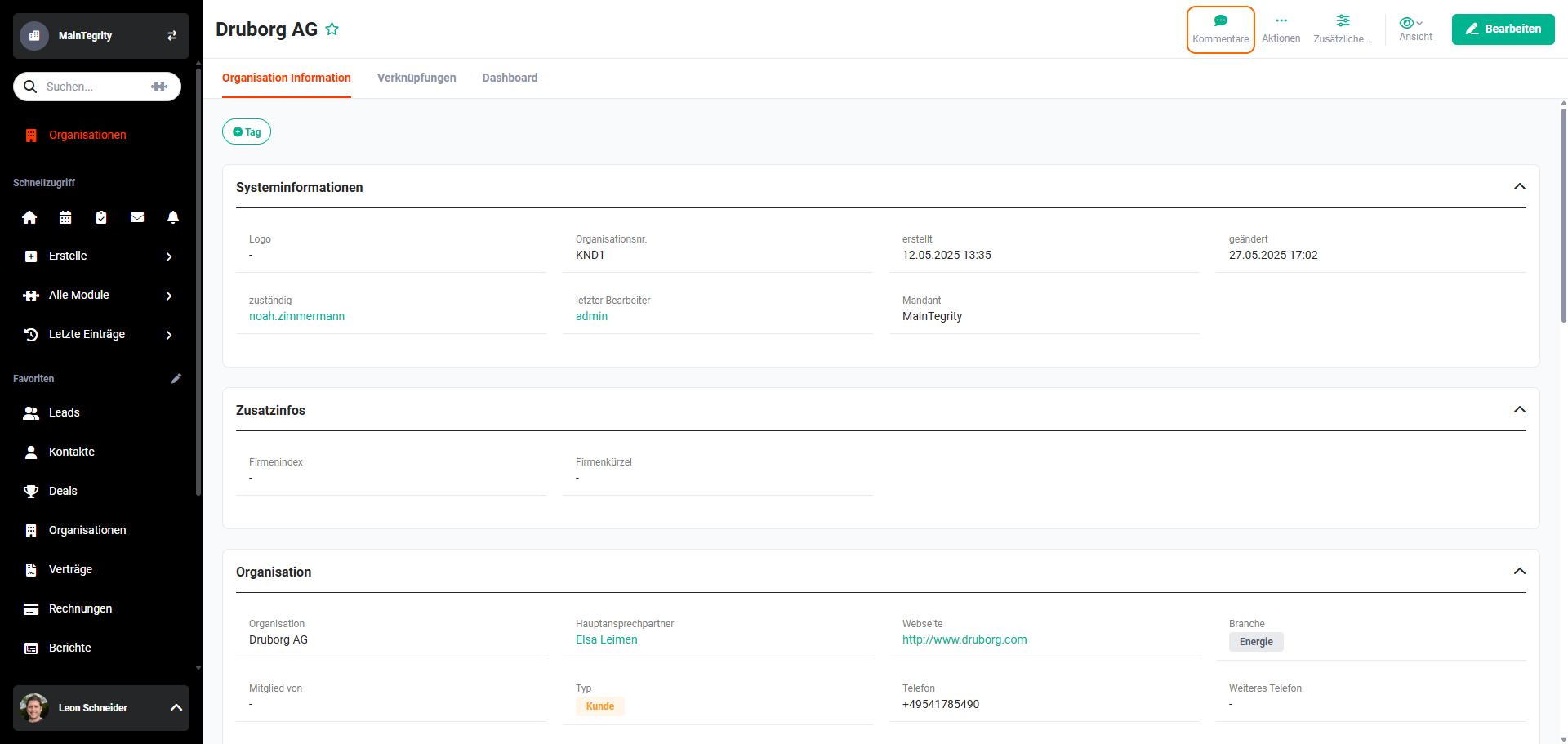 Detail view - Comments action
Overall, comments help to improve the efficiency and effectiveness of customer relationships.
After clicking on the “Comments” action icon (“Speech bubble” icon), the sidebar with the comments opens.
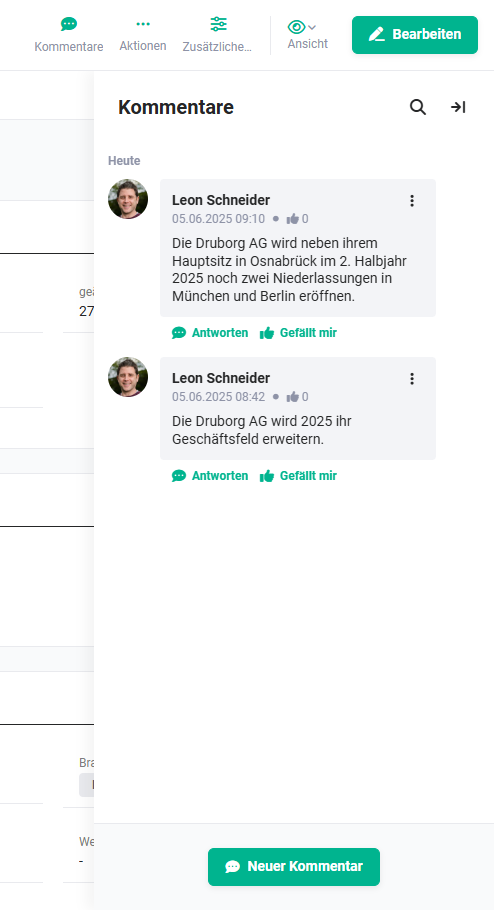 Detail view - Comments sidebar
The function is described in detail in the section Comments.
2.4. More actions
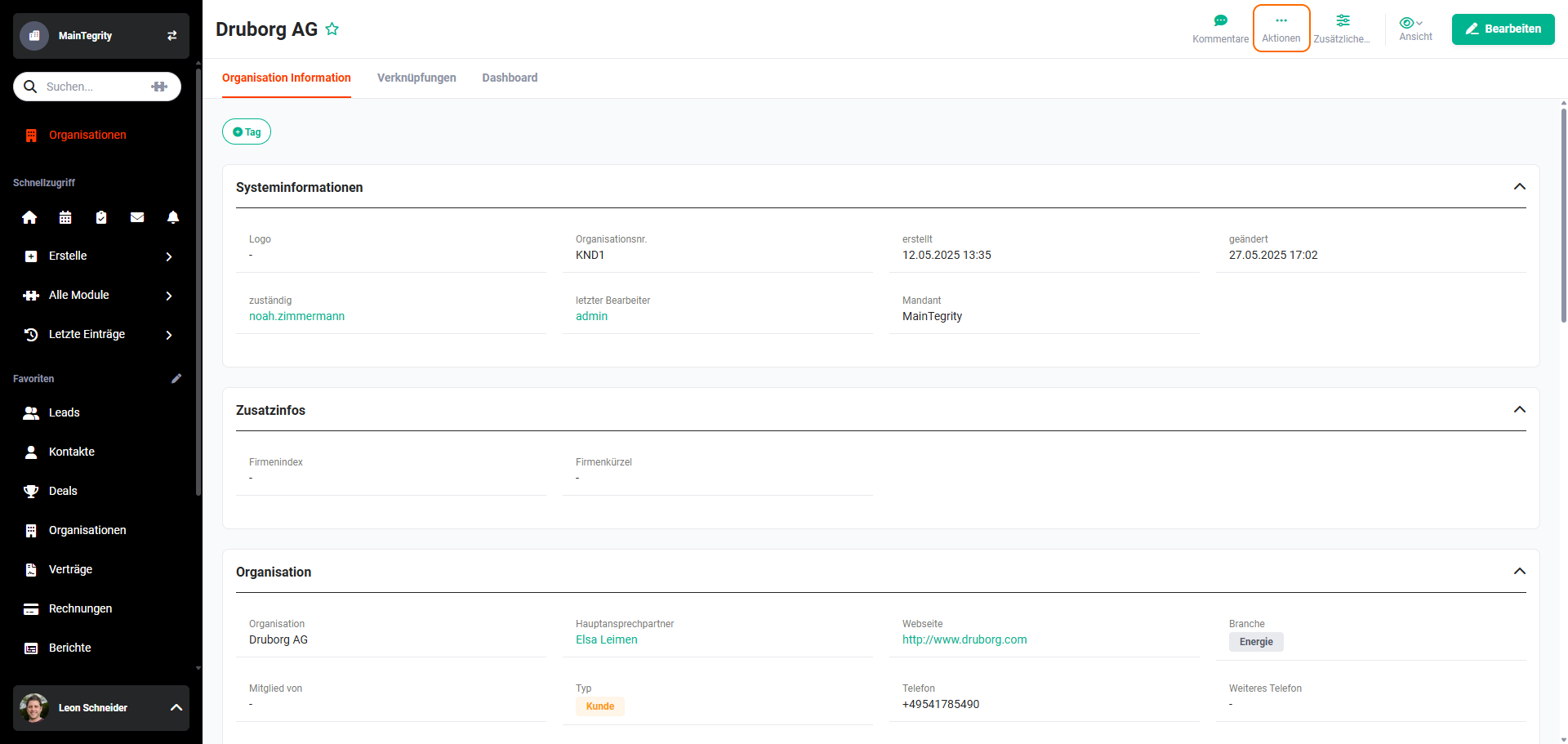 Detail view - more actions
By clicking on the “Actions” action icon (“three dots” icon), a popup menu opens, in which all actions available for this record are displayed.
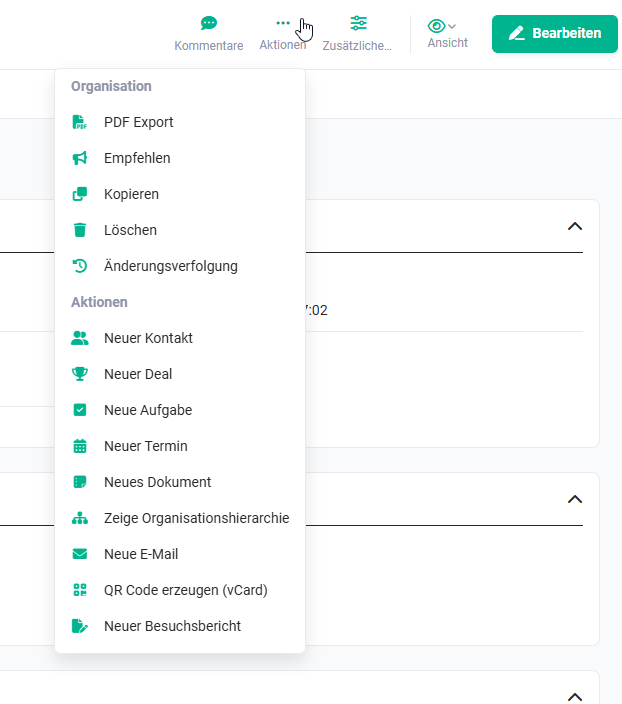 More actions - flyout menu
For each record there are - in addition to the general actions - further module-dependent standard actions.
The standard actions are described in detail in the section Structure of the detail view - Standard actions.
2.5. View
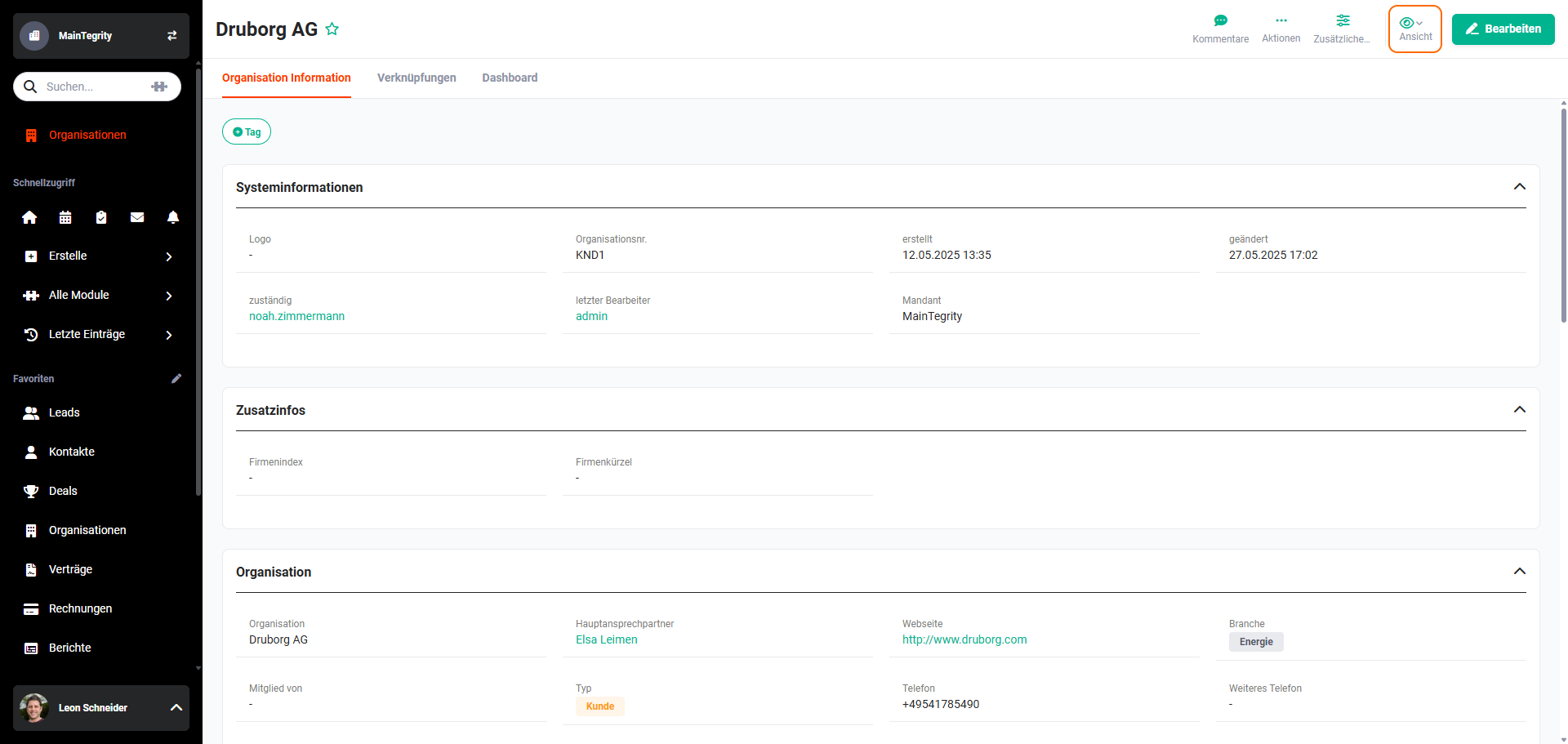 Detail view - View action
Using the “View” action icon (“Eye” icon), you can switch between views/layouts.
Setting a view as the default view and switching to a view are two independent operations: if a view is set as the default, the display does not automatically switch to that view. To switch to another view, it must additionally be selected separately.
2.6. Tag
The term “tag” (plural: “tags”) comes from English and means “keyword” or “label”. Tags are used to categorise content and topics.
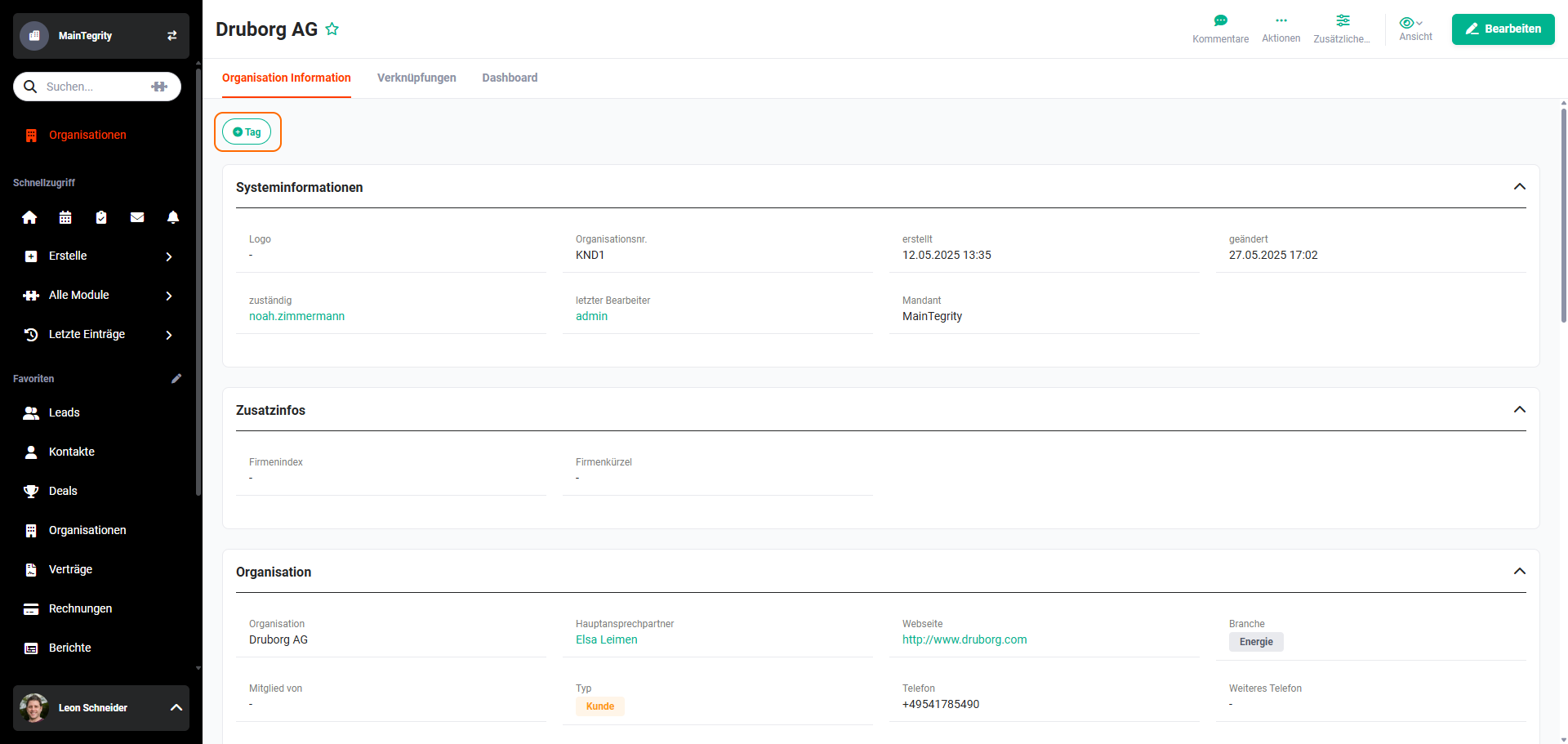 Detail view - Tag action
After clicking on the “Tag” action icon, an input field is shown, in which new tags are added.
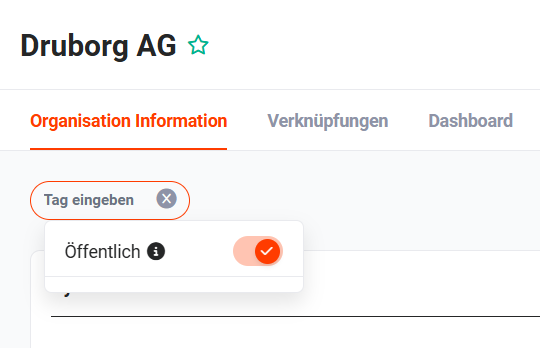 Add tag
The “Public” toggle sets the display of most frequently used tags and the visibility of new tags.
2.7. Additional information
If at least one field has been marked in the Global Settings in the module manager under the setting item Layout - Additional information, the field is not displayed directly in the detail view.
To display the fields, the “Additional information” action icon must be clicked. After clicking the action, a sidebar opens in which all fields marked as “Additional information” are displayed.
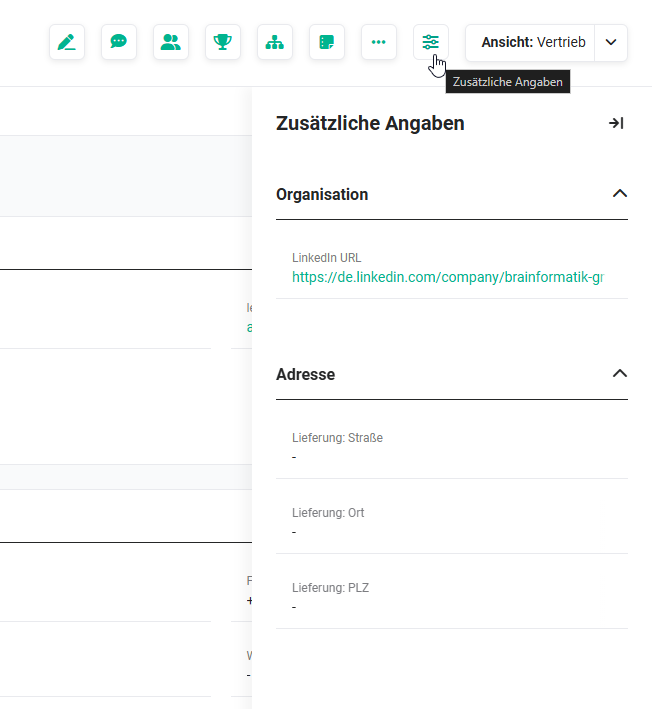 Detail view - “Additional information” sidebar