
Columns
Package: BASIC
1. General
In all list views, each user can individually configure the arrangement of columns in views. Additionally, groupings can be activated for up to three columns.
The configuration of columns and groupings affects all views. The configuration is saved permanently and individually for each user.
2. Configuring columns
To configure the columns, click the “Change columns” button.
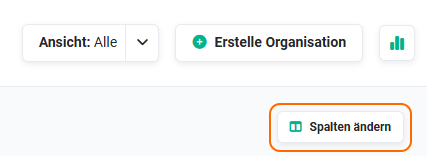 List view - „Change columns" button
After clicking the button, the “Change columns” sidebar opens, in which the configuration can be carried out.
2.1. Changing columns
The “Change columns” sidebar is split into the “Columns” and “Grouping” tabs, in which the respective settings can be made.
The “Columns” tab appears as follows:
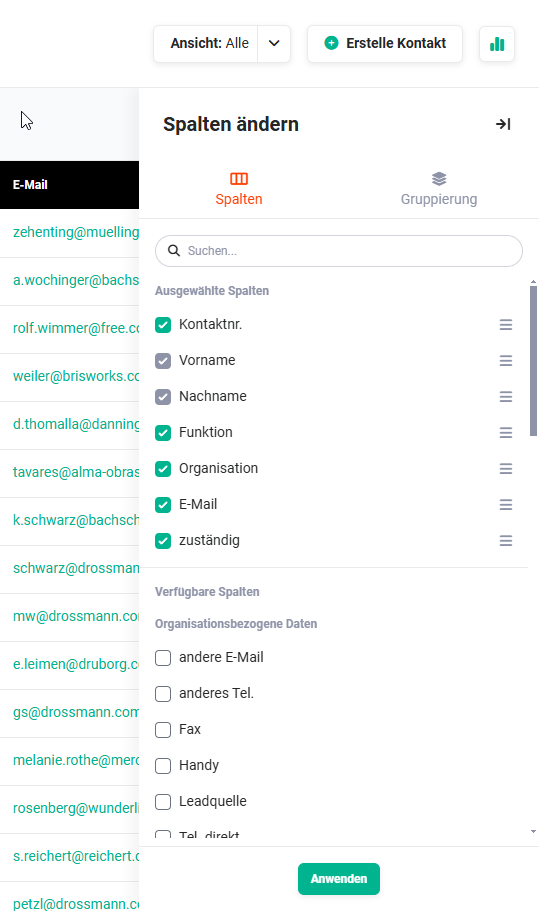 List view - „Change columns" sidebar
Using the checkbox, columns can be selected/deselected from the list in order to display or not display them in the list view.
In the “Selected columns” area, the fields (columns) can be dragged into the desired order using drag & drop.
After clicking the “Apply” button, the sidebar is closed, the changes are applied and the list view is reloaded.
2.2. Activating grouping
In the “Grouping” tab, up to three columns can be activated for a grouping. Using the grouping settings, records in a list view can be grouped by identical values of a field.
The “Grouping” tab appears as follows:
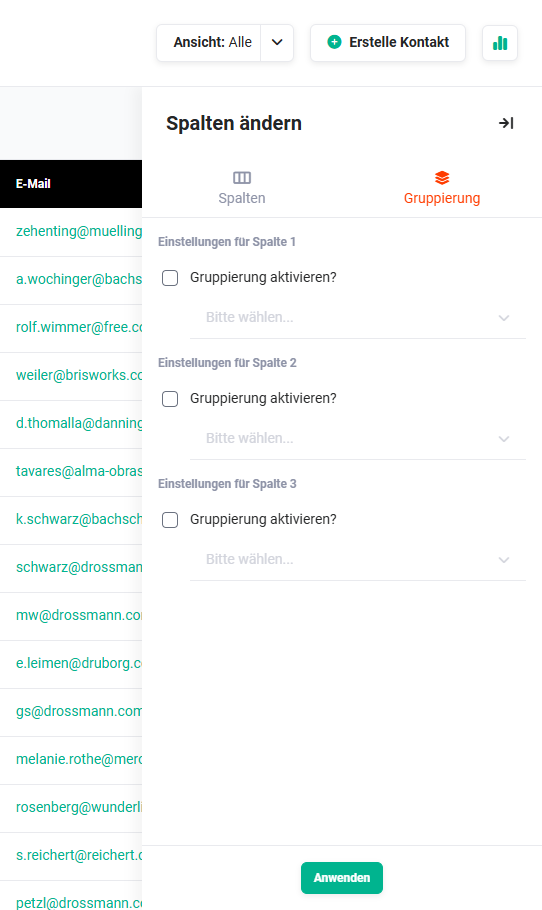 List view - „Change columns" sidebar - Grouping
If the “Activate grouping?” checkbox is ticked, an additional picklist is activated in which you configure whether the column should be sorted in ascending or descending order.
If you want to group by certain fields (columns) in a view, these must be located at max. the third position from the left in the list view.
The first grouping is only ever possible for the first column. Each further grouping - up to a maximum of three columns - can only be activated once the grouping of the previous column has been activated.
Accordingly, the grouping of the first column takes precedence over the grouping of the second column. If the grouping of column three is activated, column one and subsequently column two take precedence over column three.
After clicking the “Apply” button, the sidebar is closed, the changes are applied and the list view is reloaded.